A Notes In Confidence backup is not just a copy of your data. It is a complete, tiny, self-contained web page — your encrypted vault, plus the JavaScript needed to decrypt it, all bundled into a single .html file. You can open that file in any modern browser, on any computer, and it behaves like a small private website that lets you read your notes, browse them by client, and export them as plain text. Nothing is uploaded anywhere. The decryption happens entirely in the tab you opened.
This article walks through what the file is, where to find one, how to open it correctly, what each tab does once it is open, and how the same file is also used to restore your whole vault back to notes.notesinconfidence.uk if you ever need to.
The password rule. Your password is the encryption key. We do not have it, Google does not have it, no one but you does. There is no reset link, no security question, no support process that recovers it. If you forget your password and have no backup file under a password you do remember, every note in your vault is permanently gone. A backup file is locked with whichever password was active when it was written; it cannot be opened with any other password.
Why this design exists
The Sync file in your hidden Google Drive folder is just the encrypted vault payload — useful as a live cross-device store, useless on its own without the website to decrypt it. If notes.notesinconfidence.uk ever disappears, that hidden file becomes opaque bytes. The self-decrypting backup solves that gap. By bundling the encrypted vault and the decryption JavaScript into the same .html file, every backup you take is a stand-alone artefact that you control. Open it in any browser, on any computer, even years from now, with no internet connection, and your notes are still readable. You can run it from a USB stick, from an attic laptop that has not been online in two years, from the file:// scheme. The website is then a convenience, not a dependency.
The two jobs the file does:
- Read your notes outside the app. A working private viewer with tabs for Clients, Notes, Settings, Export and Advanced. Filter notes by client, copy individual notes as JSON, download plain-text
.txtexports. - Restore your whole vault to the website. The same
.htmlfile is also a restore source. Pick it on the Restore from backup screen, type the password from when it was made, and the live vault on notes.notesinconfidence.uk is replaced with the contents.
Where to find a backup file
There are three places you might have one.
Drive Backup files are written automatically every seven days into the visible Notes In Confidence Backups folder of your own Google Drive. Filenames look like tn-backup-2026-05-04T12-04-09-000Z.html — an ISO-style timestamp of the moment the file was written. This is the off-site disaster-recovery copy that the persistent banner nags you about; it is on by default after setup.
Manual Local Backup files are produced when you open Advanced > Backup and click Download backup now. The file lands in your computer's Downloads folder with the same ISO-timestamp filename pattern.
Pre-rotation backup files are written automatically by the app the moment you start a password change, before any record is touched. These have names like tn-backup-pre-password-change-2026-05-04T13-22-09-000Z.html and live in your Downloads folder. They are locked with the old password and exist as a safety net if the rotation is interrupted.
There is also a fourth route to the same kind of file: the amber Notes In Confidence is unreachable banner at the top of the app has a Save a backup now button when the vault is unlocked. Clicking it produces a file exactly like a manual Download backup now — same filename pattern, same encryption, same inline decryptor. The article Banners at the top of the app covers when that banner appears.
All routes produce byte-for-byte the same kind of file: encrypted vault plus inline decryptor in one HTML document.
Opening the file — the one thing everyone gets wrong
If you click a backup file inside Google Drive, Drive shows you its preview. The preview only displays the source code of the page; it does not actually run the JavaScript inside it. What you see is page after page of base64 between two sentinels (/*TN-ENV-START*/ … /*TN-ENV-END*/). That is not a broken file. That is the encrypted payload sitting inside the HTML, waiting for a real browser to run the decryptor.
To open the file correctly:
- In Drive, click the three dots next to the backup file (or right-click) and choose Download.
- Save the file to your computer's Downloads folder (or wherever you keep things you want to keep).
- Double-click the downloaded file. It will open in your default browser.
If double-clicking does not open it in a browser, drag the file onto an open browser tab (Chrome, Firefox, Edge, Safari — any modern browser works). The address bar will show a file://…/tn-backup-…html path. That is correct.
What you see when it opens — locked state
The first thing you see is a single password prompt:
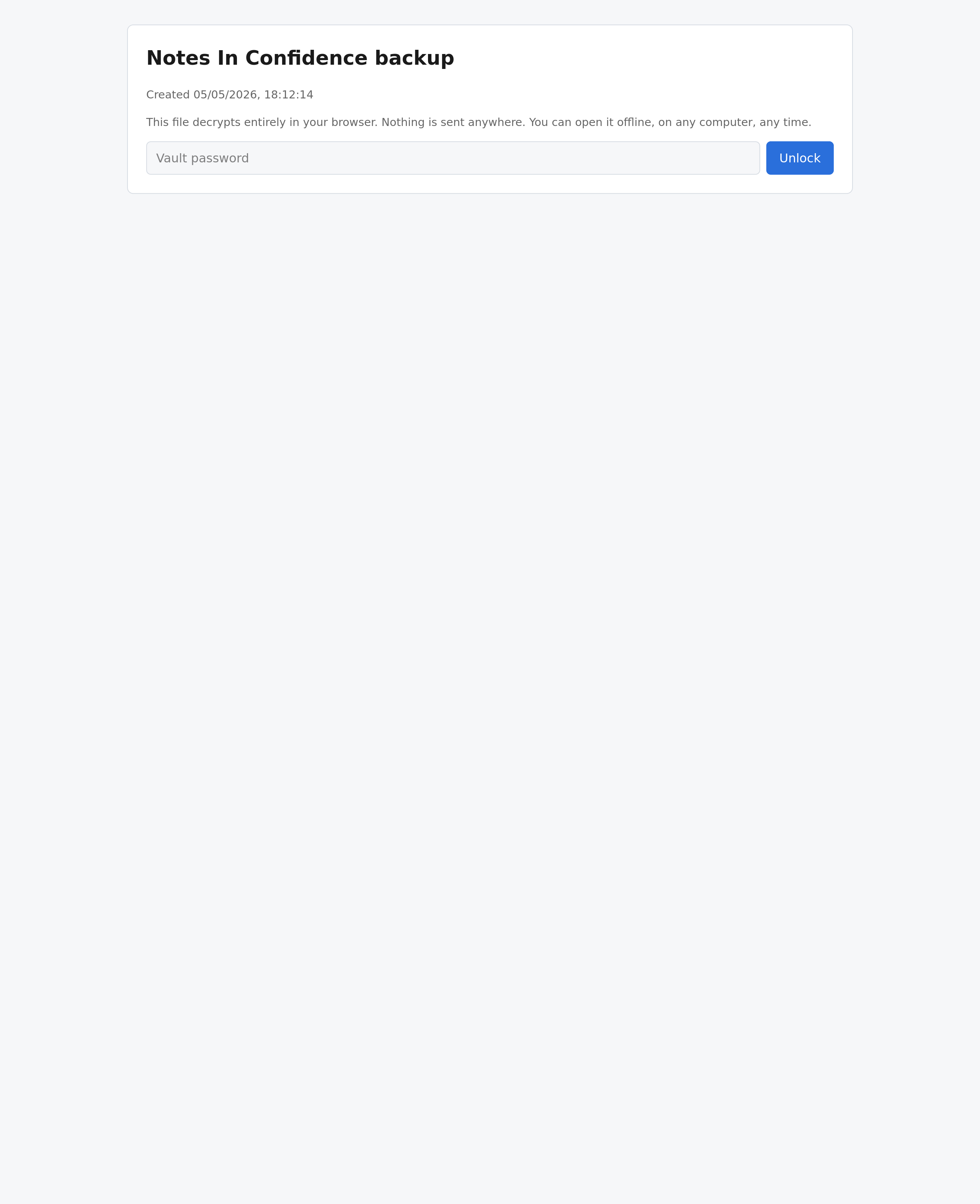
The header tells you when the backup was created. Below it, a single line summarises the design: This file decrypts entirely in your browser. Nothing is sent anywhere. You can open it offline, on any computer, any time.
That sentence is literally true. The file's own embedded Content-Security-Policy header forbids any network requests; even if someone tampered with the JavaScript inside, your browser would refuse to send anything anywhere. You can verify by disconnecting from the internet before opening — the file still works.
If you type the wrong password and click Unlock, the decryptor tells you so and lets you try again as many times as you like. There is no remote check, so there is no rate limit either:
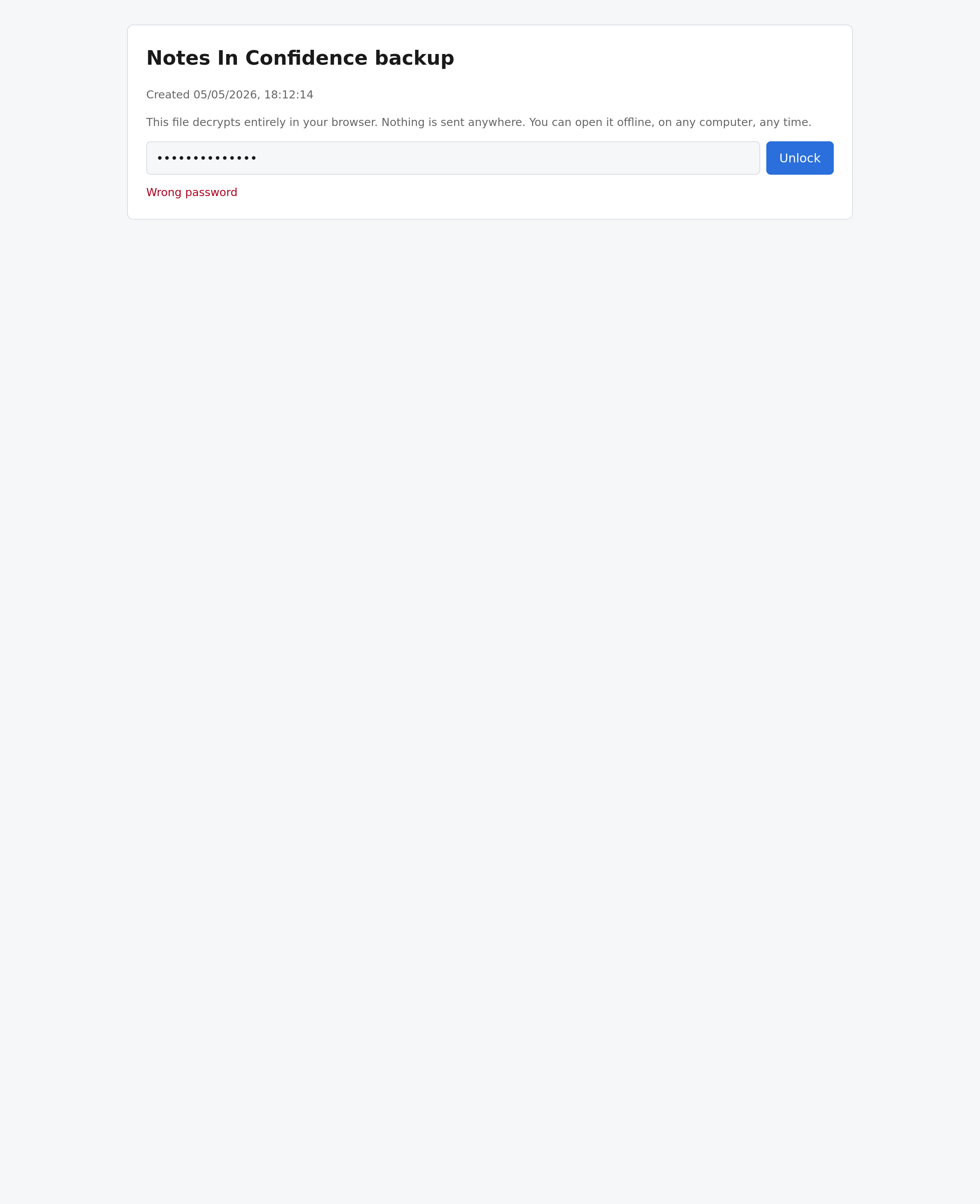
The password is the one that was active when this backup was written. A backup taken yesterday under password A still needs password A even if you have changed your password to B since.
After unlock — the Overview tab
When the password verifies, the form disappears and the reader appears. The first tab is Overview:
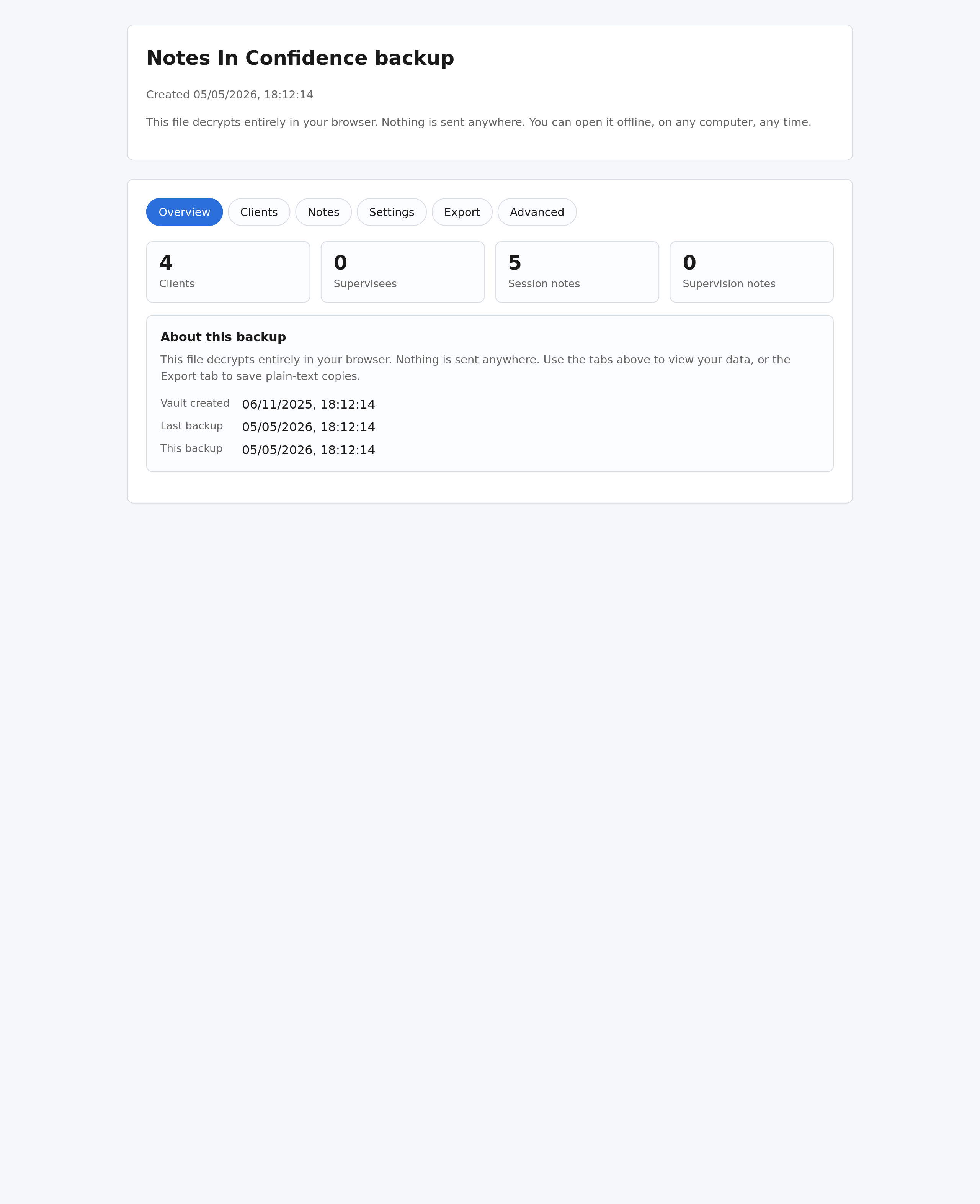
Four counters at the top show how many clients, supervisees, session notes and supervision notes are in this snapshot. Below that, an About this backup card shows when your vault was first created, when the last manual backup was taken, and when this particular backup file was written. Use this to sanity-check that you have opened the file you intended.
The Clients tab
The Clients tab shows everyone in this snapshot, sorted active-first then by code. Each row has a View notes button that jumps you straight to that client's notes:
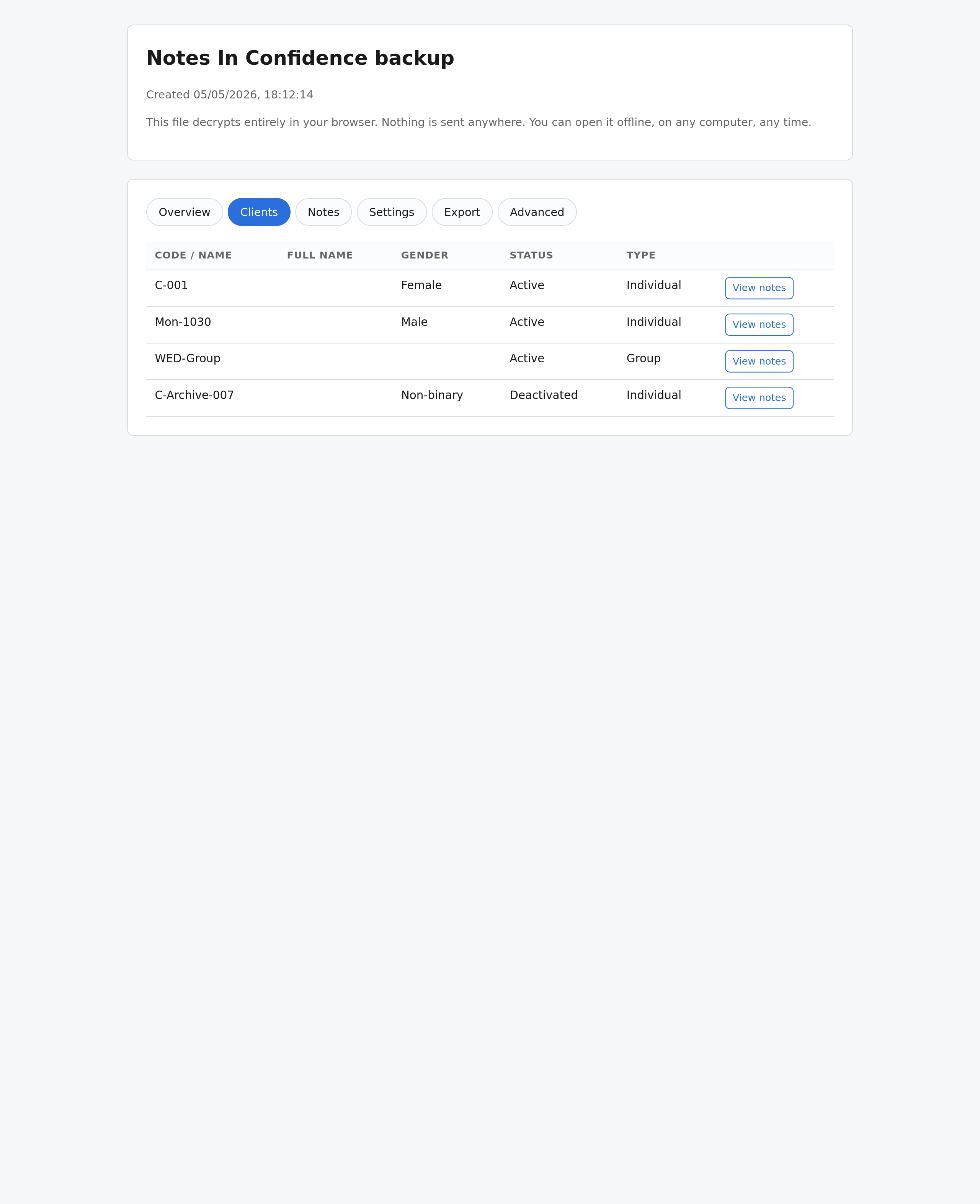
Deactivated clients show a Deactivated badge and sit at the bottom. Group entries are flagged in the Type column. If you have supervision mode on, an extra Supervisees tab appears next to Clients with the same shape.
The Notes tab
The Notes tab is the one you will use most. By default it shows every session note for everyone, grouped by client, with the most recent at the top of each group:
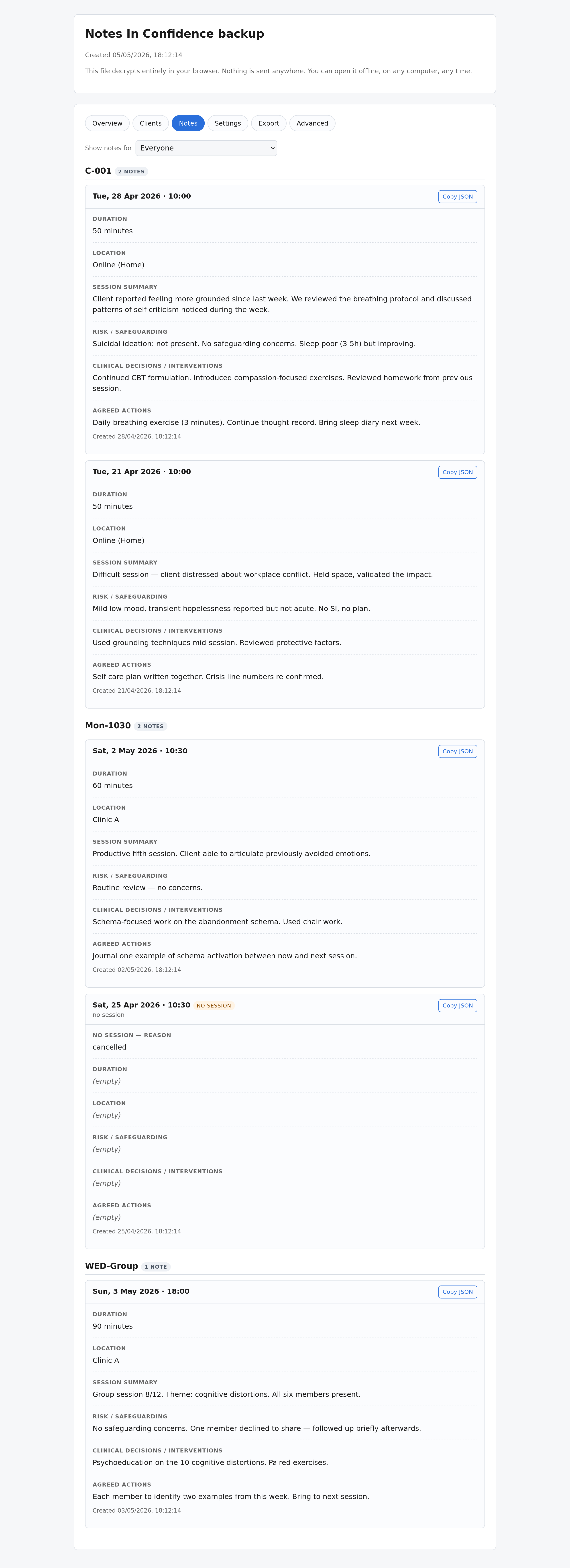
Each note opens fully expanded, with the four standard sections in the order you wrote them in the app: Session summary, Risk and safeguarding, Clinical decisions / interventions, Agreed actions. Empty sections are marked (empty). No-session entries are shown with a yellow badge and the reason (missed, cancelled, away, illness, holiday).
You can narrow the view to a single client (or a single supervisee) using the Show notes for dropdown at the top. Pick a client and the page redraws with only that person's notes:
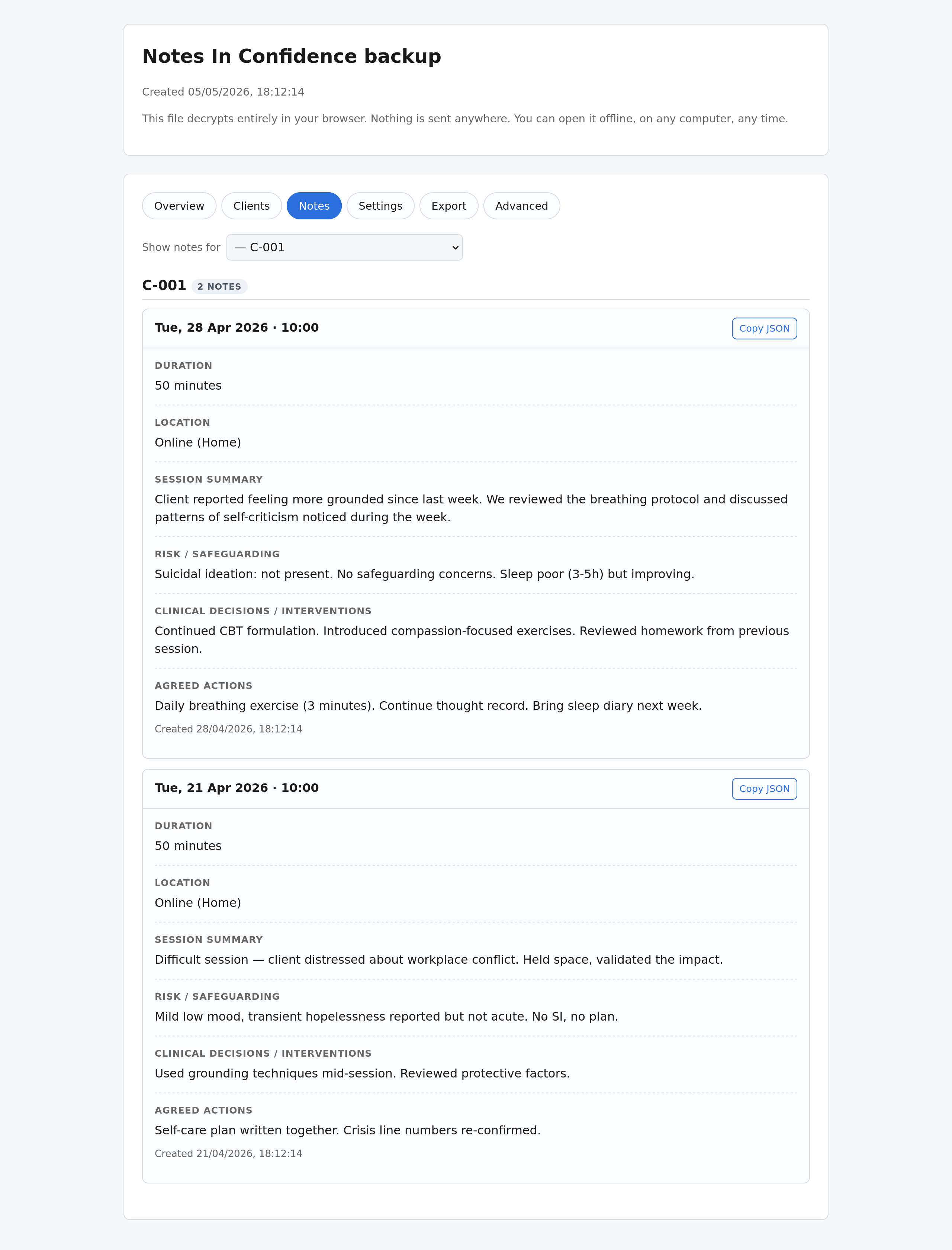
Each note has a Copy JSON button if you want the raw fields for that single record (handy when you need to paste an extract into another document but want it as structured data rather than free text).
The Settings tab
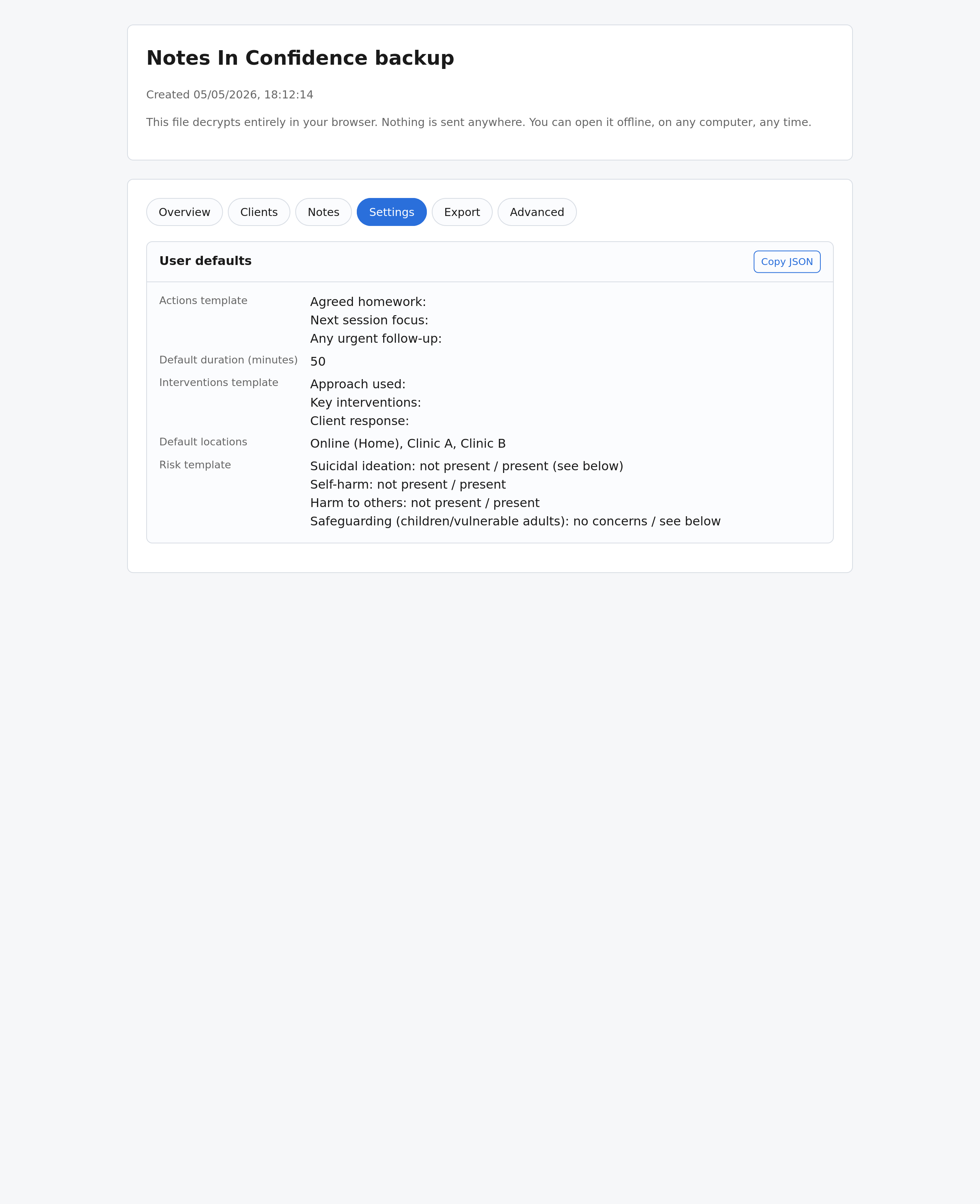
The Settings tab is the prefill templates that drive your new note form in the app — your default duration, default location list, and your text templates for Risk, Interventions, and Actions. Useful for restoring on a fresh install, or as a record of what your defaults looked like at a point in time:
The Export tab — saving notes as plain text
This is the section that turns the backup into a working archival tool. The Export tab gives you two buttons:
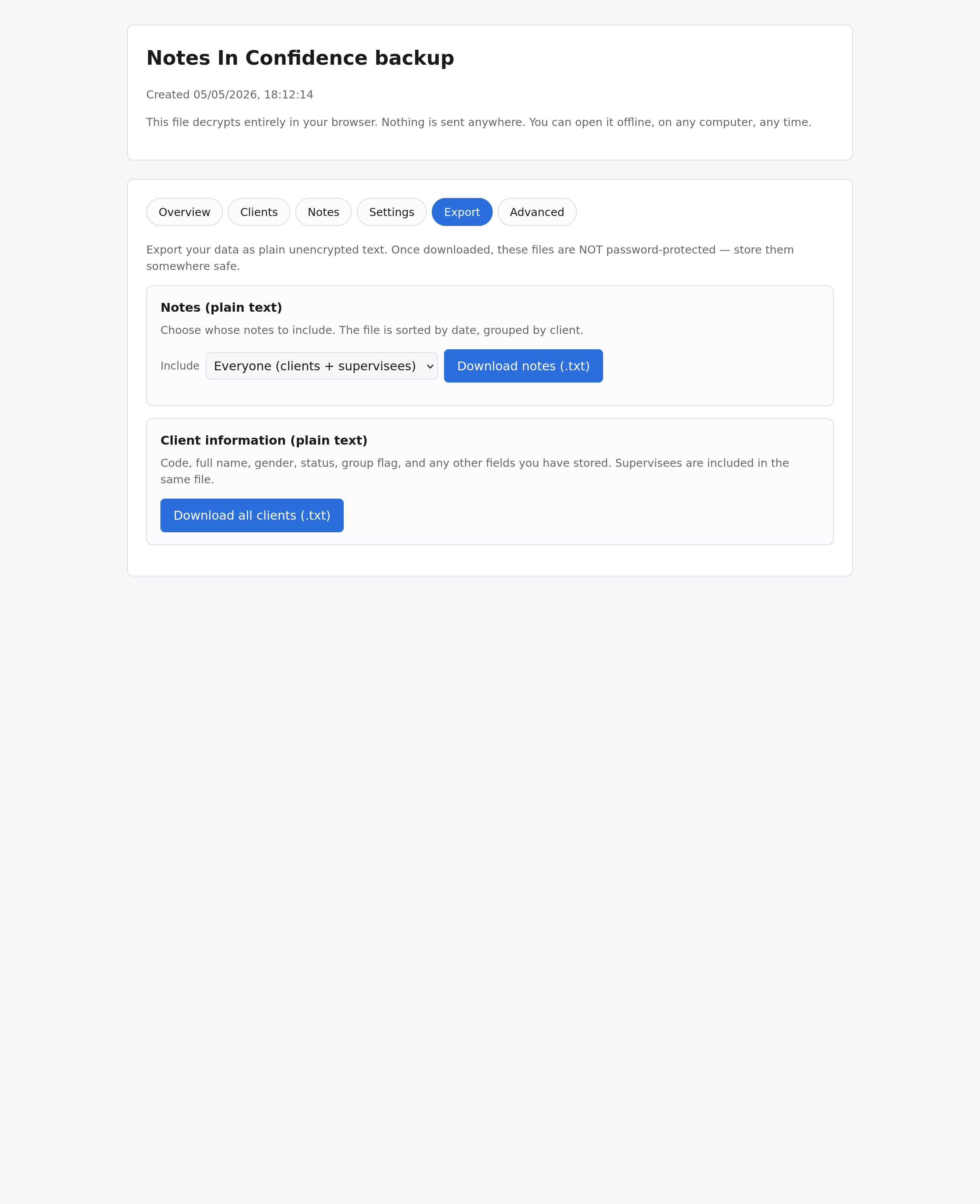
Notes (plain text). Pick whose notes to include from the dropdown — Everyone, All clients, a specific client, All supervisees, or a specific supervisee. Click Download notes (.txt) and a plain-text .txt file lands in your Downloads folder. The file is sorted by date, grouped by person, with each note laid out with a date / time / duration / location header followed by the four sections labelled. Empty sections still show, just marked (empty). No-session entries record the reason.
Client information (plain text). Click Download all clients (.txt) to get a file that lists every client (and supervisee, if supervision is on) by code, full name, gender, status, group flag, and any other fields you have stored.
A line of warning text at the top of the panel says it plainly: "Once downloaded, these files are NOT password-protected — store them somewhere safe." The encrypted backup is locked with your password; the plain-text exports it produces are not. Treat them like any other clinical document: keep them on a device you control, use the Encrypted ZIP path in the live app's Export tab if you ever need to send them to a supervisor (see the Exporting notes article).
The Advanced tab
The Advanced tab is the original developer-style reader. It exposes every store the snapshot contains as a sub-tab — Clients, Supervisees, Session notes, Supervision notes, Settings, Vault info — with a row count next to each:
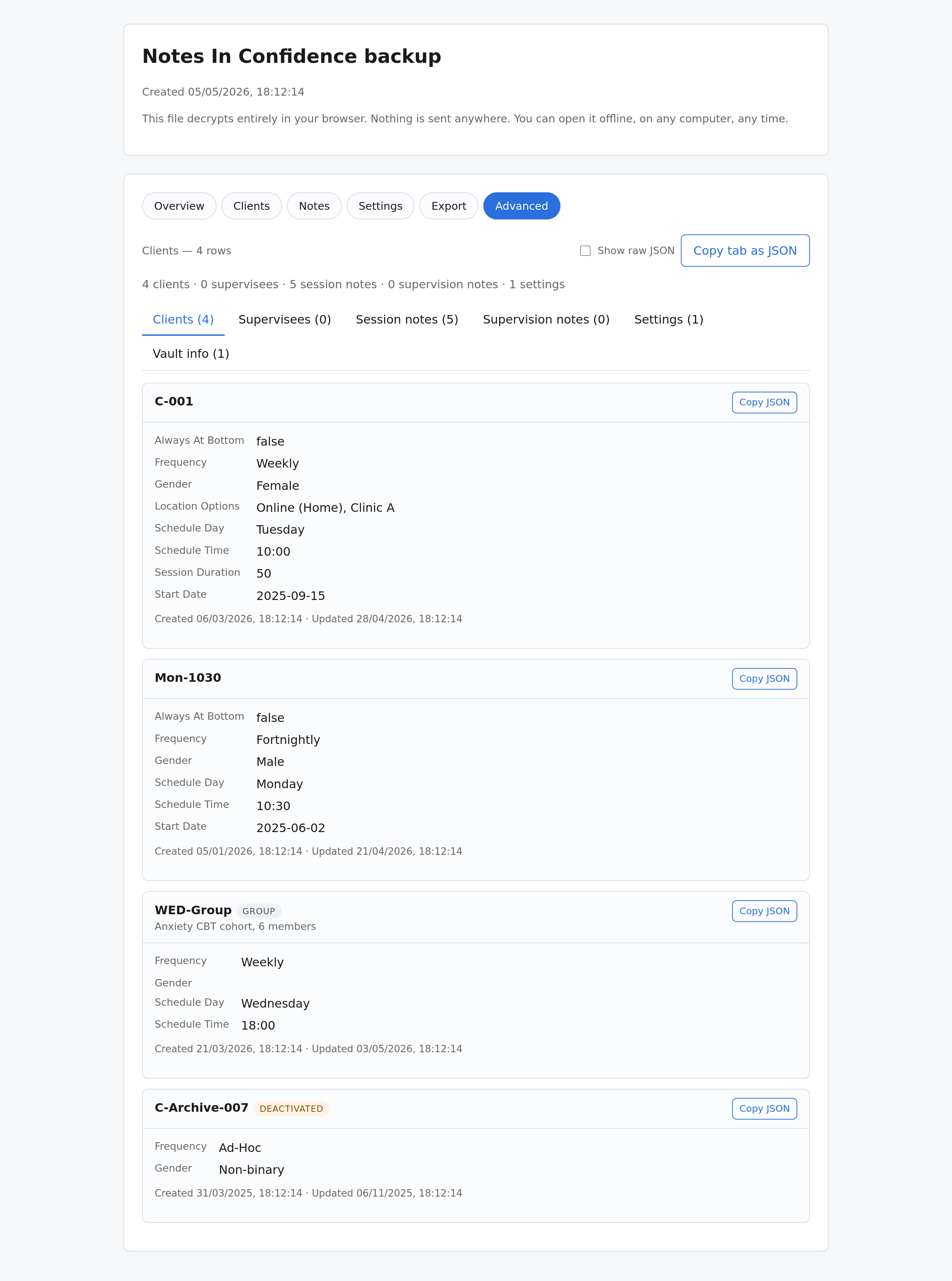
Inside each store you can toggle a Show raw JSON checkbox to see the underlying decrypted JSON for every record, or click Copy tab as JSON to put the whole tab on your clipboard:
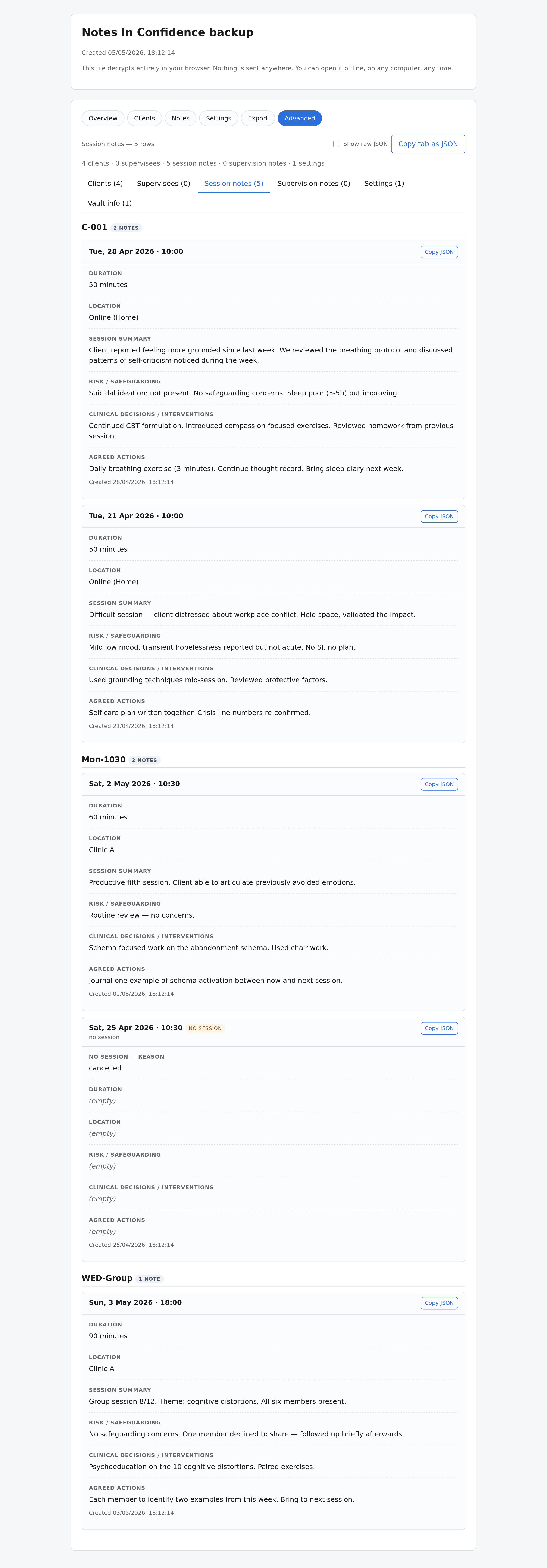
This view is intentionally less polished than the friendly tabs above. It is here for the cases where you want lossless access to every field the app has ever stored — including any new fields a future version of the app might add that this older decryptor does not have a bespoke layout for.
Using the file to restore your vault to the website
The same file is also a complete restore source. If you ever need to bring a backed-up vault back into the live app at notes.notesinconfidence.uk, the steps are:
- On the unlock screen, click Delete local vault and start over.
- Click Delete vault in the confirmation dialog.
- On the next page, click the Restore from backup link.
- Click Browse and select your
tn-backup-*.htmlfile. - Enter the password that was active when that backup was made.
- Click Restore vault.
The vault on this browser is replaced with the snapshot from the backup, the new state then syncs up to your hidden Google Drive folder, and your other devices see the change the next time they unlock. You will lose any changes made between the moment that backup was written and now — the backup is the snapshot, not a merge.
The full walkthrough lives in Backing up, restoring, and opening a backup file; the I forgot my password article covers the case where you are restoring because the live password is the problem.
How to verify the file is what we say it is
You do not have to take our word for any of this. Three quick checks any user can run.
Open it in a text editor. Right-click the .html file and choose Open with… > Notepad / TextEdit / VS Code (any plain-text editor). You will see a normal HTML page — title, styles, a <body> with a password form, and one large <script> block. Scrolling through that script block, somewhere near the bottom, you will find two sentinels: /*TN-ENV-START*/ and /*TN-ENV-END*/. Between them is a single JSON object whose payload field is page after page of opaque base64. That base64 is the AES-256-GCM ciphertext of your vault. Without your password, that is all anyone gets — including us, including Google, including anyone who happens to find the file on a USB stick.
Open the file with no internet. Disconnect from your network, then double-click the file. It still opens, still asks for the password, still decrypts your notes. The file calls home to nobody.
Compare two backups. A backup written today and one written last week, opened in the same browser with the same password, should show your notes from each point in time. The earlier file knows nothing about anything that happened after it was written.
Common questions
The file looks like garbled code when I click it in Drive. Drive's preview does not run JavaScript. Download it first, then open it.
It will not let me type the password / the form is greyed out. The page needs a couple of seconds after opening to load the embedded decryptor. If it stays greyed out, the file may have been corrupted in transit (truncated download, anti-virus stripping content). Re-download from Drive or from your manual backup folder.
The Export tab produced a .txt file — is that file encrypted? No. Plain-text exports are unencrypted by design — they are intended for archival and supervision use, where you control the route the file travels. If you need to send notes through a less trusted channel, use the Encrypted ZIP button in the live app's Advanced > Export tab instead, which uses AES-256 with your vault password as the key.
Will an old backup open in a new browser version next year? The file uses standard HTML, standard CSS, the standard Web Crypto API, and inline JavaScript — no library dependencies, no external fonts, no network. As long as your browser implements the Web Crypto API (Chrome 37+, Firefox 34+, Safari 11+, Edge 79+, all from 2018 or earlier), it will open. The file does not phone home, has no expiry, no licence check. There is nothing in it that can stop working.
Can I email or share the file with someone else who knows my password? You can, but think about whether you should. The file is an encrypted snapshot of your full vault, and your password is the key. If both are intercepted on the same channel, the snapshot is exposed. If you genuinely need to hand a vault to a colleague (a clinic handover, an audit), the Restore from backup flow on a fresh device is usually the cleaner route.
What to do next
If you have not yet taken a manual backup, Backing up, restoring, and opening a backup file covers the Advanced > Backup > Download backup now button and the persistent banner that nags you to keep a recent local copy. Sync, Backup and Local Backup, three different jobs explains how the three layers of safety net relate to each other. Exporting notes to plain or encrypted ZIP covers the live-app export path that runs alongside this offline one.
The single most important habit, repeated from the password rule at the top: save your password somewhere you cannot lose, take a fresh local backup the day you change it, and test-open at least one of your backup files once a year. The point of all of this is precisely that the file works without us.