If you have read the Sync, Backup and Local Backup article, you already know the why. This one is the how. It walks through taking a backup, opening one to read your notes outside the app, and restoring an entire vault from one. It also covers the small gotcha that catches almost every new user the first time they try to read a backup, and the persistent banner that nags you when one of the safety nets has a hole in it.
The password rule. Your password is the encryption key. We do not have it, Google does not have it, no one but you does. There is no reset link, no security question, no support process that recovers it. If you forget your password and have no backup file under a password you do remember, every note in your vault is permanently gone. A backup is locked with whichever password was active when it was written; it cannot be opened with any other password.
Where each kind of backup actually lives
Three different files in three different places, doing three different jobs. Knowing which is which saves panic later.
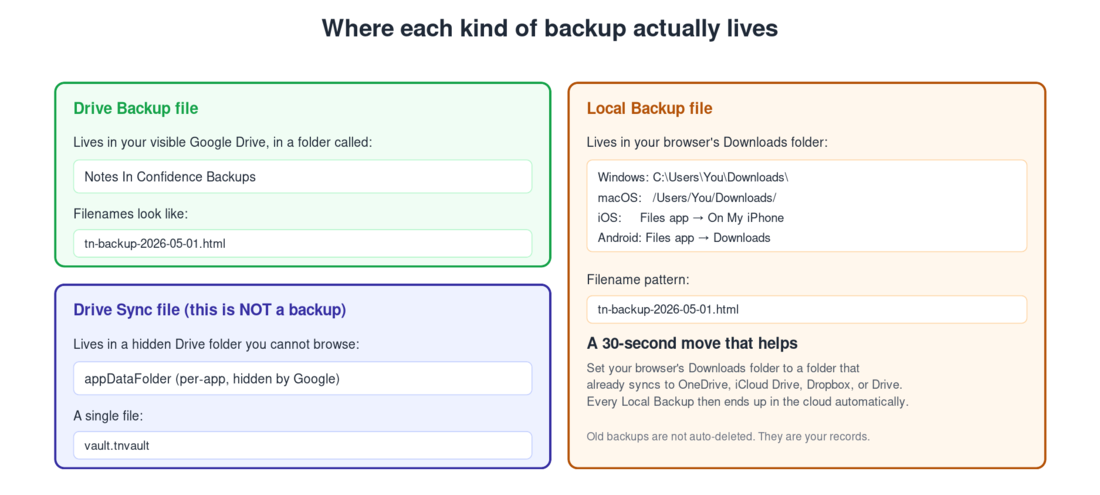
The Drive Backup file is in your visible Drive, in a folder called Notes In Confidence Backups. You can browse to it normally and download it. The filename is tn-backup-YYYY-MM-DDTHH-MM-SS-…Z.html — an ISO-style timestamp of the exact moment the file was written, with colons replaced by dashes for filesystem safety.
The Drive Sync file is in a hidden Drive folder called appDataFolder that does not appear in Drive's UI at all. The OAuth permission we ask for is scoped specifically to that one folder. Treat it as part of the app's plumbing, not as a backup you can extract on its own.
Local Backup files are wherever your browser puts downloads. If you took our advice during setup and pointed Downloads at OneDrive, iCloud Drive, Dropbox, or Drive, your Local Backups are also automatically copied off the device.
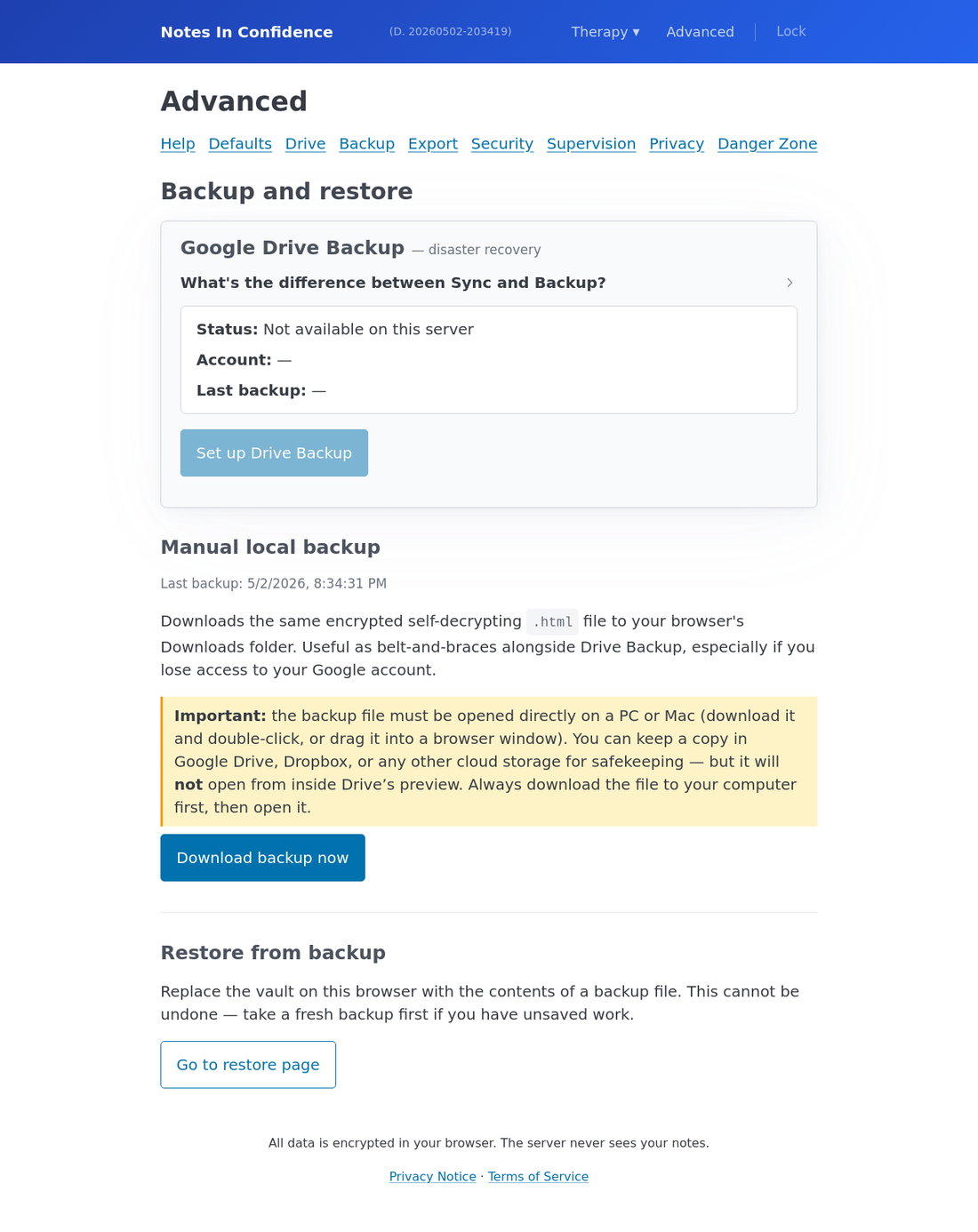
The Backup tab in Advanced gathers all of this in one place:
Taking a backup right now
Two clicks. Open Advanced > Backup. Click Download backup now. The file lands in your browser's Downloads folder.
A Last backup line just above the button tells you when the most recent backup was taken. The persistent banner near the top of every page nags you when this gets too old, or when other parts of your safety net are missing (see the next section).
Setting up Drive Backup, the cadence one
In the same Advanced > Backup tab, click Set up Drive Backup. Google asks for a separate permission (drive.file) so we can write to a visible folder. Grant it. The backup file is then written to Notes In Confidence Backups automatically every seven days.
For most people, this is already on. The current setup flow asks for the Drive Backup permission alongside the Drive Sync permission in a single Google consent screen, and then runs your first off-site backup automatically right after vault creation. The Set up Drive Backup button in this tab is for the cases where the automatic step did not complete: the off-site backup write failed and the user clicked Skip for now, the user revoked the drive.file permission later, or the Drive Backup folder was deleted from Drive. The persistent banner across the top of the app keeps nudging you until it is on.
You can change the cadence to fourteen or thirty days, but a yellow warning appears explaining that less frequent backups mean more notes could be lost between them. Seven days is the recommended setting.
The connected card shows a list of Recent backups in Drive with the date and size of each, so you can sanity-check that the cadence is firing. If it stops, an error appears in red below the connected card; reconnecting Google fixes it most of the time.
The persistent banner that watches over your safety net
There is a top-of-page banner that appears whenever your safety net has a hole in it. It is a single, focused signal with three triggers:
The first trigger is Drive Backup is not enabled. If the automatic off-site backup at the end of setup failed and you clicked Skip for now, or you have since turned Drive Backup off (or revoked the drive.file permission in your Google Account), the banner asks you to set it up.
The second trigger is Drive Backup last upload failed. If the most recent automatic backup ran into an error (network drop, expired auth, Drive disk full), the banner shows the error and a path to fix it.
The third trigger is the manual local backup is more than 14 days old. The banner reminds you to download a fresh local backup. This trigger silences itself the moment you take a fresh local backup; it does not require you to fix anything in settings.
The banner has no close button by design. The first two triggers can only be silenced by fixing the underlying problem. The third silences itself when you act on it. If multiple triggers are firing at once, the banner shows the most urgent one first.
A second, separate amber banner can also appear if our hosted site itself goes unreachable while you are working — "Notes In Confidence is unreachable — your data is safe and still syncing to Google Drive". That banner has a one-click Save a backup now button that produces the same kind of self-decrypting .html file as Download backup now does here. The two banners are different — the orange one is about your scheduled / local backup hygiene, the amber one is about taking a backup right now before the site (potentially) stays down for a while. The article Banners at the top of the app maps every coloured banner.
Opening a backup to read your notes
This is the part most users get wrong on the first try.
A backup file is a self-decrypting HTML page. The encrypted vault and a small amount of decryption JavaScript are bundled into the same file. To get your notes out, the JavaScript has to actually run. That means the file has to be opened in a real browser tab, not previewed inside Drive.
If you click the file inside Drive, Drive opens its preview window and shows you the source code. That is not your notes being broken. That is the encrypted payload sitting inside the HTML, looking exactly like an encrypted payload should: opaque base64 text. The decryption JavaScript does not run inside Drive's preview.
To open a backup correctly: in Drive, click the three dots next to the file (or right-click) and choose Download. Save it to your computer. Then double-click it on your computer, or drag it into an open browser window. A password prompt appears. Type the password that was active when this backup was taken. Your notes appear, decrypted in that browser tab. Nothing is uploaded anywhere; the entire decryption happens locally in that tab.
This is by design. It is also what makes the backup independent of our website. Even if our service disappeared tomorrow, every Drive Backup and every Local Backup you have ever downloaded would continue to open in any browser.
Restoring a whole vault from a backup
Reading a backup and restoring a vault are different things. Reading is "show me what was in this backup, in a separate browser tab, without touching my live vault". Restoring is "replace the vault on this browser with the contents of this backup."
You should restore when:
You are setting up the app on a new device and prefer to bring across a backup file rather than connect Drive Sync.
Your live vault has gone wrong (a botched edit, an interrupted password rotation, something obviously broken) and you have a backup from before the trouble.
You cannot reconnect Google Drive on this device but you have a recent Local Backup file. The vault is currently in read-only mode, and a restore from a backup taken on the current password gets you back to read-write.
You are recovering after our website has been replaced or moved and you want a working local vault again.
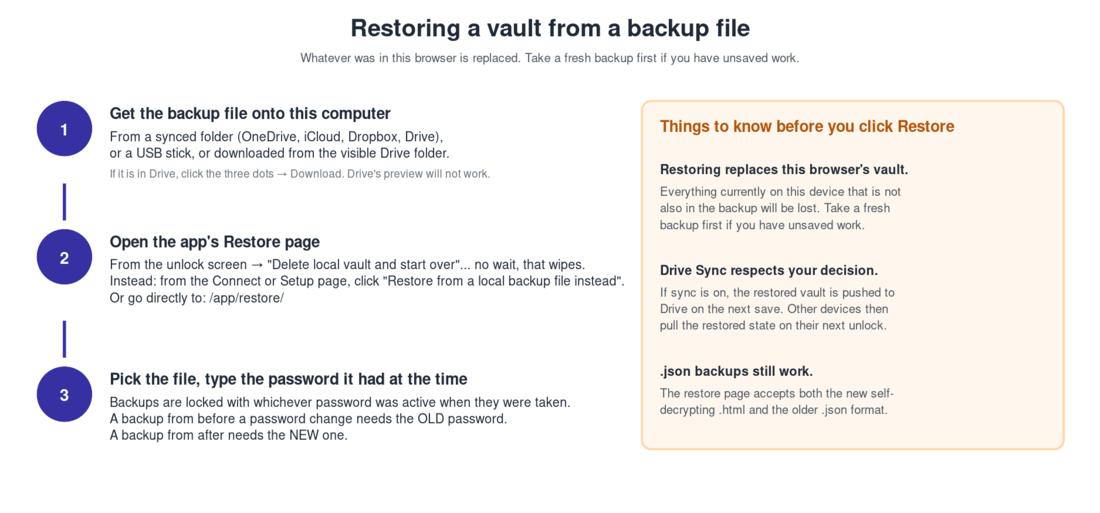
The restore page is at /app/restore/. You can also reach it from the Connect or Setup screen via the Restore from a local backup file instead link, and from Advanced > Backup > Go to restore page.
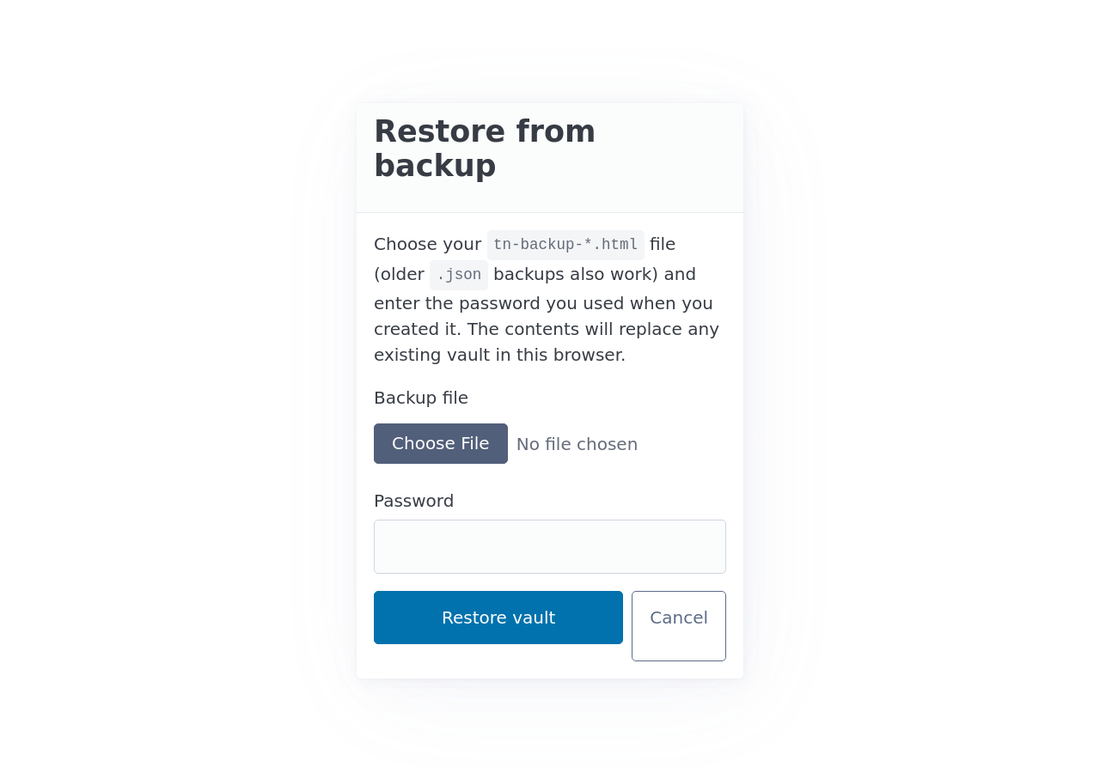
Pick the file from your Downloads folder (or wherever you have it). Enter the password that was active when the backup was created. Click Restore vault.
The current contents of the vault on this browser are replaced. The restored state then pushes to your hidden Google Drive app folder on the next save and propagates to your other devices the next time they unlock. The Restore page accepts both the modern self-decrypting .html files and older .json backups.
The password rule everyone needs to know
Backups are locked with whichever password was active when they were taken. A backup from yesterday opens with yesterday's password. If you change your password today, yesterday's backup still needs yesterday's password.
This is why every password-change page in the app, and the security tab in Advanced, recommends taking a fresh backup right after any change. Otherwise your most recent notes are recoverable only with a password you may forget. The app also automatically downloads a backup before performing the password rotation, in case the rotation is interrupted; a warning appears on the unlock page if that has happened.
If you have a stack of old backups and you have changed your password since, label them. A small text file in the same folder noting "everything before 1 May 2026: password A; everything after: password B" pays off the day you actually need to use one.
What to do if something looks wrong after a restore
Open Advanced > Drive > Recent sync activity. The Errors and Changes tabs show what the engine saw and did. If a restore was interrupted (browser closed mid-import, network blip), the activity log will show it.
If a row shows up as (undecryptable) after a restore, you have probably restored a backup made under a different password than the vault is currently using. Take a deep breath, lock the vault, and either restore from a different backup, or change the password to match.
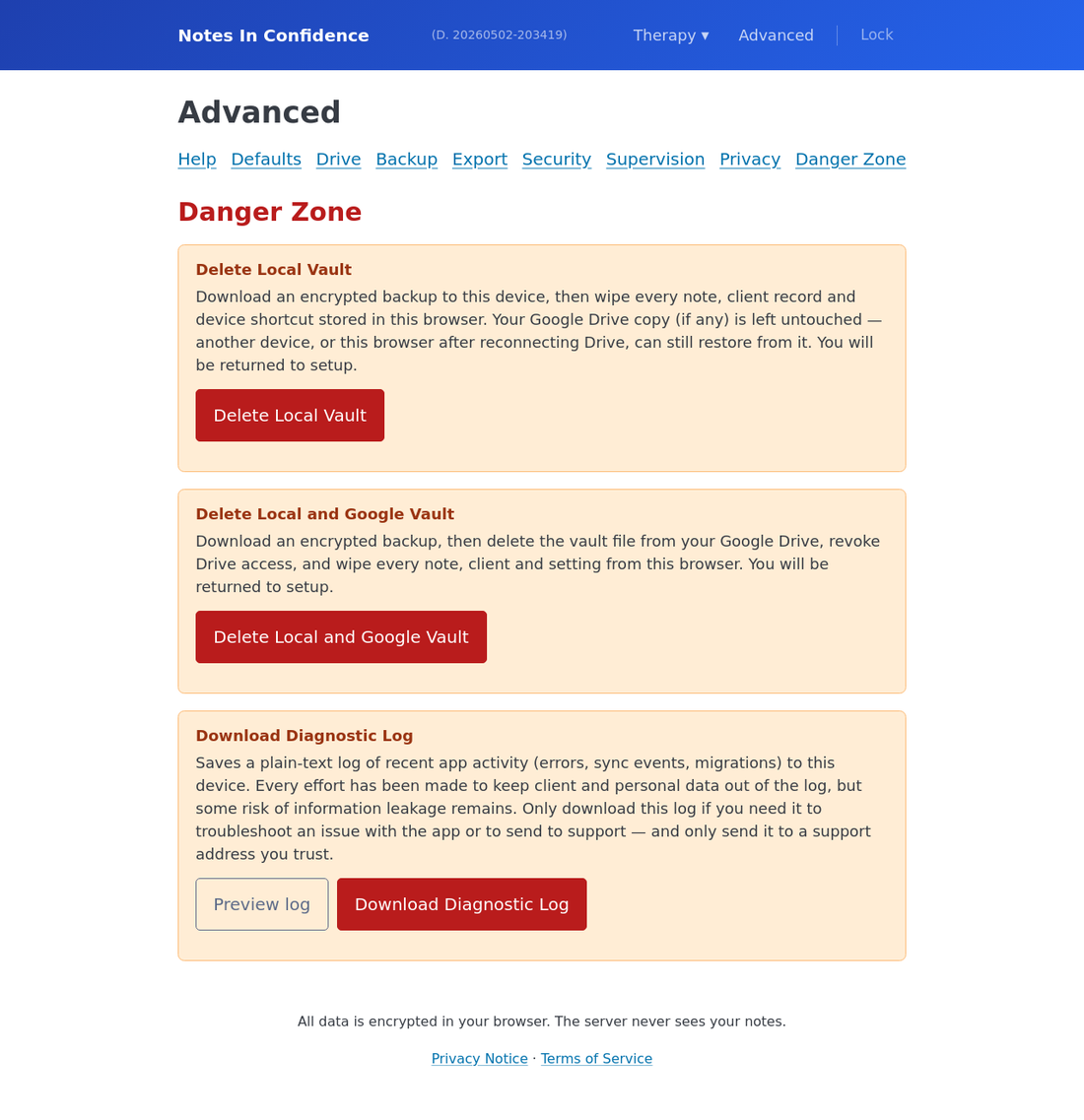
If you cannot make sense of what happened, Advanced > Danger Zone > Download Diagnostic Log gives you a sanitised plain-text log of recent app activity. The Preview button shows you what is in it before you save the file. Send it only to a support address you trust.