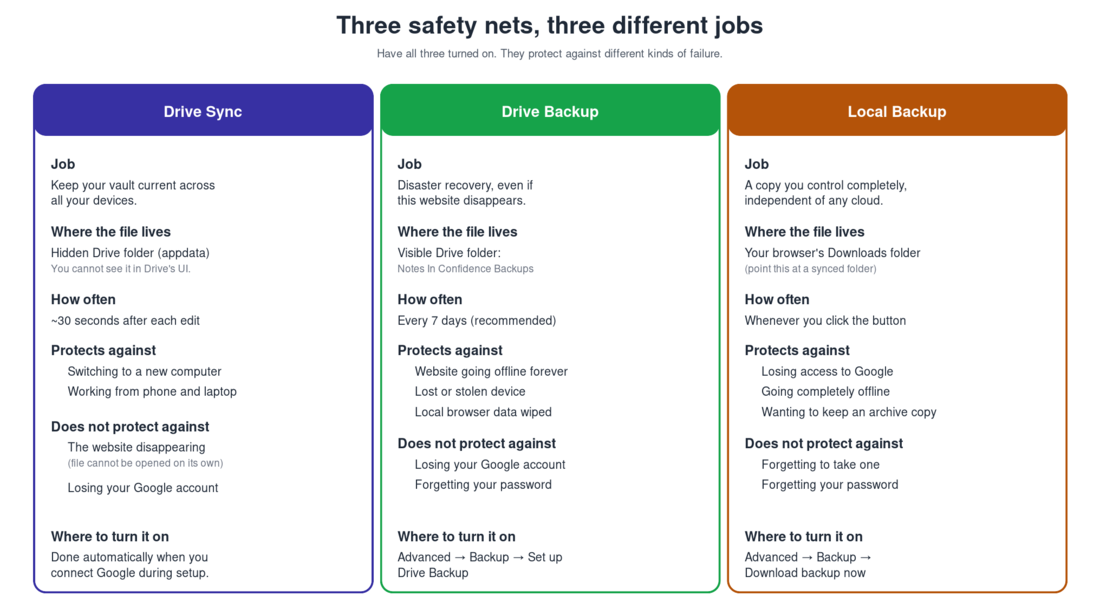
The single most confusing thing about Notes In Confidence is that it has three features that all involve copies of your vault. The app itself acknowledges this in a collapsible explainer in Advanced > Backup. Once you understand what each one is for, the choice is easy: have all three on.
The short version: Drive Sync is the convenience feature, Drive Backup is the disaster-recovery feature, and the manual Local Backup is the belt-and-braces feature you can fall back to when both of the others are unavailable.
The password rule. Your password is the encryption key. We do not have it, Google does not have it, no one but you does. There is no reset link, no security question, no support process that recovers it. If you forget your password and have no backup file under a password you do remember, every note in your vault is permanently gone. Each of the three copies below is locked with the password active when it was written. They are not a substitute for remembering the password.
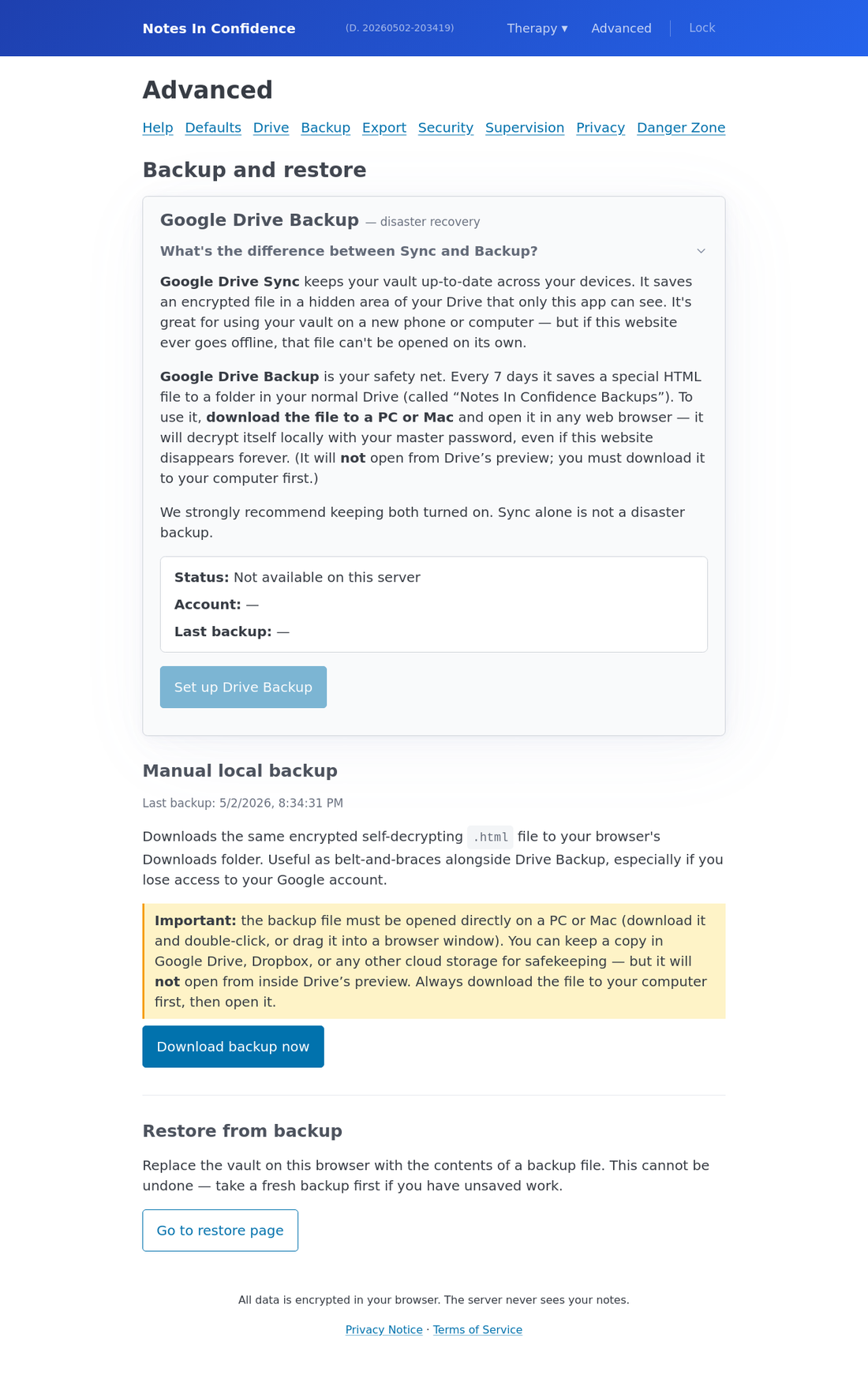
In the app itself, all three live on the Backup tab in Advanced. Here it is with the What's the difference between Sync and Backup? section expanded:
Drive Sync, the convenience feature
Drive Sync keeps a single encrypted file called vault.tnvault up to date in a hidden folder of your Google Drive called appDataFolder. Hidden means hidden: you cannot see this folder when you browse Drive normally, and the OAuth permission we ask for is scoped so we can only read or write that single file.
Sync is for working across more than one device. When you save a note on your laptop, the encrypted blob in your Drive is updated about thirty seconds later. When you unlock the same vault on your phone, it pulls the latest version, decrypts it locally, and merges any rows the phone had not seen yet.
Sync is great for the day-to-day. It is not a disaster recovery plan. The reason is technical and important: the file in your hidden Drive folder cannot be opened on its own. It is just an encrypted blob. The thing that turns it back into readable notes is the JavaScript inside this app. If this website disappears tomorrow, that encrypted blob in your Drive becomes effectively unopenable.
This is why Drive Backup exists.
What happens if Drive Sync stops working
Sync can stop working for several reasons: you revoke the app's Drive permission in your Google Account settings, your Google account becomes unreachable, the network drops repeatedly, or the app loses sight of the Drive file (it has been deleted from your Drive Trash, for example). When sync stops working, the app does something deliberate.
It enters read-only mode. You can still open the vault, search it, read every note you have ever written. What you cannot do is create new notes, edit existing notes, or change client records. The forms become disabled and a banner at the top of the app explains why.
This is a safety feature, not a punishment. The reasoning is straightforward: if sync is broken, every change you make exists only in this browser's IndexedDB. One cleared browser cache, one private-browsing window, or one device replacement, and those changes are gone. So instead of letting you accumulate work that will silently vanish, the app pauses writes until sync is healthy again.
To get back to read-write: open Advanced > Drive, click Reconnect Google account, sign in again, and the app verifies that sync is working before re-enabling the forms. If you cannot reconnect Google for some reason, you can also restore from a Local Backup file via Advanced > Backup > Restore from backup.
Drive Backup, the disaster-recovery feature
The Backup tab in Advanced is where you set this up:
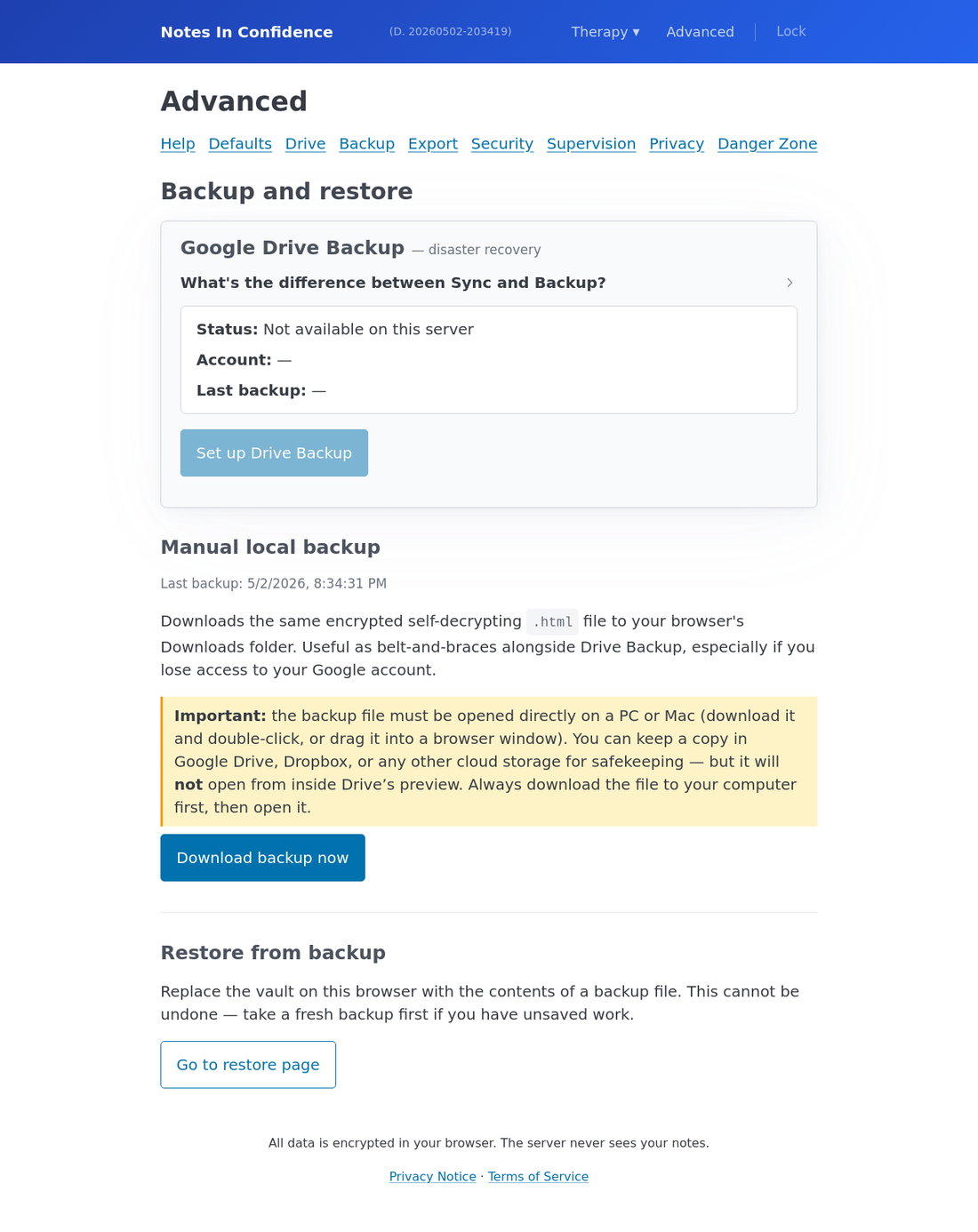
Drive Backup writes a different kind of file to a different folder of your Drive on a regular cadence. The file is a self-decrypting HTML file. The decryption JavaScript is bundled into the file itself, so it does not need our website. Open it in any browser, on any computer, even if our website never returns, enter your password, and it shows you your notes.
The file lives in a normal, visible folder of your Drive called Notes In Confidence Backups. The default cadence is every seven days, which is the recommended setting. Fourteen and thirty days are also available, with a warning that less frequent backups mean more notes could be lost between them.
For most people, Drive Backup is on the moment they finish setup. The current setup flow asks for both Drive permissions (drive.appdata for sync and drive.file for backup) in a single Google consent screen, and then runs your first off-site backup automatically right after vault creation. If that automatic step ever fails or is skipped, you can turn Drive Backup back on from Advanced > Backup.
The two features deliberately use different Google scopes. drive.appdata cannot see or write your visible Drive folders; drive.file can only see and write the files this app created in its own Notes In Confidence Backups folder. Revoking one in your Google Account settings disables that feature without affecting the other.
We strongly recommend keeping the cadence at seven days unless you have a specific reason to change it. The encrypted file is small, so the disk cost is negligible.
The persistent banner that nags you
There is a top-of-page banner that appears whenever your safety net has a hole in it. The app suppresses lots of other notifications when this banner is showing, so it is a single, focused signal. There are three triggers:
The first trigger is Drive Backup is not enabled. If the automatic off-site backup at the end of setup failed and you clicked Skip for now, or you have since turned Drive Backup off (or revoked the drive.file permission in your Google Account), the banner asks you to set it up.
The second trigger is Drive Backup last upload failed. If the most recent automatic backup ran into an error (network drop, expired auth, Drive disk full), the banner shows the error and the path to fix it.
The third trigger is the manual local backup is more than 14 days old. The banner reminds you to download a fresh local backup. This trigger silences itself the moment you take a fresh local backup; it does not require you to fix anything in settings.
The banner has no close button by design. The first two triggers can only be silenced by fixing the underlying problem. The third silences itself when you act on it.
Local Backup, the belt-and-braces feature
The third copy is a manual Local Backup, available from Advanced > Backup. Click Download backup now and the same self-decrypting HTML file lands in your browser's Downloads folder.
Use Local Backup when you want a copy outside Google entirely (in case you ever lose access to that account), when you want an archive of a particular point in time, and as a safety net before any change that touches every record at once. Two examples of the latter:
Right after changing your password. Backups are locked with whichever password was active when they were taken. A backup made yesterday opens with yesterday's password. If you change your password today, take a fresh backup straight away so your most recent notes are recoverable with the password you will actually remember.
Right after a major restore or migration. If you have just imported an old backup, take a new one before you do anything else.
The file naming is tn-backup-YYYY-MM-DDTHH-MM-SS-…Z.html — an ISO-style timestamp of the moment the file was written, so multiple backups in the same day each get their own unique name. Old backups are not deleted automatically. We deliberately do not auto-clean these files because they are your records, not ours.
How a backup file actually opens
This is the part people get wrong, and the app's settings page now mentions it twice for that reason.
The backup file is HTML. It contains both the encrypted vault and the small amount of JavaScript needed to decrypt it. Drive's preview window, the one you see when you click a file inside Drive, does not run the JavaScript. It just shows you the source code.
So if you click a backup file inside Drive expecting to see your notes, you will instead see what looks like garbled text. That is not your notes being broken. That is the file working as designed: the encrypted payload looks like garbled text without the password.
To open a backup, download it to your computer first, then open it from there.
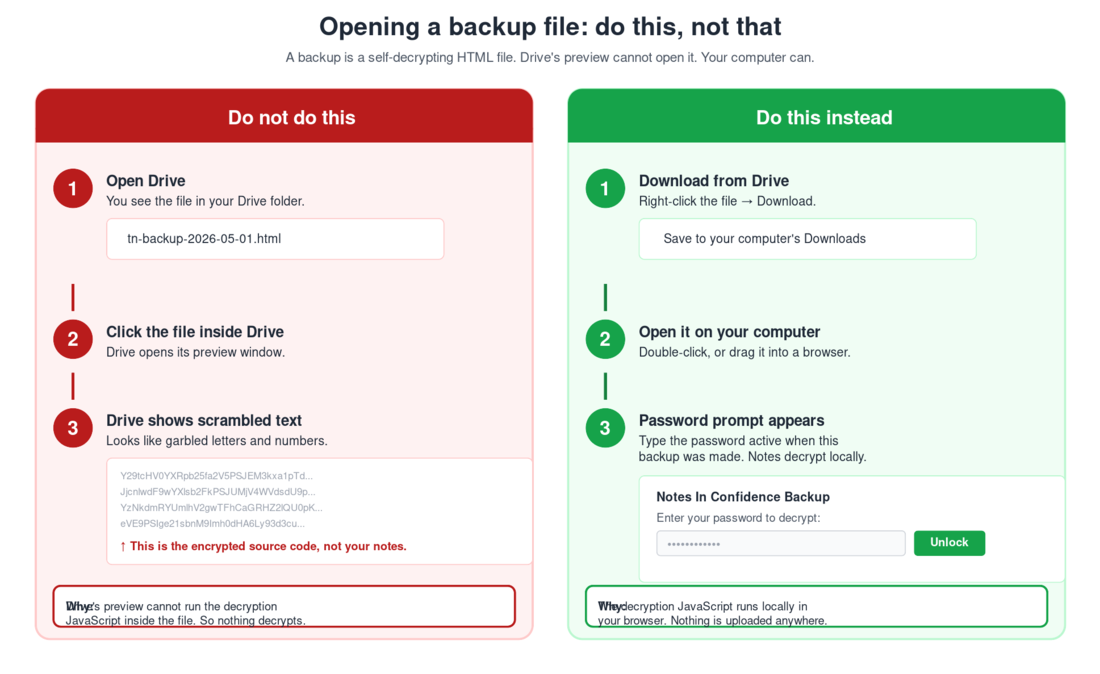
In any web browser on any computer, double-clicking the downloaded file (or dragging it into an open browser window) opens a small password prompt. Enter the password that was active when the backup was taken. Your notes appear, decrypted in that browser tab. Nothing is uploaded anywhere. The decryption happens locally, in your browser, using the JavaScript inside the file itself.
If the backup was taken on the current password, you can also restore the entire vault from it via the Restore page (/app/restore/). That replaces the vault on the current browser with the contents of the backup. The article on backing up and restoring goes into more detail on that flow.
Two questions worth asking
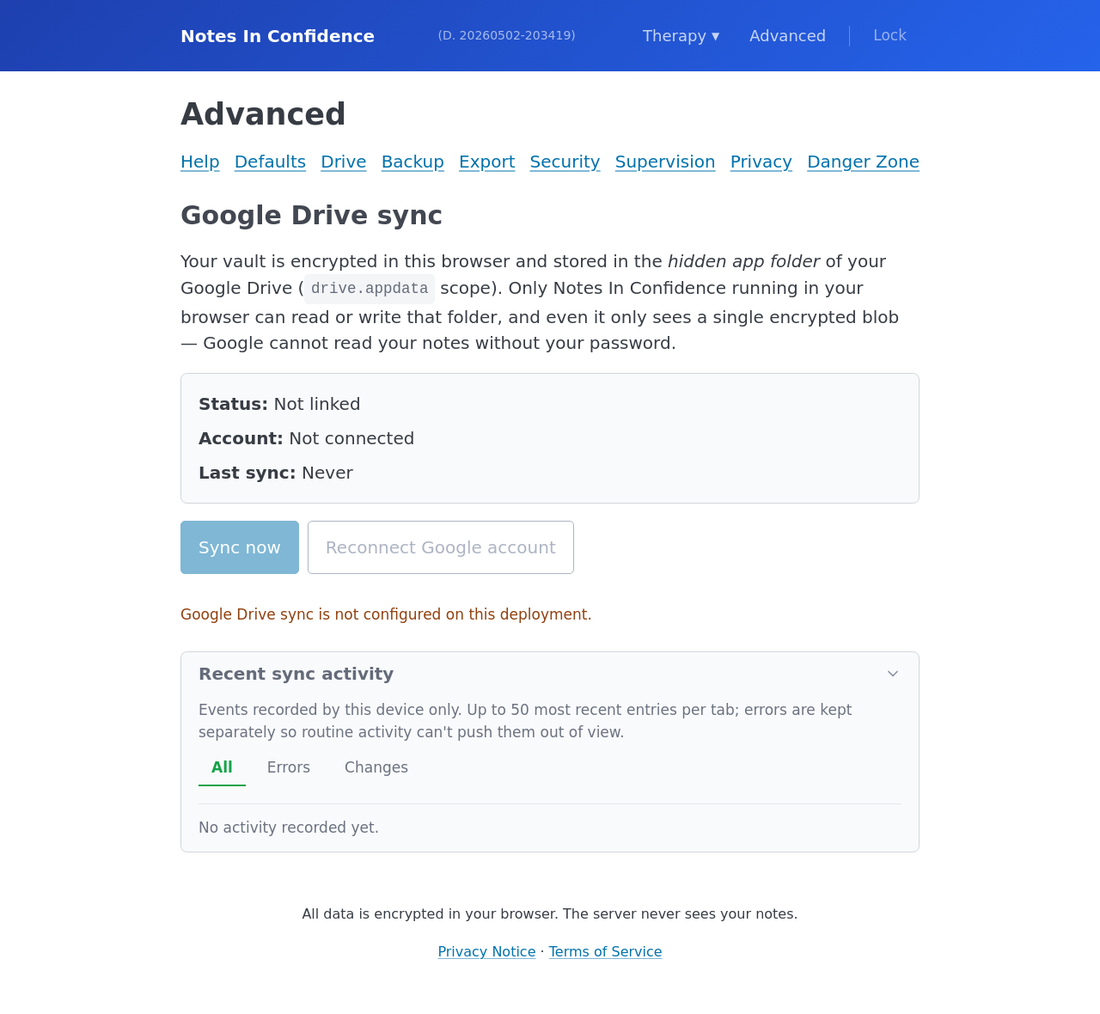
If you ever want to inspect what the sync engine is doing, the Drive tab in Advanced has a Recent sync activity card that shows the last few pushes, pulls, errors, and per-row changes:
What if I lose access to my Google account? Drive Sync stops, Drive Backup stops, but the local copy of your vault on your last device still works as a read-only vault, and any Local Backup files you have already downloaded still open. Take a manual Local Backup before you ever consider closing a Google account that has your vault data.
What if your website disappears? Drive Sync's hidden file becomes effectively unopenable, but every Drive Backup and every Local Backup file you have ever downloaded continues to work. Open them in any browser on any computer with the password active when each was taken. This is precisely the contingency Drive Backup and Local Backup exist for.