This is the article we hope you never need.
How to never need it: save your password to a password manager and write it on paper before you finish setup, then take a Local Backup the moment you finish each working session. Two minutes of habit, once, and the rest of this article becomes irrelevant for you. The article Setting up your vault for the first time covers exactly when in setup to do this.
Notes In Confidence is built on a zero-knowledge design. Your password is the encryption key. It never reaches our server, it never reaches Google, it is never stored anywhere outside the memory of your unlocked browser. That is what keeps your notes private. It is also what means there is no reset link.
If you have genuinely forgotten your password, the rest of this article is the truth about what you can and cannot do.
The honest summary
There is no password reset.
What we cannot do, in plain language:
- We cannot send you a recovery email. We do not have your email address — there is no account.
- We cannot answer security questions. There are none.
- We cannot help on a support line. There is no support line, and even if there were, we have no copy of your key to hand back.
- We cannot ask Google to reset it. Google does not have your key either; the encrypted file in your hidden Drive folder is opaque to them.
- We cannot decrypt your vault from the encrypted blob in your Drive. It is mathematically locked to the password.
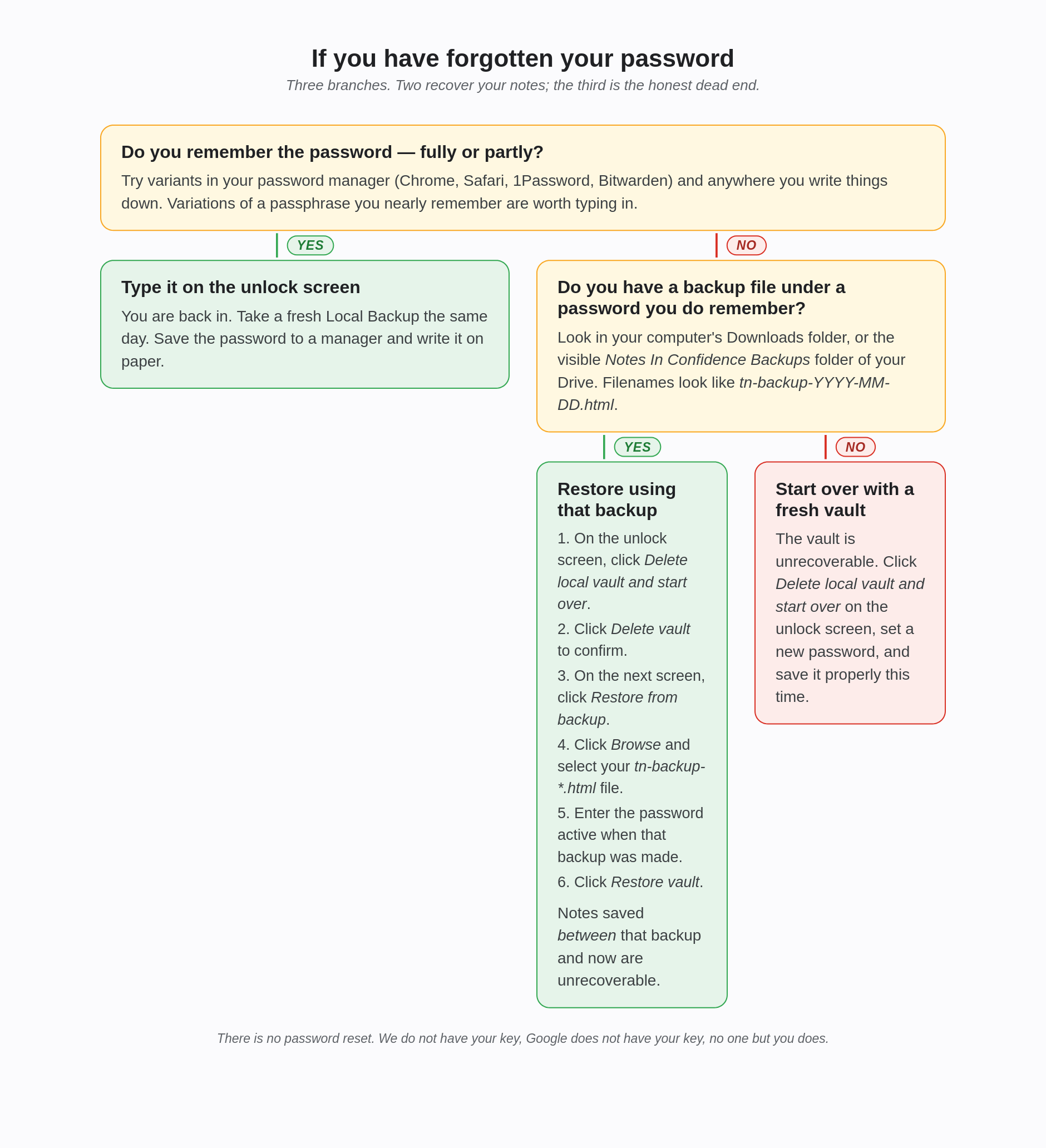
The only ways back into a vault are:
- Remember the password you set.
- Look it up in a password manager you saved it to.
- Restore from a backup file that is locked with a password you do remember.
If none of those is possible, the vault is unrecoverable, and the practical move is to start over with a fresh vault. That sounds harsh because it is. We make this trade-off explicit because it is the price of nobody else holding your key.
The rest of this article walks through each option and what to try before giving up.
A real example
A therapist with three years of weekly notes forgot the password after a long break over the summer. They had taken Local Backups regularly, but only up to early June; the September restart had not yet produced a fresh backup. They had also changed the password in May, so backups taken before May used password A and backups taken after May used password B (the one they had now forgotten).
They restored from the May backup using password A. The vault came back to life on May's state. Three months of June, July and early September notes were gone — the encrypted Drive blob still existed, but it was locked with password B and there was no way to reach it.
Two lessons from that case. The first is to take a fresh Local Backup the same day you change a password, and to label the backup folder with which password applied when. The second is that the May backup, taken under a password the therapist still remembered, is what saved them from losing the entire three years.
Before you give up: try the obvious
Check your password manager. Chrome's Password Manager, Safari Keychain, Firefox's Lockwise, 1Password, Bitwarden, KeePass. Any of them. The first time you submitted the create-vault form, your browser almost certainly offered to save the password and you almost certainly accepted. Search for "notes" or "notesinconfidence" or the URL of your install. The right password is often there even if you do not consciously remember saving it.
Check anywhere you write things down. A notebook, a sealed envelope, a sticky note in a drawer. Many people set this password during initial setup and wrote it somewhere physical because we asked them to. Look at where you would put a thing you must not lose.
Try variations of what you remember. If you used a passphrase like harbour candle willow argent and you can recall most of it, try the variants you might plausibly have chosen: capitalised first letters, with hyphens, with one of the words swapped for a synonym you also use. The unlock screen lets you try as often as you like — every wrong attempt makes the next attempt slower (the wait doubles each time: 1s, 2s, 4s, 8s, 16s, capping at 30s from the sixth wrong attempt onward) but there is no permanent lockout.
Ask a household member. If you live with someone who would have helped you set this up, ask. People sometimes have a more accurate memory of someone else's password than they do of their own.
Recovery from a Local Backup
If you have a Local Backup file taken under a password you do remember, that backup can rescue you.
A backup is locked with whichever password was active when it was downloaded. So if you used password A from January to March, took a backup in March, then changed to password B in April and have now forgotten password B, the March backup will still open with password A.
To restore, walk through the buttons rather than typing URLs:
- On the unlock screen, click Delete local vault and start over.
- Click Delete vault in the confirmation dialog.
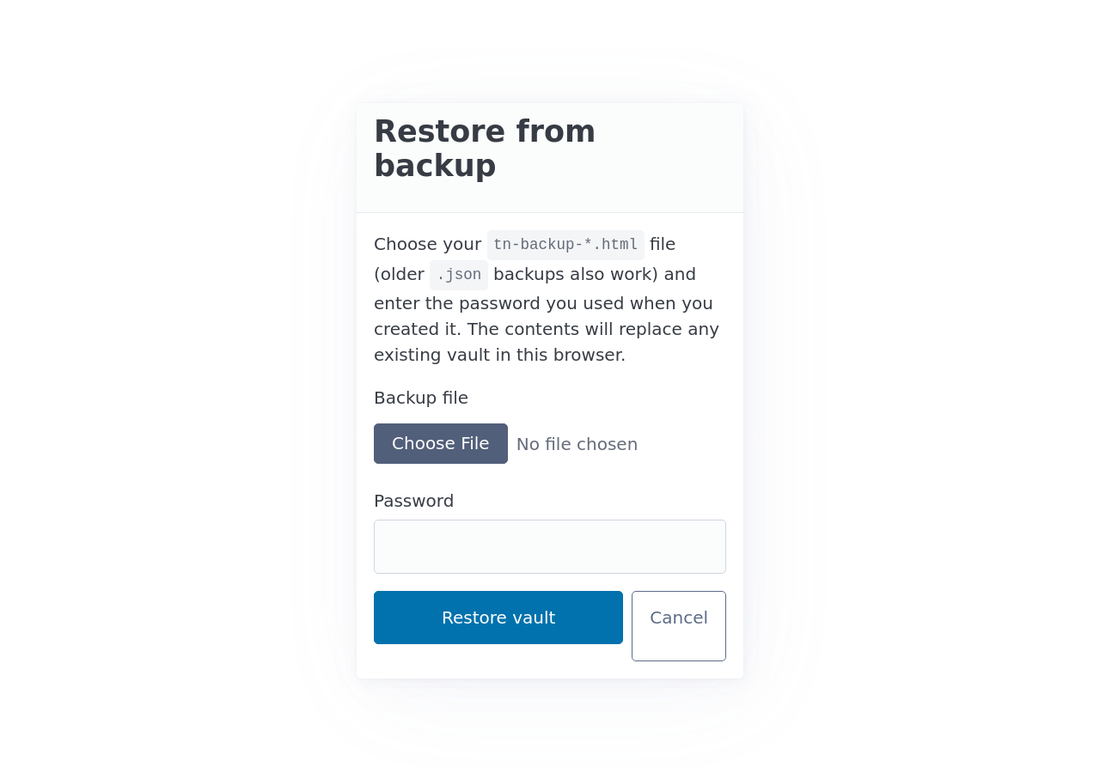
- On the next page, click the Restore from backup link.
- Click Browse and select your
tn-backup-*.htmlfile. - Enter the password that was active when that backup was made.
- Click Restore vault.
The vault on this browser is replaced with the backup's contents and unlocks under that earlier password. You will lose any changes made between the backup and now.
If your backups are in your computer's Downloads folder, look there. If you took our advice during setup and pointed Downloads at a folder synced to OneDrive, iCloud Drive, Dropbox, or Google Drive, look there next. Backup filenames look like tn-backup-YYYY-MM-DDTHH-MM-SS-…Z.html — the date is at the start, so a Date-modified sort in your file explorer matches a creation-time sort.
If you have Drive Backup turned on, your weekly self-decrypting HTML backups are in your visible Drive in a folder called Notes In Confidence Backups. To use one: in Drive, click the three dots next to the file and choose Download. Then double-click the downloaded file to open it locally and type the password active when that backup was taken. (Drive's preview will not work because it does not run the decryption JavaScript inside the file.)
The article Backing up, restoring, and opening a backup file covers the full restore mechanics.
What "I forgot the password and I have no backup" really means
If both are true — no remembered password, no backup file under a password you do remember — the vault content is irretrievable. We are sorry. There is no clever workaround. The encryption is doing exactly what it was designed to do.
What you can do from there is start over. Open the unlock screen and click Delete local vault and start over at the bottom. A confirmation dialog appears:
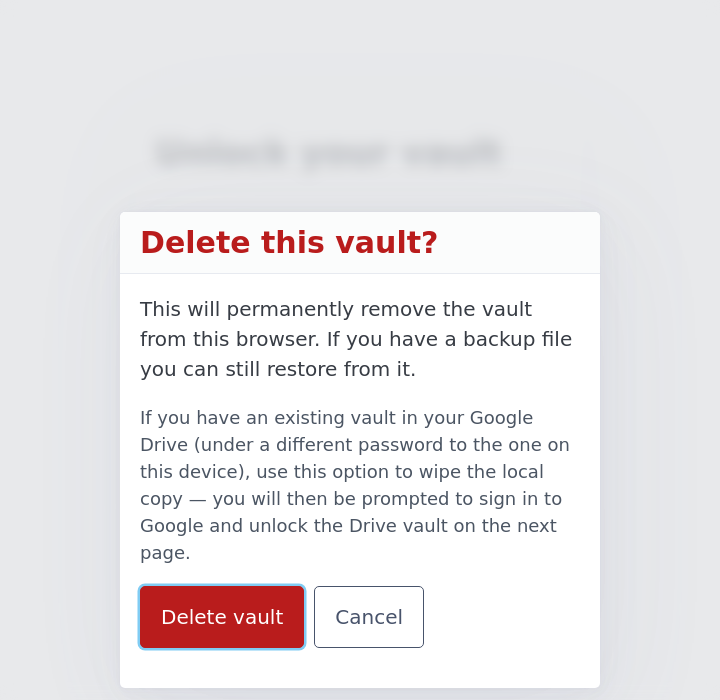
Confirm by clicking Delete vault. The encrypted vault on this device is wiped. You will then be prompted to set up a fresh vault, with a fresh password.
If your encrypted vault still exists in your hidden Drive folder under the lost password, the next setup flow will detect it and ask for the password. If you cancel that, you can also use the Delete Google Vault option in Advanced > Danger Zone of any other device that still has access — but if you have lost the password, this device is unlikely to be unlocked, so the practical move is usually to revoke the app's permission in your Google Account settings to disconnect the abandoned vault.
The data is gone, but the practice continues. Set up the new vault. Take a Local Backup the same day. Save the password to a manager you trust. Write the password down somewhere physical too.
How to make sure this never happens again
A small ritual that costs about thirty seconds, once.
Save the password in a password manager. Chrome, Safari, 1Password — whichever you already use. The first save offer that appears after creating the vault is the one to accept.
Write the password down on paper. Yes, paper. A sealed envelope in a drawer at home. A note in your safe. A page in a personal notebook you would not lose. The point is a copy that survives a hardware failure of every digital device you own.
Take a Local Backup after every meaningful note-taking session. Advanced > Backup > Download backup now. Each backup is locked with the password current at that moment, which means a stack of backups across a year is also a record of which password applied when, if you ever change passwords.
If you change your password, take a fresh backup right after. This makes the most recent state of your notes recoverable with the password you will actually remember. The article on backing up and restoring covers this rule in more detail.
A vault that has been backed up under a password you remember is never truly lost.
A small note about the soft launch
If you arrived here recently and have only ever used the app once or twice, and you forgot the vault password before saving anything you cannot afford to lose, the gentlest path is just to start over. There is no charge for doing so. Click Delete local vault and start over on the unlock screen, set a fresh password, and this time save it carefully.