You sit down to write a note and find every form on the page is greyed out. A red banner across the top says:
Cannot reach Google Drive. The vault is in read-only mode — your last entry is saved on this device and will sync when reconnected. Editing is disabled until sync is restored.
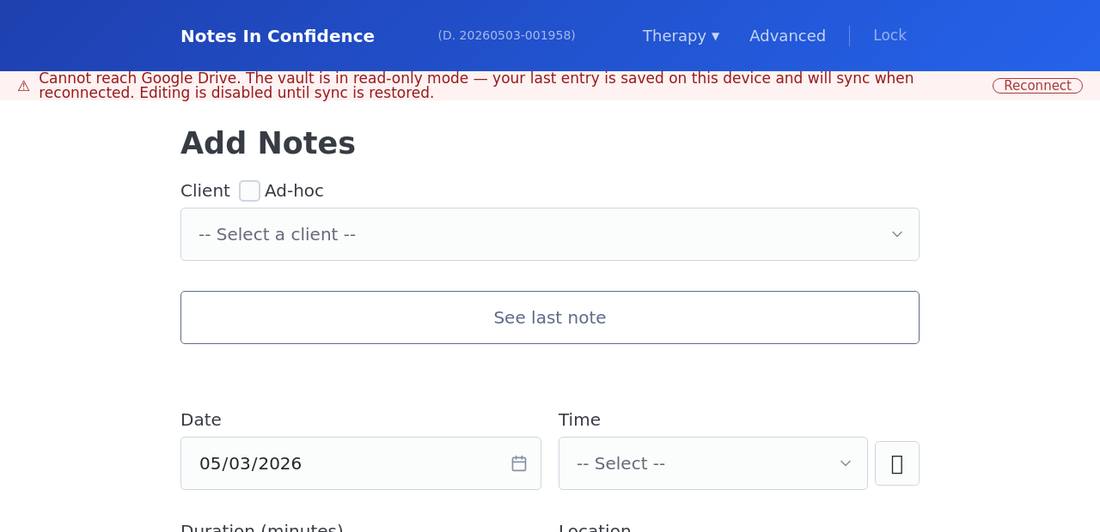
Take a breath. Nothing has been lost. The app has deliberately paused writing, and the rest of this article walks through why, what to do, and what state your work is in.
Why the app does this
Drive Sync is what carries every note off this device and into your encrypted Drive vault. When sync stops working, every change you make would exist only in this browser's IndexedDB. One cleared cache, one private-browsing window, one lost laptop, and that work is gone.
Rather than let you accumulate writing that will silently vanish, the app pauses new edits the moment it notices it cannot reach Drive. The previous note you saved (the one that triggered the lockdown) is safe in this browser; the lockdown begins from that point onward. Reading, searching and exporting all keep working. Only writing is paused.
The app tries silently first. When sync fails on unlock or during a periodic check, the engine waits a few seconds (about ten) and silently retries the sign-in before showing this banner. So a brief network blip or a token that needed a fresh handshake should never reach you as a red lockdown — only persistent failures do. If you see the banner, it means the silent retry has already happened and not worked.
While the banner is showing, the Edit button on any loaded note is disabled too — so a previously saved note cannot be opened into edit mode by mistake. The button re-enables automatically as soon as sync recovers; you do not have to refresh the page.
There are three causes that produce this banner.
You revoked Drive permission. Most often this happens by accident from your Google Account settings, or because Google's automated review revoked an unused token.
You dismissed the iOS sign-in dialog on unlock. On iPhone and iPad, the unlock flow shows a Sign in to Google Drive dialog that needs a tap before sync can resume. Dismissing it (Esc, tapping the backdrop) lets the vault open in read-only mode and surfaces this banner. The article Installing Notes In Confidence on your device covers the dialog in detail.
Your sign-in token expired and silent re-auth failed. Tokens last around an hour and are normally refreshed silently. If something blocks the refresh (an ad blocker, a strict third-party-cookie policy, a network drop), the engine falls back to read-only.
The vault file in your hidden Drive folder has been moved or deleted. Rare, but it happens — usually when someone manually emptied their Drive Trash.
How to get back to writing
The fix is the same in all three cases: reconnect Google Drive.
1. Click the Reconnect button on the red banner. A Google sign-in popup opens.
2. Sign in to the Google account this vault belongs to. Important: it must be the same Google account you used when you first set the vault up. A different account will fail.
3. Approve both Drive permissions again if Google asks. These are the same two permissions you granted at setup: the hidden app folder (drive.appdata) for Drive Sync, and the Notes In Confidence Backups folder (drive.file) for Drive Backup. If only one of them was the cause of the lockdown, ticking both back on does no harm.
If the popup completes successfully, the banner disappears within a few seconds, the forms re-enable, and any pending edit you had typed will sync to Drive. You are back.
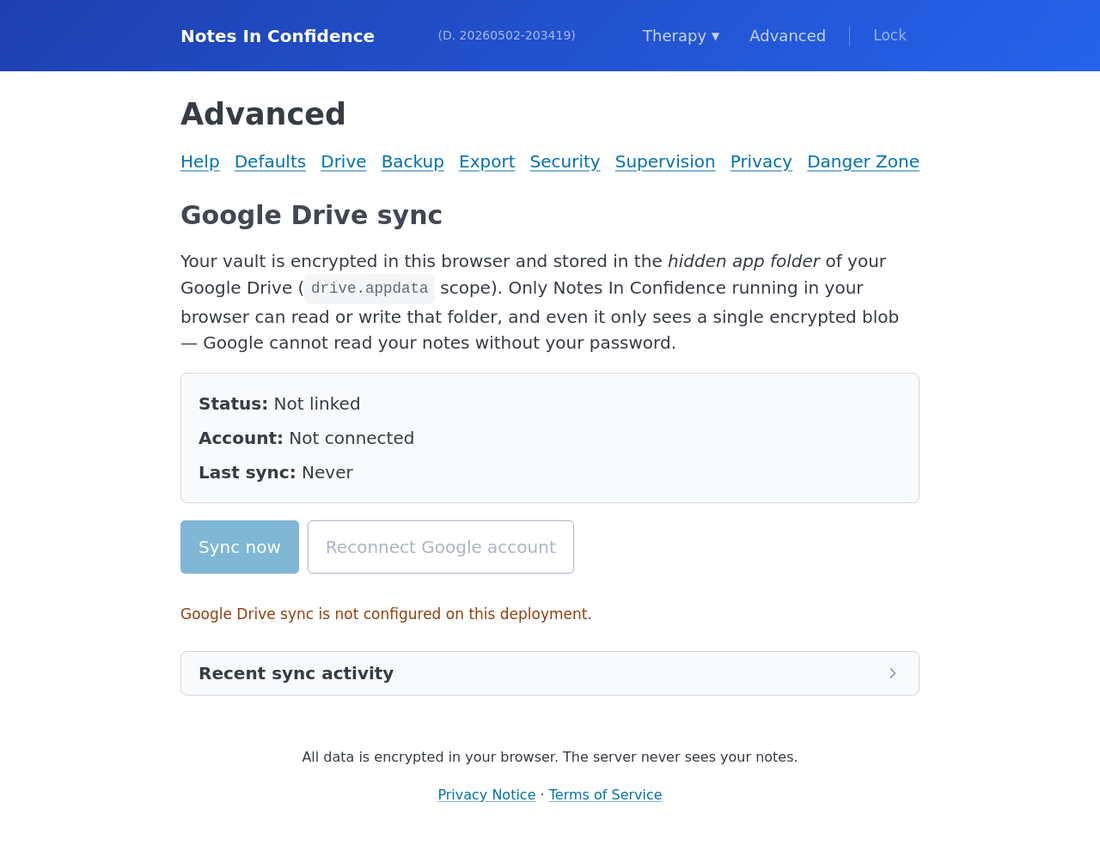
If the popup fails or the banner does not clear, open Advanced > Drive and click Reconnect Google account there. The Drive panel also gives you more diagnostic information about what the engine last saw.
When reconnecting does not help
If you cannot reconnect (for example, you have lost access to that Google account), the second recovery path is to restore from a Local Backup file.
This works because a Local Backup is a complete encrypted snapshot of the vault. Restoring it on this device, with the password that was active when the backup was taken, replaces the locked-out state with a known-good state and re-enables editing.
1. Find your most recent Local Backup file. It is in your computer's Downloads folder unless you moved it elsewhere. Filename pattern: tn-backup-YYYY-MM-DDTHH-MM-SS-…Z.html — an ISO-style timestamp.
2. Open the Restore page. Either click Advanced > Backup > Go to restore page, or go to /app/restore/ directly.
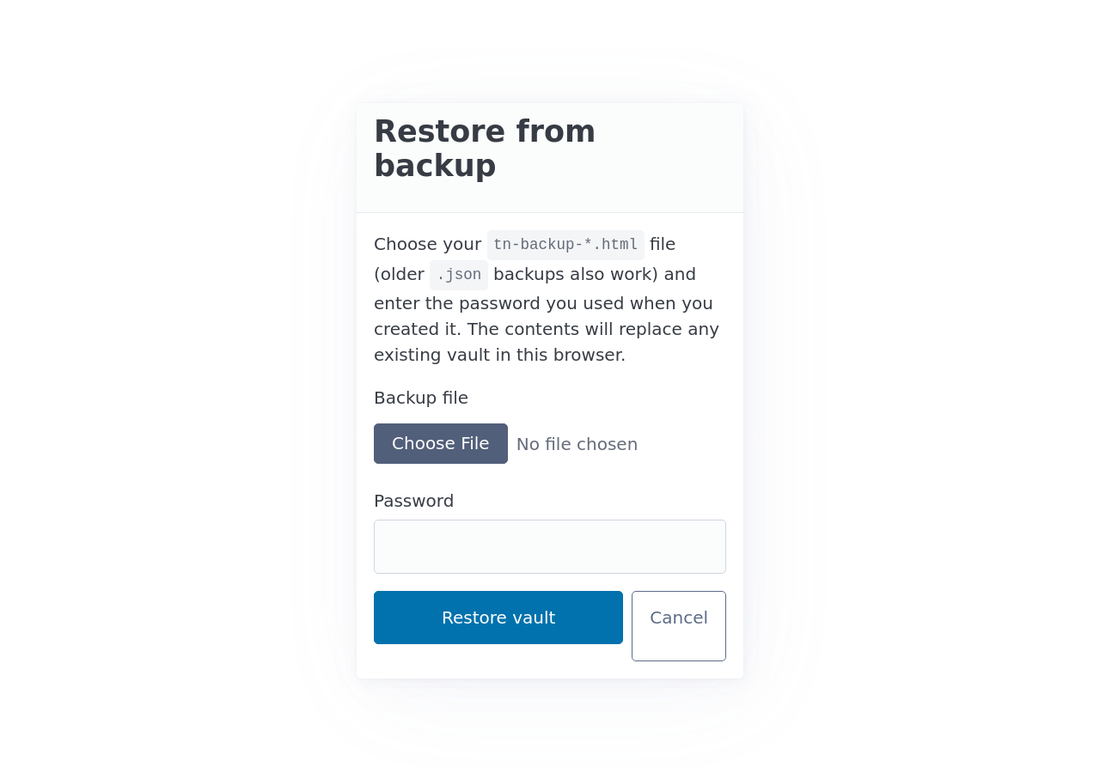
3. Pick the file, type the password active when the backup was made, and click Restore vault. The vault on this device is replaced with the backup's contents. Editing re-enables.
The article Backing up, restoring, and opening a backup file covers this flow in more depth, including what to do if the only backups you have were taken under a different password.
What happened to anything you typed during the lockdown
Anything you typed into the form before clicking Save while the lockdown was already in place is held only in the browser tab's memory. It will not have been saved. If you have been typing for a while and the banner has been showing, do not refresh the page; copy the text out into a text editor first, then reconnect or restore, then paste it back in once the form re-enables.
The previous note (the one whose save attempt triggered the lockdown) is safe in this browser's local IndexedDB. It will push to Drive on the next successful sync, with no action from you.
Look at the activity panel for more context
If you want to know what the engine actually saw when sync broke, open Advanced > Drive > Recent sync activity and switch to the Errors tab. The most recent entry shows what failed, with a timestamp and the underlying error message. This is often the fastest way to tell whether the problem is permission, network, or a missing file.
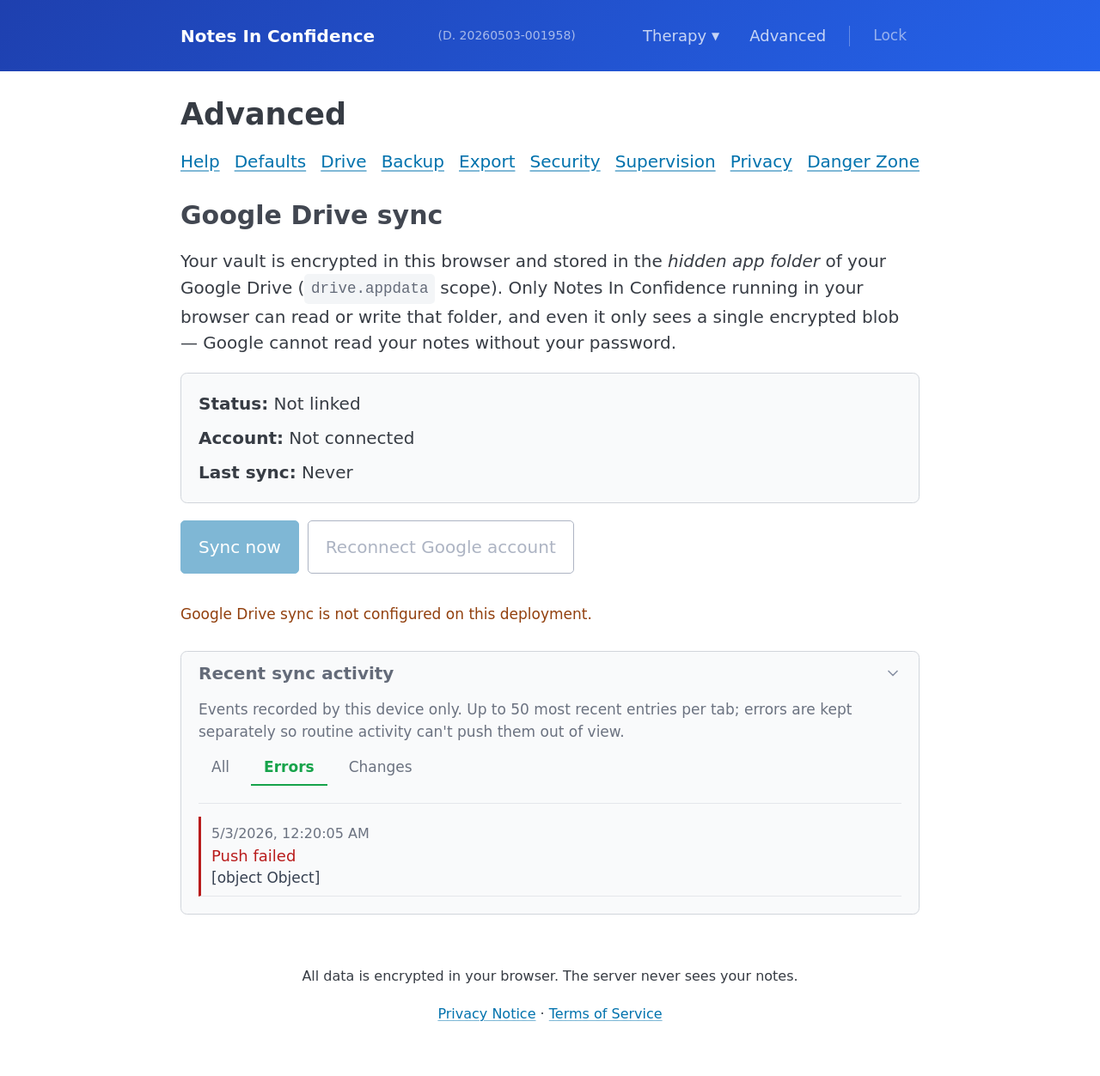
The article Reading the Recent sync activity panel explains what each tab shows and what each error code typically means.
When to send the diagnostic log
If reconnecting does not help, restore is not an option, and the activity panel does not make sense, Advanced > Danger Zone > Download Diagnostic Log gives you a sanitised plain-text record of recent app activity. Click Preview log before you save the file to see exactly what is in it. The log contains no clinical content by design, only event metadata. Send it only to a support address you trust.
Two things worth doing now, while you are here
Take a fresh Local Backup. Once editing re-enables, head to Advanced > Backup and click Download backup now. The lockdown event is a useful reminder that local backups are your last fallback when Drive cannot be reached.
Check that Drive Backup is on. Advanced > Backup > Set up Drive Backup if you have not done it. Drive Backup writes self-decrypting HTML copies to a visible folder of your Drive every seven days, so even if the hidden Drive Sync file ever goes missing again, you have a parallel safety net.