The Export tab in Advanced lets you take your notes out of Notes In Confidence as a ZIP archive of plain text files. There are two routes: a Plain ZIP and an Encrypted ZIP. They contain identical content. They differ in how that content is protected once the file leaves your device.
This article explains when to pick each, walks through the four buttons, and addresses the practical wrinkle that the unzippers built into Windows and macOS cannot open the encrypted variant.
When to use plain, when to use encrypted
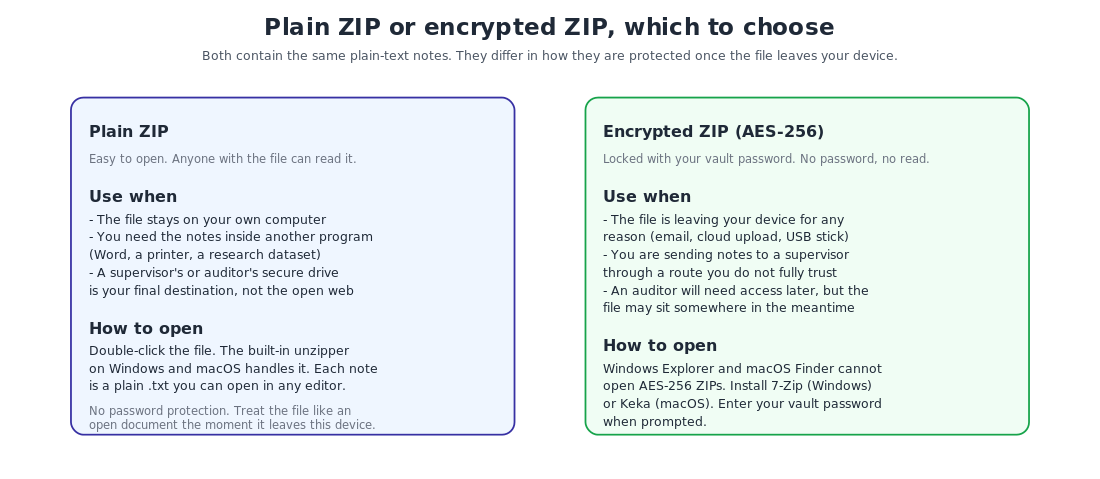
The short version: plain ZIP if the file is staying on your own computer, encrypted ZIP for anything that is leaving your device by any route at all. Email, cloud upload, USB stick, sending to a supervisor, posting to a secure portal. The encryption uses AES-256 with your vault password as the key, so an encrypted ZIP that ends up where you did not intend is still unreadable without your password.
A note on supervisor and auditor scenarios. If you are sending notes to a supervisor through a route you fully trust (a secure file-share they administer, a clinic-issued portal), and you do not want to share your vault password with them, plain ZIP is the right choice. If you are sending through email or a less-controlled route, encrypted ZIP is safer, but you then need a way to share the password with the supervisor that is not the same route as the file. A phone call is usually fine.
The Export tab
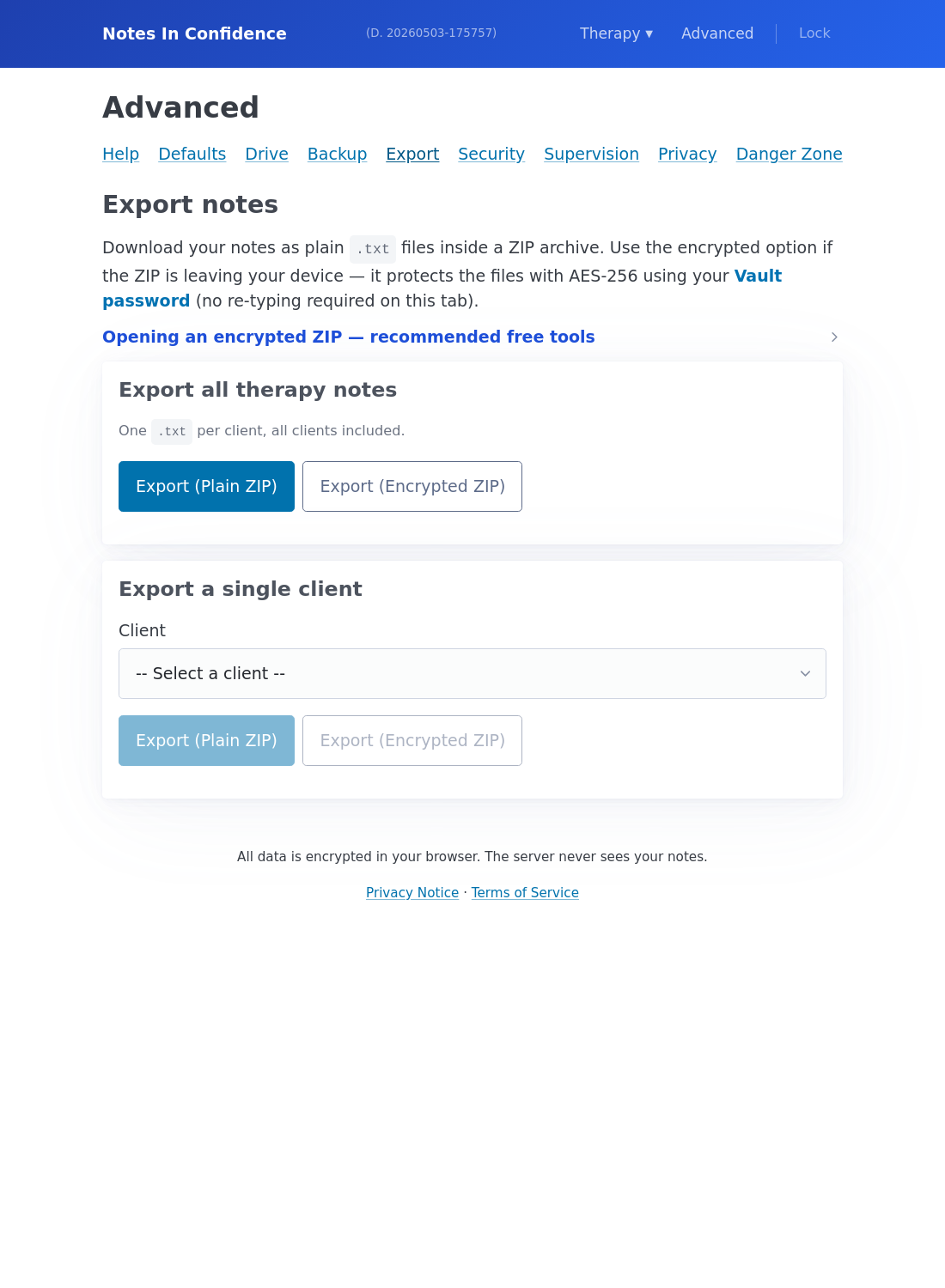
The page is in Advanced > Export. It offers four export buttons in two pairs.
The first pair, Export all therapy notes, produces a single ZIP containing one .txt file per client, with every note for that client concatenated chronologically inside it. The naming uses the Client ID you set on the client form, so an export of clients C-001, C-002, GRP-Tues-PM produces three files: C-001.txt, C-002.txt, GRP-Tues-PM.txt. The two buttons differ only in whether the resulting ZIP is plain or AES-encrypted.
The second pair, Export a single client, does the same shape with a single client you pick from a dropdown. The dropdown shows every client by Client ID, including deactivated ones, prefixed by (group) or (deactivated) where relevant.
If you have the Supervision module turned on, two more pairs appear below for supervision notes, in the same shape. They produce the same kind of ZIP but pull from your supervision notes instead of your therapy notes.
What is in each .txt file
A single client's .txt file is a chronological dump of every note saved for that client, separated by a header line that includes the date, time, duration, and location. The body of each note follows in four sections: Session Summary, Risk and Safeguarding Observations, Clinical Decisions or Interventions, and Agreed Actions, the same four fields you fill in on the dashboard. No-session entries appear as a header line followed by the reason and no body content.
Plain text means: any text editor on any device can read it. We chose .txt over .docx or .pdf because plain text is the only format guaranteed not to embed metadata you did not see (last-edited timestamps, author names, comment threads, document IDs). For exports that may end up in archives or audits years from now, that is the property we wanted.
Opening an encrypted ZIP
The encrypted variant uses AES-256, which the unzippers built into Windows Explorer and macOS Finder do not support. They will refuse the file with a misleading "the archive is corrupt" or "you do not have permission" error. The Export tab tells you this in a collapsed details panel:
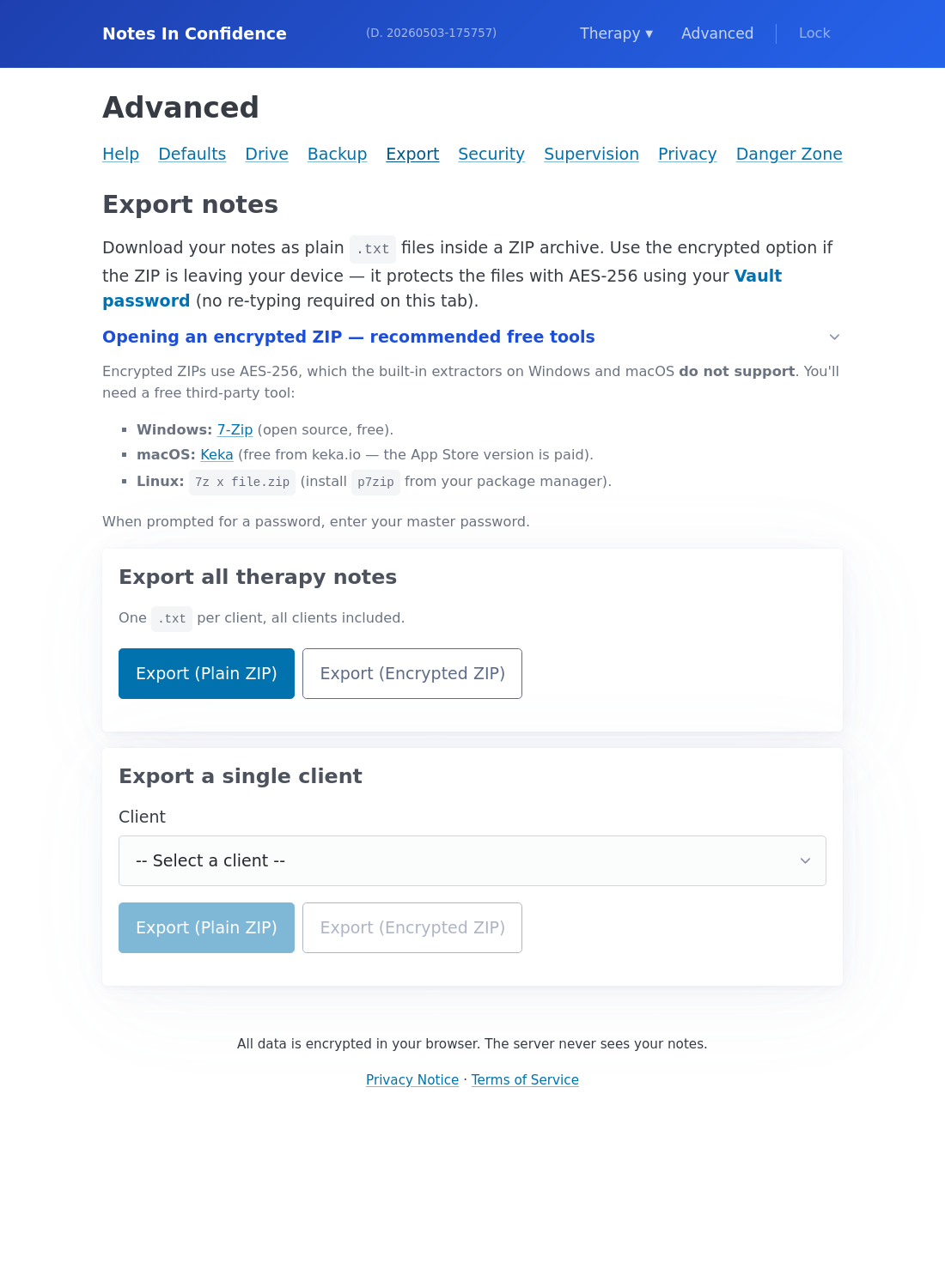
The panel points to the free third-party tools that do open AES-256 ZIPs:
On Windows, install 7-Zip. It is open source, free, and the de facto standard. After installing, right-click the ZIP, choose 7-Zip > Extract Here, and enter your vault password when prompted.
On macOS, install Keka from keka.io. The keka.io download is free; the Mac App Store version of the same name is the same software but paid. Drag the encrypted ZIP onto Keka's icon and enter your vault password when prompted.
On Linux, install p7zip from your package manager (apt, dnf, pacman, all carry it) and run 7z x file.zip.
Whichever tool you use, the password is your vault password. There is no separate export password. We deliberately tied them together so you do not have one more password to remember and so an encrypted export is unrecoverable in exactly the same way that a forgotten vault password is unrecoverable: by design, by you, the only key holder.
Things worth knowing
Exports always reflect the current contents of your vault on this device. If you have just made an edit and the dashboard is still showing the synced banner spinner, the edit is in your vault and will be in the export.
Exports are not encrypted with a per-export key. They are encrypted with your current vault password. If you change your vault password tomorrow, the export you made today still opens with today's password, not tomorrow's. This matches how the .html backup files behave.
The export does not include client metadata other than the Client ID and the per-note header line. Names you may have stored offline (on paper, in a separate document) are not in any export, by design.
What to do next
If you are exporting because you want a long-term archive of your notes outside the app, also read Sync, Backup and Local Backup, three different jobs to understand how those three layers complement an export.
If you are exporting to share notes with a supervisor, How Notes In Confidence keeps your notes private is worth a re-read first; it lays out which routes preserve the zero-knowledge property and which do not.