Notes In Confidence is free software offered by therapists, for therapists. Because it is free, there is no support contract, no service-level commitment, and no obligation on the developer to reply to you. There is, however, a real channel for sending suggestions, feature requests, and bug reports — and a public board where you can watch tickets move from idea to deployed. This article explains how to use that channel well, when to use it at all, and what to do for yourself first.
Please read the help articles before you submit anything. The feedback channel below is anonymous and one-way — you will not get a reply. The fastest route to an answer is almost always to search this help site first. The search bar at the top of the help index covers every article body; the most common questions already have an answer waiting.
Step 1 — Search the help articles
The help articles you are reading right now are written by the same person who writes the code, and they get updated whenever something changes. If you have a question, the answer is most likely already in them. Try the search bar at the top of the help index. Some specific pointers:
- Forgot your password? I forgot my password covers the only routes back into your vault. There is no reset link; do not waste a feedback submission on this.
- Red banner across the top? Resolving the read-only banner covers every cause.
- Yellow / amber / orange banner across the top? Banners at the top of the app is the field guide.
- Stuck on "Your vault is already open"? Only one tab at a time explains why.
- Want a desktop or home-screen icon for the app? Installing Notes In Confidence on your device.
- About to wipe something? Deleting your vault — the Danger Zone options.
If you have read the relevant article and it does not answer your question, that itself is useful feedback — a missing or unclear help article is exactly the kind of thing the operator wants to know about. The feedback portal has Suggest a help article or an adjustment to one as one of its three options.
Step 2 — Decide whether to send feedback
The portal at feedback.notesinconfidence.uk accepts three kinds of message:
- Suggest a help article or an adjustment to one — something is missing, wrong, or unclear in this corpus.
- Request a feature — something the app does not currently do that you would like it to do.
- Report a bug — something the app does that it should not, or fails to do that it should.
The portal will silently discard greetings, thanks, vague complaints with no specifics, test pings, off-topic messages, and anything else that is not actionable. That is deliberate — it keeps the developer's working list focused on things that can actually be done. If your message gets filtered out, the portal tells you which of the three filtered categories it landed in and gives you the chance to resubmit.
What you will not get back. You will not receive a personal reply. No human at the operator ever reads what you sent in the form (more on why in a moment), and the system deliberately keeps no link back to you, so there is no way for them to contact you even if they wanted to. The portal exists so the developer can hear from you about the app — not so a conversation can start.
Step 3 — Submit your message
The portal at feedback.notesinconfidence.uk looks like this once you have ticked the three consent boxes and picked a type:
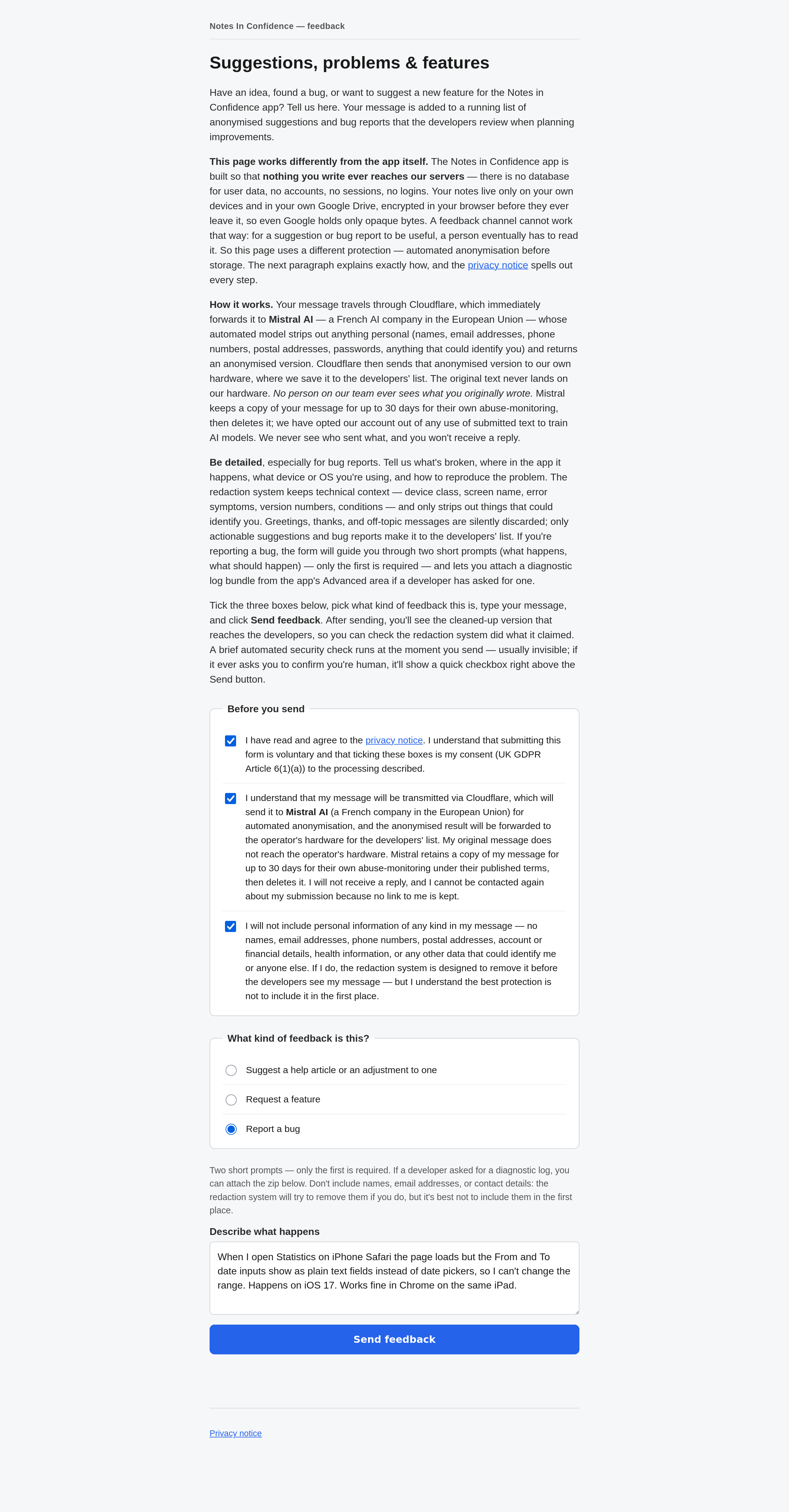
The flow is:
- Read the page-top explainer. It tells you how the privacy pipeline below works.
- Tick the three consent boxes. They cover the privacy notice, the Cloudflare → Mistral AI processing route, and a good-faith commitment not to include personal information yourself. All three are required.
- Pick a type. Article, Feature, or Bug.
- Type your message. Up to 2000 characters in most fields. Be specific — the more detail you provide, the more useful the redacted version reaching the developer will be.
- (Bug only) Fill in the second prompt — Describe what should happen instead. Optional but helpful. Up to 1000 characters.
- (Bug only, if asked) Attach a diagnostic log bundle. See Step 4 below.
- Click Send feedback. A brief automated security check runs at this moment, usually invisibly. If it asks you to confirm you are human, a quick checkbox appears just above the Send button — tick it and the send completes.
Step 4 — Bug reports: how to collect and attach the diagnostic log
A diagnostic log is a plain-text record of recent app activity (errors, sync events, migrations) that lets the developer reconstruct what your browser tried to do at the moment the bug happened. The portal lets you attach one to a bug report when a developer asks for it — or you can pre-emptively include it if the bug is technical enough that you think it will help.
How to collect it. The full walkthrough is in The Diagnostic Log — what it is and how to send it. The short version is:
- Open the app and unlock your vault.
- Go to Advanced > Danger Zone.
- Scroll past the Delete Local Vault and Delete Local and Google Vault cards. The third red-bordered card is Download Diagnostic Log.
- Click Preview log first. A scrollable dialog opens with the entire log as plain text. Read it. The log is metadata only — event timestamps, event names, HTTP status codes, field-names-changed (not values), counts, browser version strings — but if anything in the preview makes you uncomfortable, close the preview and do not download.
- Click Download Diagnostic Log. A file named
tn-diagnostic-log-YYYY-MM-DDTHH-MM-SS-…Z.ziplands in your Downloads folder.
How to attach it. On the feedback portal, after you pick Report a bug, a Diagnostic log bundle drop zone appears at the bottom of the bug form. Click it or drop the .zip file onto it. The portal verifies the file's signature in your browser before anything is sent.
Do not unzip, edit, or re-zip the file before uploading. The diagnostic log bundle contains three files (
log.txt,log.txt.sig,README.txt); the signature inlog.txt.sigis computed over the exact bytes oflog.txtas stored in the zip. Any edit — even invisible ones like a text-editor adding a UTF-8 BOM, or Windows converting line endings — invalidates the signature and the server will reject the upload. If you want to redact something, preview the log first and decide not to send rather than hand-edit it. The Diagnostic Log — what it is and how to send it covers this rule and its rationale in detail.
What the privacy pipeline actually does
The portal's page explains this in detail; this is the plain-language summary so you know what you are agreeing to when you tick the consent boxes.
Your message travels through Cloudflare, which immediately forwards it to Mistral AI — a French AI company in the European Union — whose automated model strips out anything personal (names, email addresses, phone numbers, postal addresses, passwords, anything that could identify you) and returns an anonymised version. Cloudflare then sends that anonymised version to the operator's own hardware where it lands on the developers' list. The original text never reaches the operator's hardware. No human at the operator ever sees what you originally wrote.
Mistral keeps a copy of your message for up to 30 days for their own abuse-monitoring under their published terms, then deletes it. The operator's Mistral account is opted out of any use of submitted text to train AI models. No link back to you is kept anywhere along the path.
The best defence is still not to include personal information in the first place. The redactor is good but it is not infallible — write as if it were a public message and you will be fine.
What you see after you click Send
One of four panels appears.
Thanks — your message has been received. Your message was actionable and has been added to the developer's list. The panel shows your ticket reference and the cleaned-up version that reached the developers, so you can check the redaction did what it claimed.
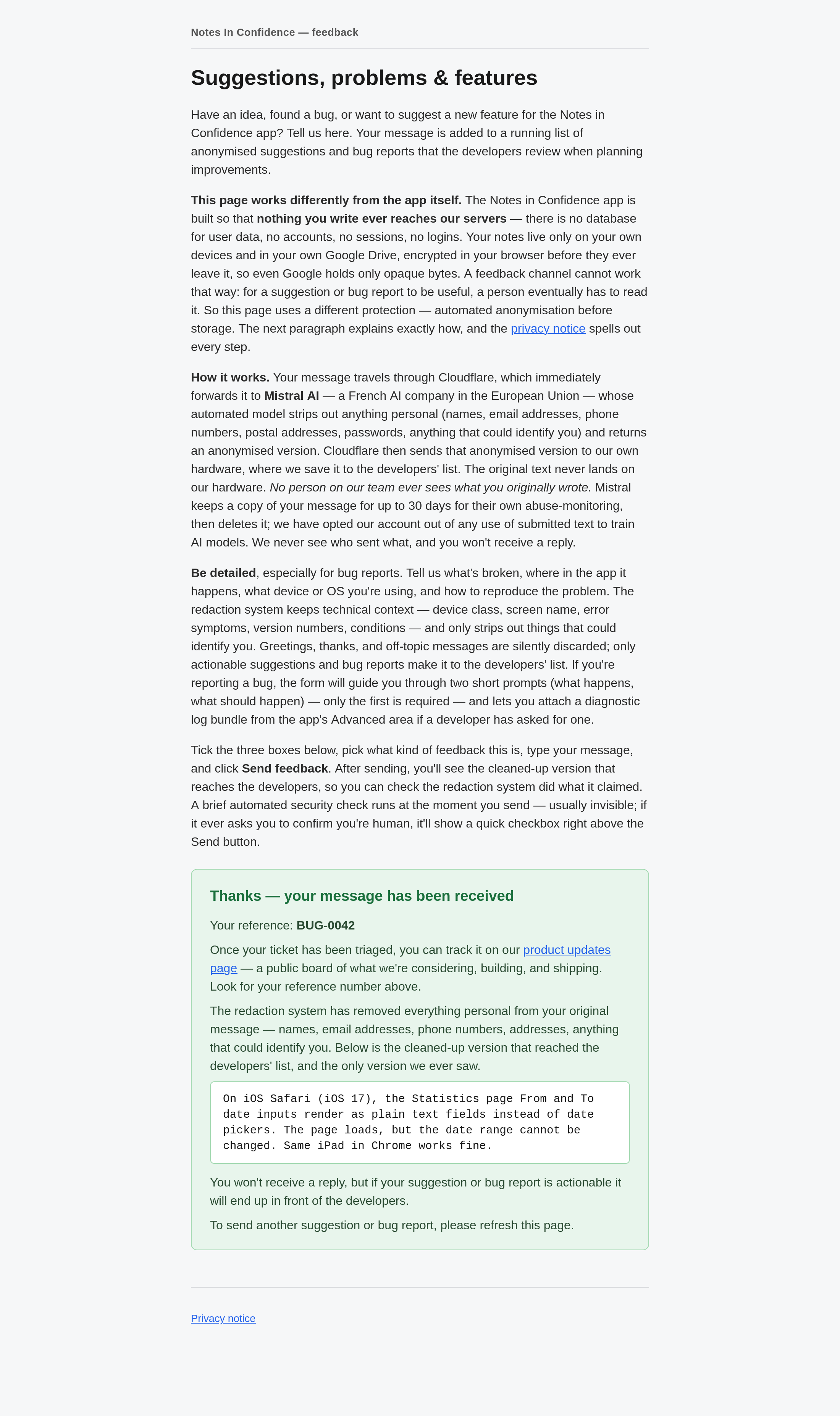
The other three outcomes mean your message did not reach the developers:
- Looks empty or like a test message. Messages like "hi", "test", or whitespace-only are filtered. Refresh and resubmit with real content.
- Classified as not actionable. Greetings, thanks, generic complaints with no specifics, or off-topic messages. Refresh and resubmit with more detail — what went wrong, on which screen, on which device, what you would like instead.
- This looks like a different kind of feedback. You submitted under Request a feature but the system read it as a bug report (or similar). A one-click Resubmit as X button copies your message into the correct form, where you can edit and resend.
None of the filtered messages are seen by anyone — they do not reach Mistral or the operator. They are dropped at the post-extraction validation stage on the operator's mini PC.
Where to see what changed and what is coming
There are two complementary places to watch the app's progress.
For what has shipped: What's new. The in-app changelog at Help > What's new (and the article in this corpus by the same name) lists every recent user-visible change with a date and a **New**, **Improved**, or **Fixed** tag. The most recent change is at the top. This is the right page if you want to see what is different about the app today.
For what is being considered or worked on: product-updates.notesinconfidence.uk. A public kanban of the operator's actual ticket queue, organised in five columns:
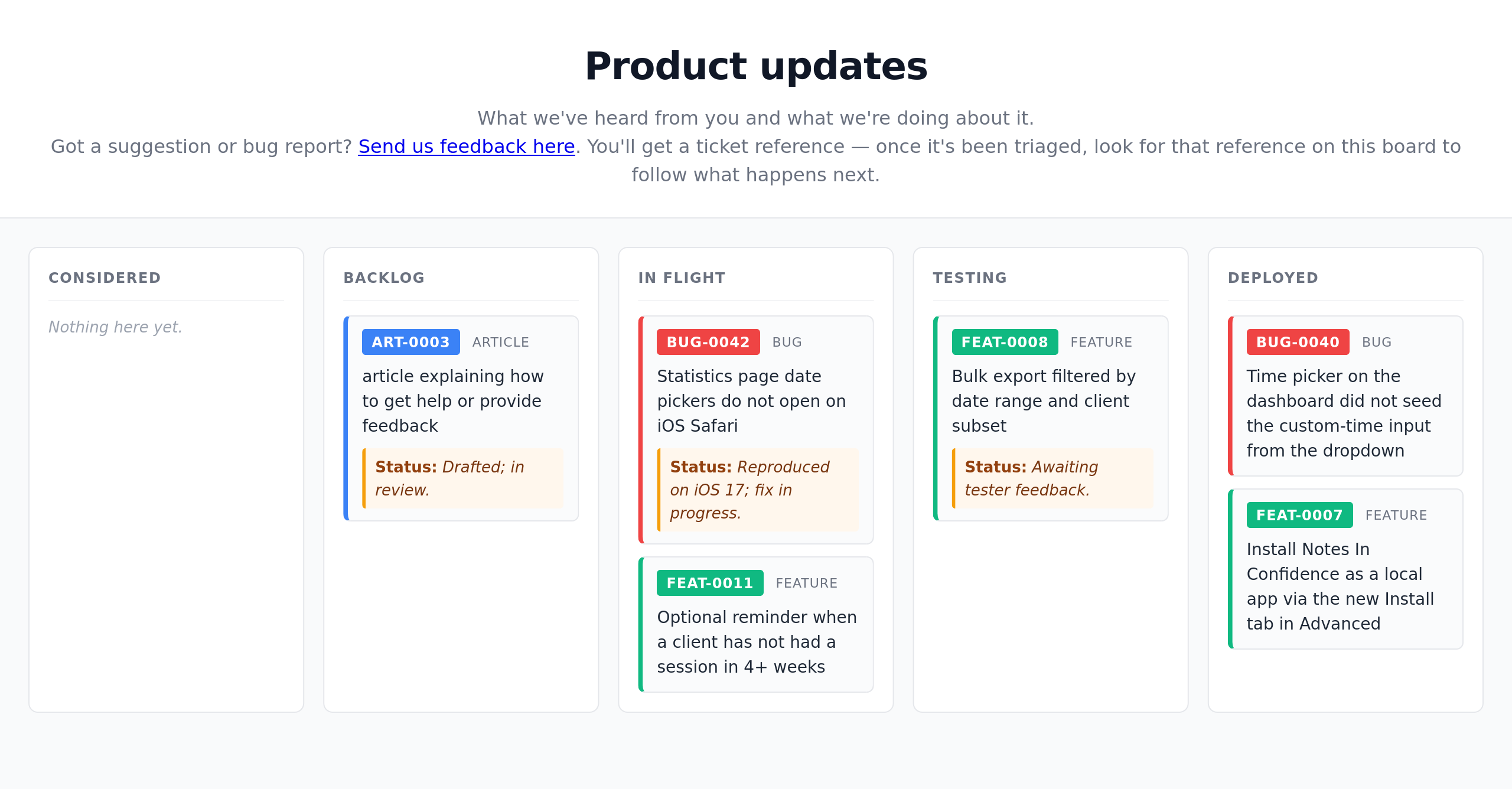
The five columns mean:
- Considered. Tickets the operator has looked at but not yet committed to. They may still be rejected after further thought — the column is not a promise that they will be done.
- Backlog. Tickets the operator has accepted and intends to work on, in whatever order makes sense.
- In Flight. Tickets being actively built or written right now.
- Testing. Built or drafted; being verified before going live. Articles in this column are written but under review; bugs in this column have a candidate fix awaiting testing.
- Deployed. Live in the app or published in the help corpus. Anything in Deployed should appear in What's new the same week.
Each card shows the ticket reference, the type (article / bug / feature), a one-sentence description, and an optional status note from the operator. Operator internal notes do not appear on this board.
How the two channels connect — one round trip
Here is what happens after you click Send, end to end:
- You submit a bug report on the feedback portal.
- The portal's redaction pipeline (Cloudflare → Mistral → operator's mini PC) sanitises and extracts the actionable parts.
- The operator's local triage app picks up your anonymised submission.
- The operator reviews it. If accepted, a ticket like
BUG-0042is created and starts in the operator's local Just Arrived state — invisible to the public. - When the operator moves the ticket out of Just Arrived and ticks show on website, it appears on the public board in Backlog (or Considered if it was rejected with reasoning worth publishing).
- As work progresses the ticket moves through In Flight and Testing and lands in Deployed.
- Anyone — including you — can watch its progression on
product-updates.notesinconfidence.ukand see the matching entry in What's new the day it ships.
You will not be told which ticket is yours, because no link back to you is kept. But the journey itself is public.
What is not handled by the feedback channel
A short reminder of what to do instead, so you do not waste a feedback submission on something the channel cannot help with:
- Forgotten password. Read I forgot my password. There is no reset and the feedback portal cannot recover a vault.
- Lost backup file. Backing up, restoring, and opening a backup file covers the recovery options.
- A Drive sync error you want diagnosed. Read Resolving the read-only banner and check Recent sync activity in Advanced > Drive before submitting.
- A legal or regulatory question. The contact route is described in the Terms of Service.
- Recovery after a Danger Zone delete. Only the pre-flight backup file recovers from that. Deleting your vault — the Danger Zone options explains.
If your problem is none of these and the help articles do not cover it, the feedback portal is the right channel. Make it specific, include device and version detail, and if it is a bug attach the diagnostic-log zip unchanged.
A final word on expectations
Free software with a strict no-reply policy can feel ungenerous if you arrive expecting product support. The operator's view is the opposite — the goal is to keep the app free, the data private, and the trade-offs honest. Reading the help corpus first, sending only actionable feedback, and watching the public board for the result is the whole loop. There is no other.