Notes In Confidence is currently in invite-only beta. Before any new browser can reach the setup screen, it has to pass through the Beta access page at /app/launch/. This article explains what an access code is, how to redeem one, what each of the three error messages on the page means, and the legacy shared-password route that still works for testers who were set up before the access-code system existed.
What an access code is
An access code is a one-time, single-use token issued by the operator to a specific tester. It lets exactly one browser pass through the beta gate, after which the code is marked as used and cannot be redeemed again. You receive a code by whatever route you arrived at the beta — usually a personal email, a message from a colleague, or a link shared by someone in your professional network. The code itself is just a short string you copy into the Access code field on the Beta access page; there is nothing else to install.
The access code is not your vault password. It is a one-shot key to the building, not the key to your own room inside. Your vault password is something you choose during setup, and the article Setting up your vault for the first time covers that step.
Redeeming a code
- Open the app at
https://notes.notesinconfidence.uk/. The first page you see is the Beta access page if your browser has not already redeemed a code. - Paste or type your access code into the Access code field.
- Click Continue.
- If the code is accepted, the page briefly shows Welcome to the beta — Setting things up… and then redirects you to the normal Connect-with-Google screen. From there, Setting up your vault for the first time takes over.
The acceptance is recorded in two places. Your browser stores a small local flag so the gate does not ask again on this browser. The server marks the code as used so nobody else (and not even you, in a different browser) can redeem it again.
The three error messages, in plain language
When a submitted code is rejected, the page tells you specifically why:
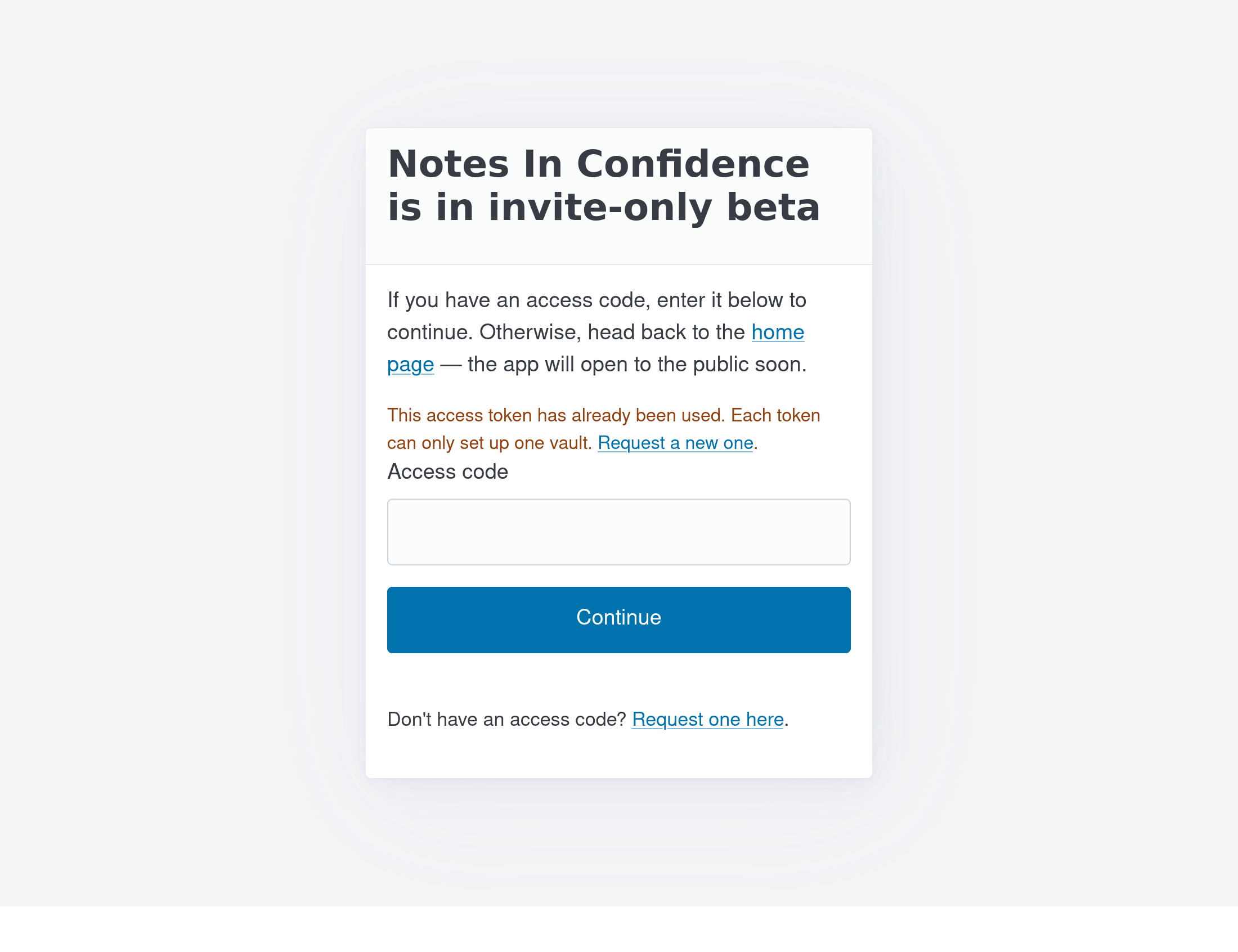
This access token has already been used. Each token can only set up one vault. You (or someone with the same code) already redeemed this token on another browser. Codes are single-use by design. Click the Request a new one link to start the invite process again.
This access token expired on <date>. Codes have an expiry; if you sit on one for too long it stops working. The page shows the exact expiry date so you know how long it has been. Click Request a new one to ask for a fresh code.
That access code is not recognised. The code does not match anything the server knows about. Most often this is a typo, a stray space, or a code copied with surrounding punctuation. Try again. If it still does not work, the code may have been revoked.
In every case the page keeps the form visible so you can try again, and a permanent Don't have an access code? Request one here link at the bottom of the page takes you to the invite request flow.
The legacy shared-password route
Testers who were set up before the access-code system existed can still use the original shared beta password they were given. The Beta access page accepts either form: a one-time access code or the legacy password. If you have been using the app for a while and Setting things up… opened on first visit without you typing a code-shaped string, you were almost certainly using the legacy password without realising it.
Nothing changes for legacy testers when the operator issues new codes to other people. The legacy password continues to work until the operator decides to retire it (which will be announced in What's new well in advance).
What happens after a successful redemption
The access code only governs the gate. Once you are through, the rest of the app is identical to what it will be after public launch:
- The Connect-with-Google step asks for the same two Drive permissions everyone gets.
- You pick a vault password, which is the only credential that protects your notes.
- Your vault syncs to your own Google Drive in encrypted form, exactly as described in Setting up your vault for the first time and How Notes In Confidence keeps your notes private.
The redemption flag stored on your browser is per-browser and per-device. If you also want to use the app on a phone, a tablet, or a different browser on the same computer, you will need either another redemption of the same code (currently not possible — codes are single-use) or a different code issued to the same person (the operator can do this on request). Once any one of your browsers is past the gate and you have created a vault, the vault itself is shared across all your devices via Google Drive — you do not need to set up the vault again, you just sign in to the same Google account on the new device.
What to do if you cannot get past the gate
If you have a code, it has not expired, has not been used, and the page is still rejecting it, the most likely causes are an invisible character at the start or end of what you pasted, or a code that has since been revoked. Try typing it by hand. If it still fails, the Request a new one link asks for a replacement.
If you do not have a code and want one, follow the Don't have an access code? Request one here link. This is not the same as the feedback portal — feedback is a one-way anonymous channel and cannot deliver a personal reply (see Getting help, giving feedback, and seeing what's planned for why). The invite request flow does collect an email so the operator can send you a code.
What to do next
If you have just redeemed a code and the app has redirected you to Connect-with-Google, Setting up your vault for the first time takes you the rest of the way. If you want to know what the operator has changed recently before you commit time to setting up, What's new lists the most recent changes; Getting help, giving feedback, and seeing what's planned explains the rest of the help corpus and the channels you can use once you are in.