The Danger Zone tab inside Advanced is where the destructive vault operations live. There are two buttons for deleting your vault, and they sit behind a typed-confirmation dialog and an automatic pre-flight backup. This article explains what each one does, what each one does not do, the order of operations behind the scenes, and when you would actually use them.
This article does not cover the Diagnostic Log preview and download buttons that share the same tab — those are covered in The Diagnostic Log — what it is and how to send it.
The password rule. Your password is the encryption key. We do not have it, Google does not have it, no one but you does. There is no reset link, no security question, no support process that recovers it. The pre-flight backup that the Danger Zone takes for you is locked with whichever password is currently active, so the safety net only works if you can still type that password. Save the password to a manager and write it on paper before you press anything red.
The two delete buttons at a glance
Open Advanced > Danger Zone (you have to be unlocked to reach it). You will see three cards. The middle two are about deleting the vault; the third is the diagnostic log option, covered elsewhere.
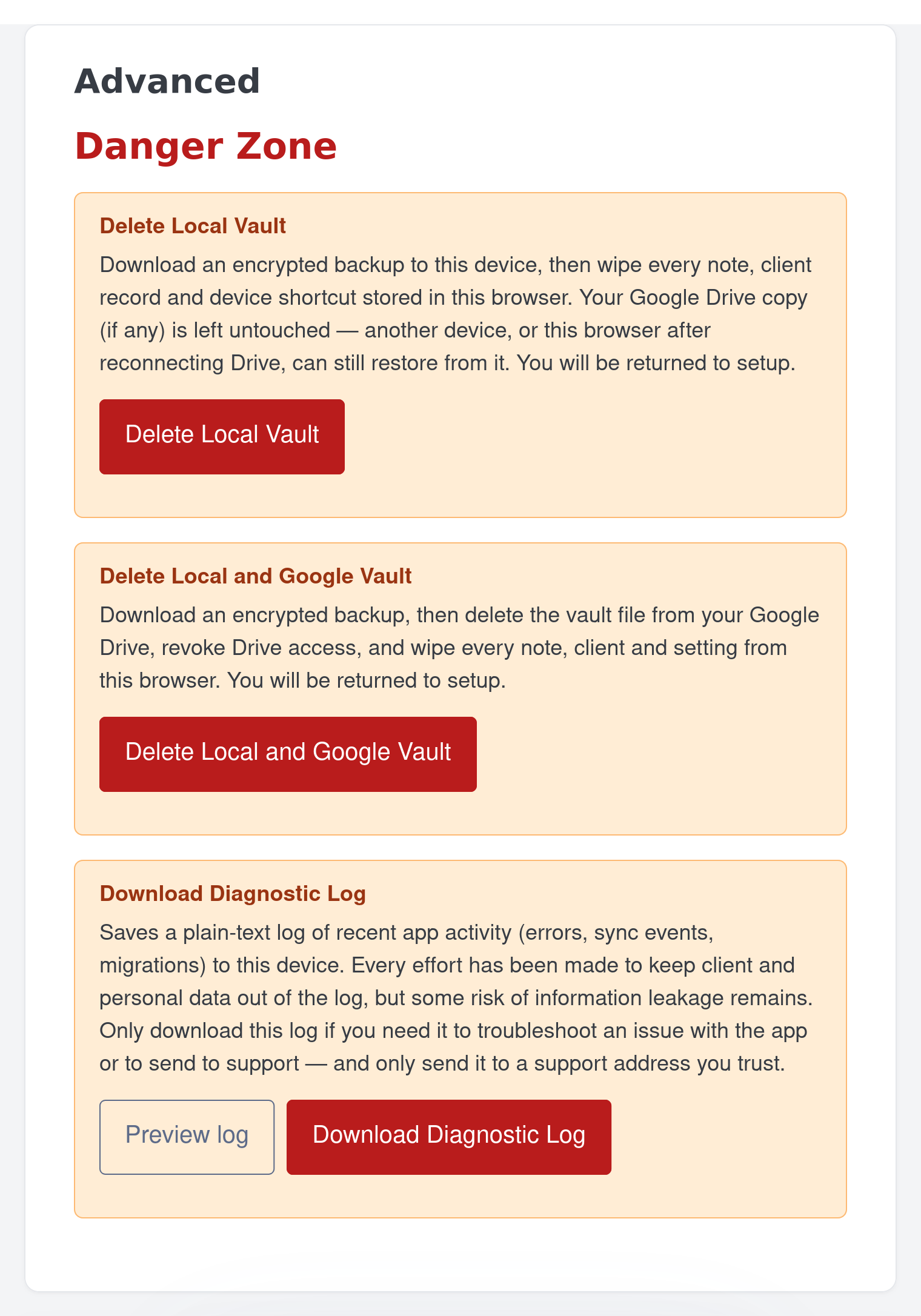
Delete Local Vault. Wipes every note, client record and setting from this browser. Leaves the encrypted vault file in your Google Drive untouched. Useful when you want this device to forget the vault but keep the Drive copy intact for another device or a fresh re-link.
Delete Local and Google Vault. Wipes the vault from this browser and deletes the encrypted vault file from your Google Drive in the same flow. Useful when you are decommissioning the app entirely.
Each button has its own confirmation dialog and its own pre-flight backup file; both dialogs ask for the same typed keyword, DELETE. The two flows do not share state.
Before you click anything — the verification checklist
Three things to confirm in your head before you click either red button:
Your current password is somewhere safe. A manager you can open right now, plus a paper copy. The pre-flight backup the Danger Zone is about to take is locked with this password, and that backup is your only undo button.
You have at least one prior backup somewhere safe. A .html file in your Downloads folder, or in your Notes In Confidence Backups Drive folder, or in the cloud-synced Downloads folder we suggest in Setting up your vault. Even though the Danger Zone takes a fresh backup before any wipe, a separate older backup is your second seatbelt.
You are on the device and Google account you intend to act on. Look at the navigation header — does it show what you expect? The Danger Zone affects whichever vault is currently unlocked in this browser, on this Google account.
If any of these is shaky, close the dialog and step back. The buttons will still be there in five minutes.
Delete Local Vault — step by step
- Open Advanced > Danger Zone.
- Click the red Delete Local Vault button. The confirmation dialog opens.
- Read the four-bullet list of what is about to happen.
- The Delete forever button is greyed out until you type the keyword
DELETEinto the input. Capitalisation and surrounding spaces don't matter —deleteworks too.
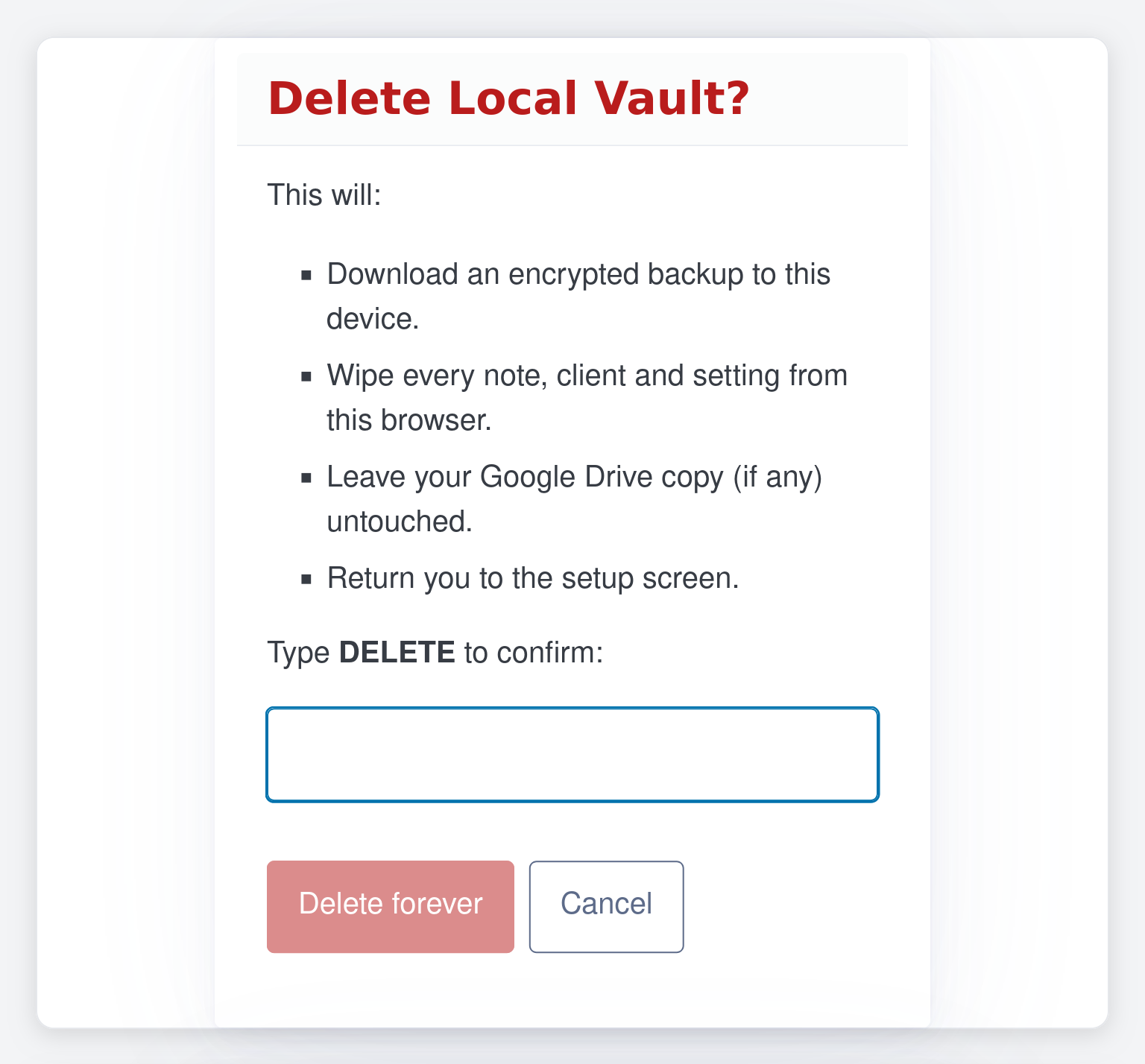
- Type
DELETEand the Delete forever button turns red and becomes clickable.
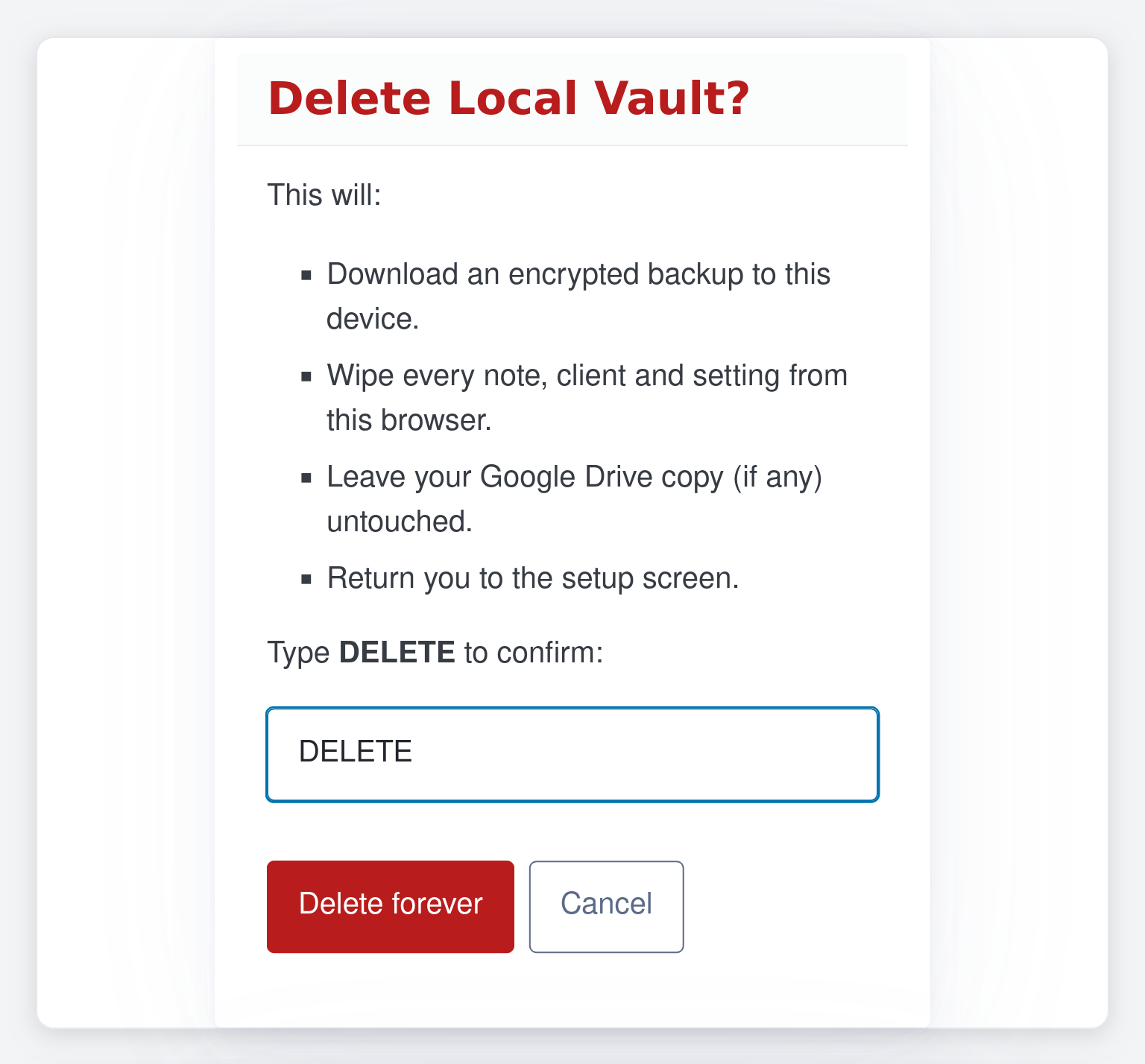
- Click Delete forever. The button label flips to Backing up… while the pre-flight backup downloads, then to Wiping local… while the local stores are wiped.
- A file named
tn-vault-before-local-delete.htmlappears in your Downloads folder. This file is locked with your current password and contains a complete encrypted snapshot of the vault as it stood the moment before deletion. - The page redirects to the setup screen.
The whole sequence usually takes a couple of seconds.
One small detail. Both delete flows tell the browser to suppress the Leave site? dialog that normally fires when you close a tab with unflushed Drive sync — because you already typed the confirmation keyword in the dialog above, there is no value in asking you a second time as the page redirects. The article The "Leave site?" prompt when sync is still in flight covers when that prompt does and does not appear in other paths.
What Delete Local Vault does and does not do
What it does behind the scenes (verified against static/js/settings.js):
- Downloads
tn-vault-before-local-delete.htmlto your Downloads folder. - Revokes this browser's Google Drive token.
- Forgets the saved Google account hint stored in vault meta.
- Stops the idle-lock watcher.
- Wipes the encrypted vault database (
tn_vault) and the diagnostic, activity, and sync-event log databases. - Clears the encryption key from this tab's memory.
- Redirects to
/app/setup/.
What it does not do:
- Does not touch the encrypted vault file in your hidden Drive folder. Another device that already has Drive Sync set up can still pull and use it; this browser, after re-signing in to Google, will see the same Drive vault and prompt for its password.
- Does not delete any backup files already in your Downloads folder.
- Does not delete the Notes In Confidence Backups folder in your visible Drive — those weekly self-decrypting backups stay where they are.
When to use Delete Local Vault
Handing this device to someone else. A clinic computer being passed to a colleague, a personal laptop being sold or given away. Wiping the local vault without touching Drive lets you re-link from a fresh device on your own time.
Switching this browser to a different Google account. You signed in with the wrong account during setup, or you are migrating from a personal Google to a clinic Google. Wipe local, then sign in again with the right account.
Recovering from a confused local state. A botched edit, a partial restore, an obvious corruption. Wipe local and re-pull the canonical copy from Drive.
Delete Local and Google Vault — step by step
- Open Advanced > Danger Zone.
- Click the red Delete Local and Google Vault button. The confirmation dialog opens.
- Read the five-bullet list of what is about to happen.
- The Delete forever button is greyed out until you type the keyword
DELETEinto the input. Capitalisation and surrounding spaces don't matter —deleteworks too.
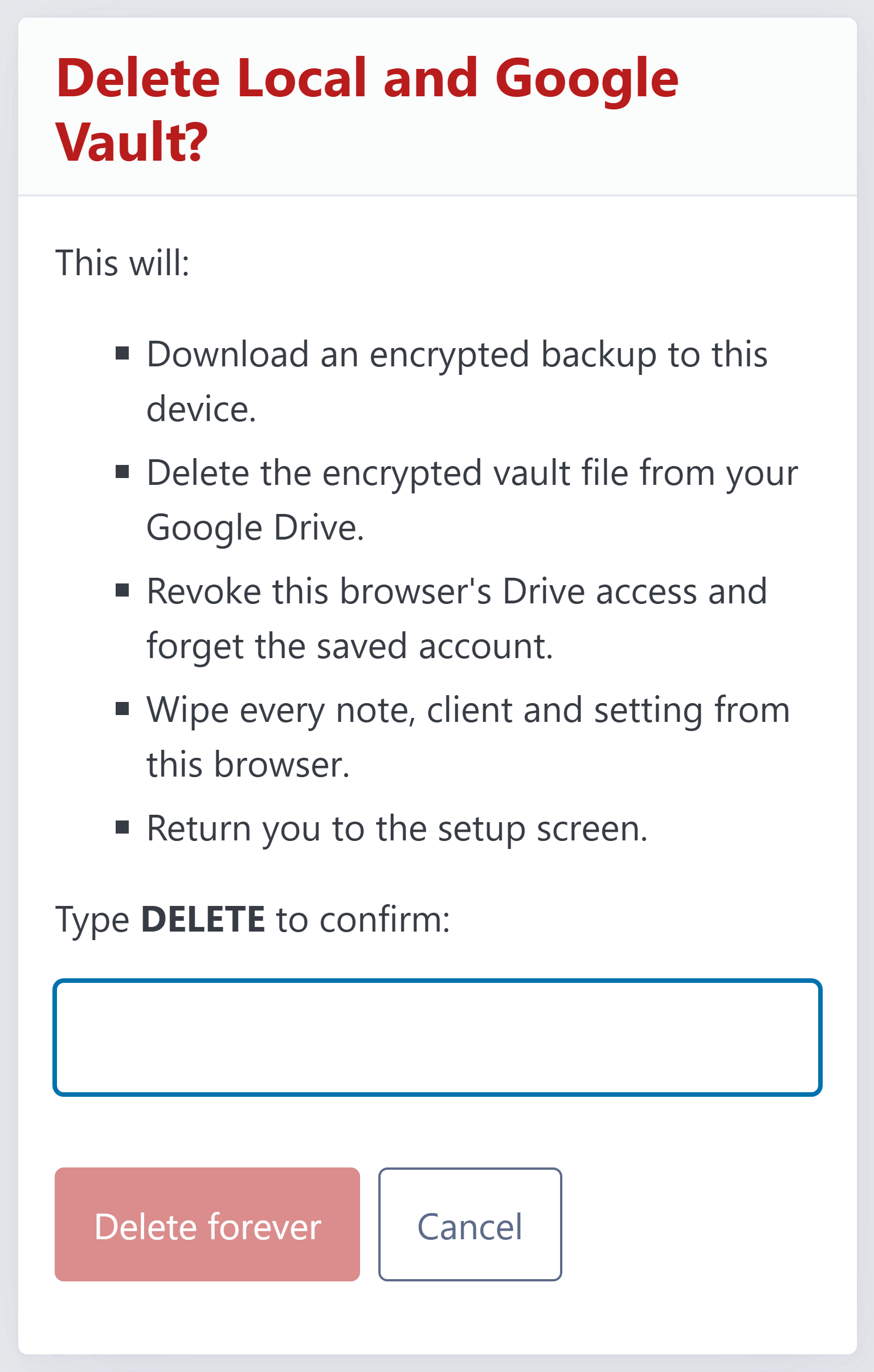
- Type
DELETEand the Delete forever button turns red and becomes clickable.
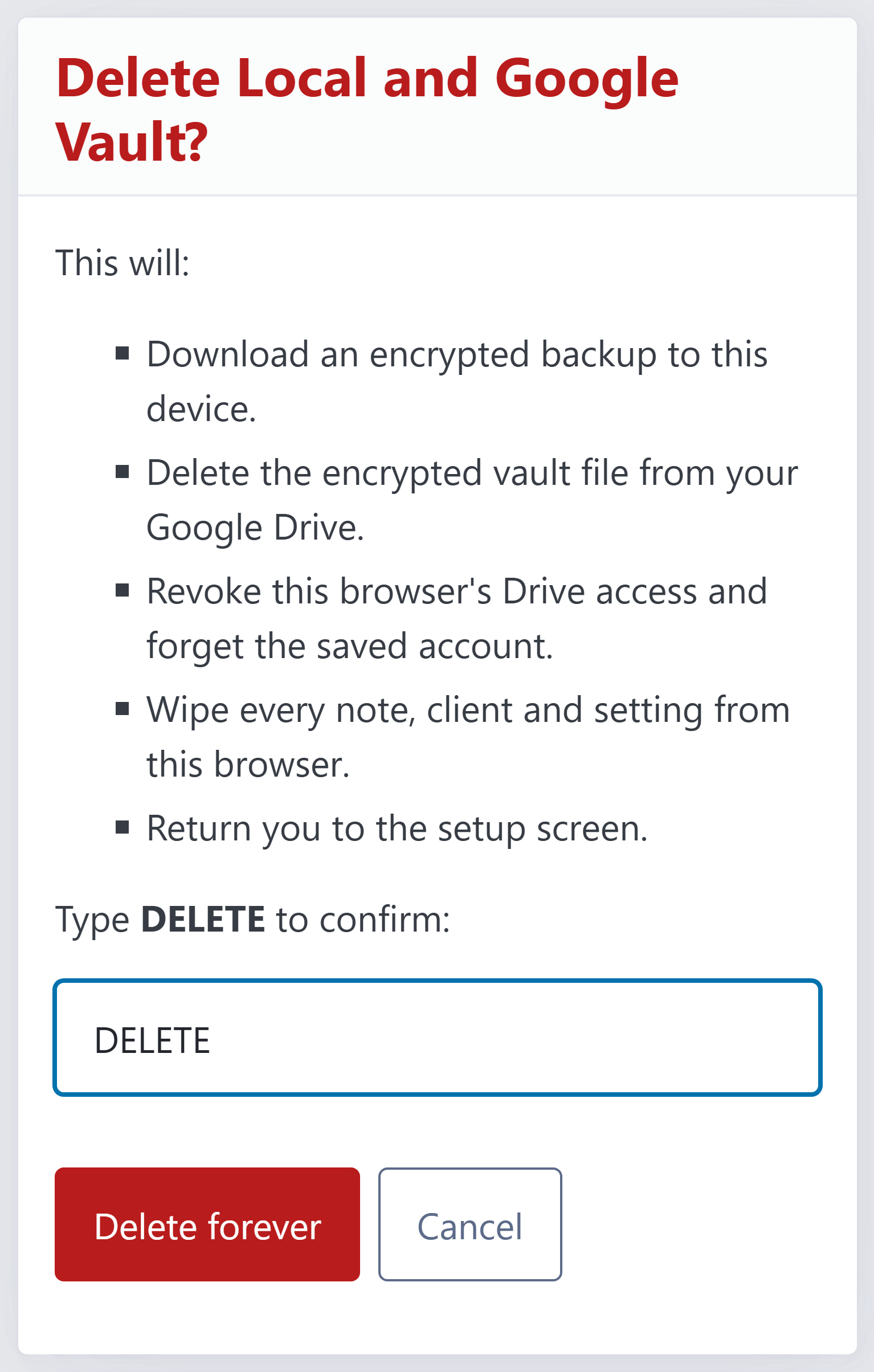
- Click Delete forever. The button label flips to Backing up… while the pre-flight backup downloads, then to Deleting everything… while the Drive file is deleted and the local stores are wiped.
- A file named
tn-vault-before-delete.htmlappears in your Downloads folder. This file is locked with your current password and contains a complete encrypted snapshot of the vault as it stood before deletion. - The page redirects to the setup screen.
What Delete Local and Google Vault does and does not do
What it does behind the scenes (verified against static/js/settings.js):
- Downloads
tn-vault-before-delete.htmlto your Downloads folder. - Calls Google Drive's API to delete the encrypted vault file from your hidden app folder.
- Revokes this browser's Drive token and forgets the saved Google account hint.
- Stops the idle-lock watcher.
- Wipes the encrypted vault database and the diagnostic, activity, and sync-event log databases on this browser.
- Clears the encryption key from this tab's memory.
- Redirects to
/app/setup/.
What it does not do:
- Does not delete the Notes In Confidence Backups folder in your visible Drive. Those weekly self-decrypting backups are written into a separate Drive scope and survive. If you want them gone too, delete them yourself in Drive afterwards.
- Does not delete any backup files in your Downloads folder.
- Does not remove the Notes In Confidence app from your Google Account permissions list. To finish the disconnection, visit
myaccount.google.com/permissionsand remove the app there.
What happens if the Drive delete step fails
The Drive-side cleanup is best-effort. The reasoning, drawn from the code comment that ships with the implementation: once the pre-flight backup has been written to disk, leaving clinical data on this device after the user confirmed delete is worse than a stale Drive file. So the local wipe still runs even if the Drive delete fails — your data is gone from this browser regardless.
If the Drive delete failed, a warning banner is stashed in the browser session and shown on the setup page when you land there. The wording is approximately "Drive file may not have been deleted:
When to use Delete Local and Google Vault
Decommissioning the app entirely on this Google account. You have decided to stop using Notes In Confidence and want every clinical record gone, on every device that syncs to this Drive.
Leaving practice. End of professional life with this account, no future reason to keep any of it.
Migrating to a different practice-management tool. You have exported what you need (see Exporting notes to plain or encrypted ZIP and Using your backup as a self-decrypting page), confirmed those exports actually open, and are now ready to remove the original.
In every case, take the pre-flight backup as the moment of no return test. Once it is downloaded, look at the file in your Downloads folder before you click Delete forever. Open it in a browser, type your password, scroll through the Notes tab. If everything is there, you can proceed.
The confirmation keyword
Both flows ask for the same keyword: DELETE. Capitalisation and surrounding spaces are ignored, so delete or Delete work just as well — phone keyboards that auto-capitalise the first letter cannot trip you up.
The typed keyword is not a puzzle. It exists to make the action deliberate, so a stray click can never wipe a vault. What separates the two flows is the dialog itself: each one lists exactly what is about to be destroyed. Read the bullets, not just the button.
Common questions
Can I undo a delete? Only via the pre-flight backup file in your Downloads folder, opened on a fresh setup or restored via the Restore from backup link. Once you wipe that backup file too, the data is unrecoverable.
Does Combined delete remove my Drive Backup folder? No. The seven-day self-decrypting backups in your visible Notes In Confidence Backups Drive folder are written under a separate OAuth scope and are not part of either delete flow. If you want them gone, delete the folder yourself in Drive after the wipe.
What if I clear my Downloads folder right after the delete? The pre-flight backup goes with it. Treat the moment you click Delete forever as the point of no return, and only clean up Downloads once you are sure you do not need that file.
Is the Delete local vault and start over link on the unlock screen the same as Delete Local Vault here? They produce a similar end state — local IDB wiped, redirect to setup — but the controls are different. The unlock-screen link is reachable when you cannot enter the password (for example, because you have forgotten it). The Danger Zone here is only reachable when you are unlocked, and crucially it takes a pre-flight backup first; the unlock-screen link does not, because there is no key in memory to encrypt one with. The article I forgot my password covers the unlock-screen path; this article covers the unlocked-and-deliberate path.
What to do next
After a Local-only delete, sign in to Google again on the setup page and re-link this browser to your existing Drive vault — the article Setting up your vault for the first time walks through the flow.
After a Combined delete, you are starting from scratch. Re-read Setting up your vault for the first time and treat this as a new vault.
Either way, do not delete the pre-flight backup file in your Downloads folder until you are completely sure you do not need it. A week is a sensible holding period.