This article walks through three things that fit together. First, the tabs at the top of every page and what each one is for. Second, how to add a client (which is a one-off step you do per person you see). Third, the small piece of cleverness that makes the Notes input page genuinely useful: it reorders the client list so the person most likely to need a note next sits at the top.
If you have just unlocked your vault for the first time, this article is the right place to start.
The tabs at the top of every page
Once you are unlocked, every page has the same header. There is a single navigation bar with two dropdowns, one extra link, and a Lock button.
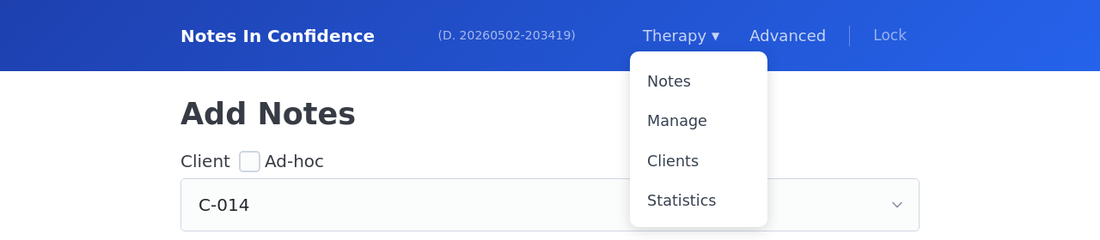
The Therapy dropdown contains everything to do with your client work.
Notes is the input page, where you write a session note after each session. It is the page you use most days. Most of this article is about that page.
Manage lists every note you have ever written, with filters by client, by ad-hoc, and by deactivated. Use it to find an older note, edit one you got wrong, or look back at a stretch of work for supervision. Clicking a row opens a slide-in side panel on the right that previews the note's content without leaving the list — Edit in the drawer header opens it for editing on the dashboard; Close dismisses the drawer and leaves you exactly where you were in the list.
Clients is your list of people. You add new clients here and edit existing ones. We come back to this in a moment.
Statistics is a date-filterable summary of your clinical activity. Useful for quarterly reviews, supervision, and any time you want to see how a client's frequency is actually playing out versus what was contracted. The Unknown count excludes any period between a Deactivate event and the next Reactivate event in a client's History, so paused stretches do not show up as missed sessions.
The Supervision dropdown only appears when supervision mode is on (Advanced > Supervision toggles it). It is structurally identical to the Therapy dropdown but operates on supervisees and supervision notes instead of clients and session notes. The two domains are kept entirely separate.
The Advanced link takes you to the settings area. It has its own tabbed layout: Help, Defaults, Drive, Backup, Install, Export, Security, Supervision, Privacy, and Danger Zone. The first tab is Help, which links straight back into this knowledge base for the topic you are most likely looking for. The Install tab is where you install Notes In Confidence as a local app on this device — see Installing Notes In Confidence on your device. The Defaults tab now also includes an Appearance section near the top with a Light / Dark / System theme picker — see Light, dark and system theme.
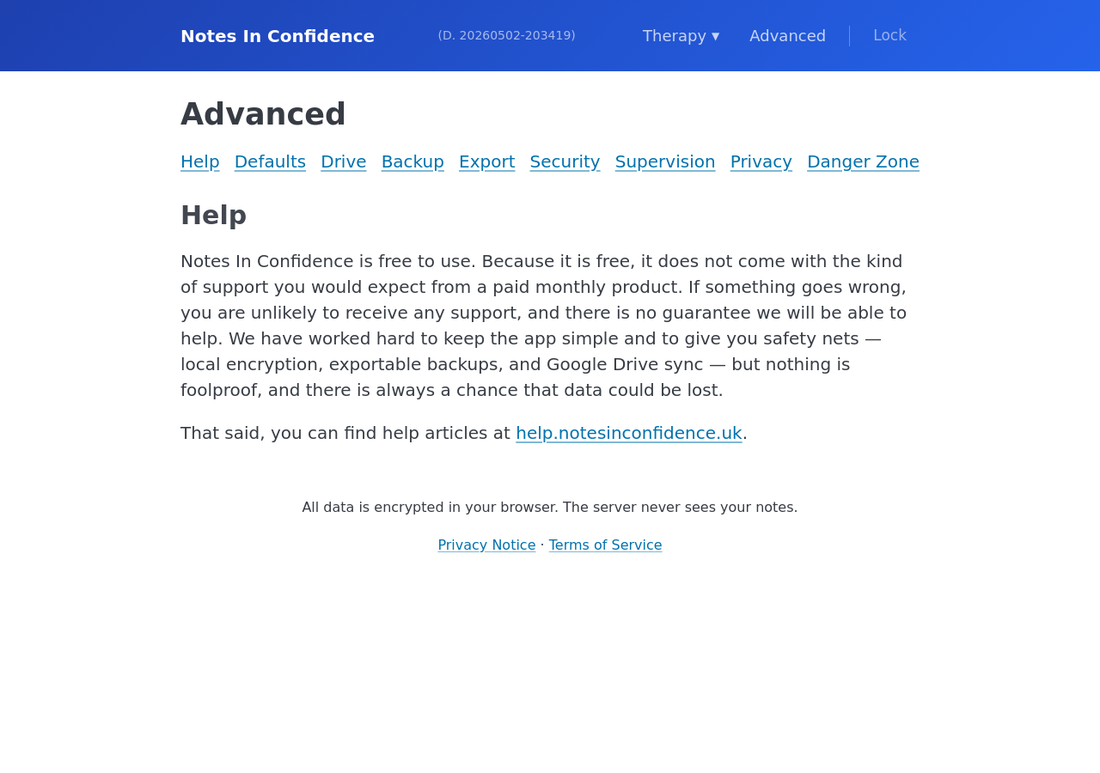
The other tabs you will probably touch occasionally are Defaults (where you set the templates that pre-populate every new note) and Backup (where you take or schedule backups). Most of the time you will not need to go in there.
The Lock button locks the vault on this device. It also flushes any pending Drive sync first, so you do not lose recent edits to a network blip. After locking, the unlock screen appears and you can step away from the device. Locking also releases the single-tab ownership lock, so the next tab you open the app in becomes the active one — see Only one tab at a time for what that means in practice.
The small (D. xxxxxxxx) chip just to the right of the Notes In Confidence title in the header is the deploy version. It is clickable on every authed page and opens the What's new article in a new tab, so you can check at any time whether anything you have noticed about the app's behaviour is in fact a recent change.
Adding your first client
Every note belongs to a client. So the first thing you do, after creating your vault, is add at least one client.
Open Therapy > Clients. The first time, the list is empty.
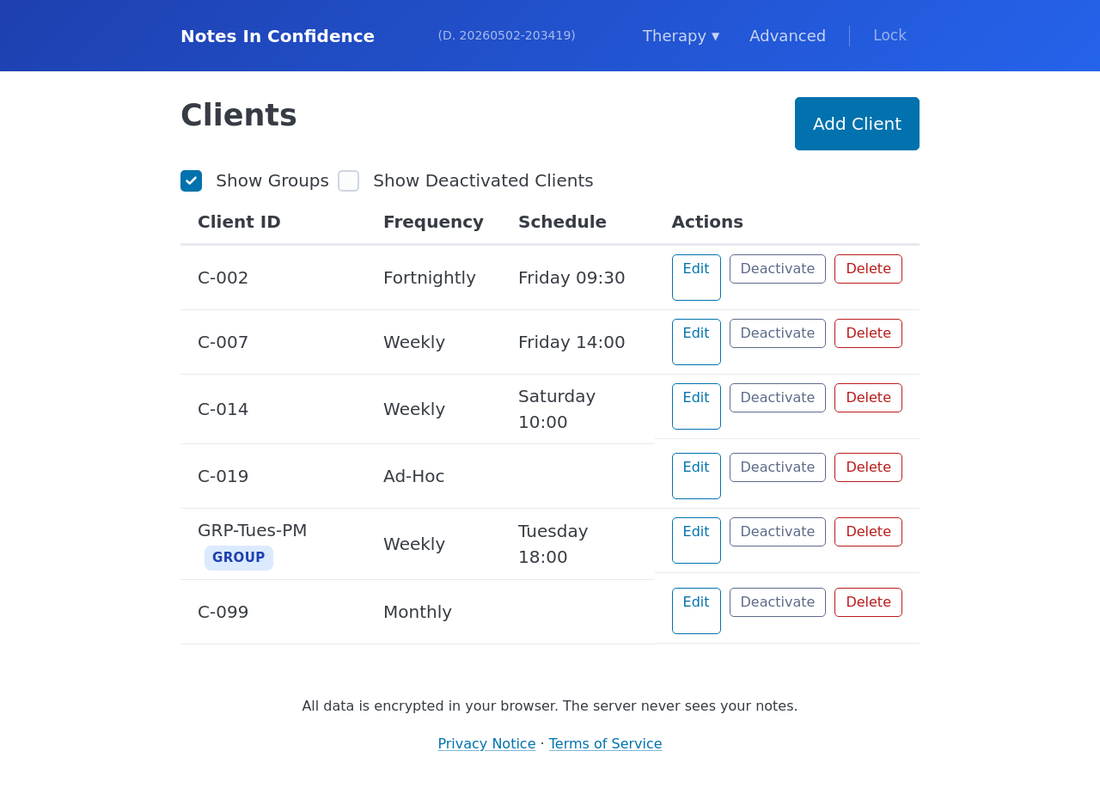
Click Add Client. The form opens.
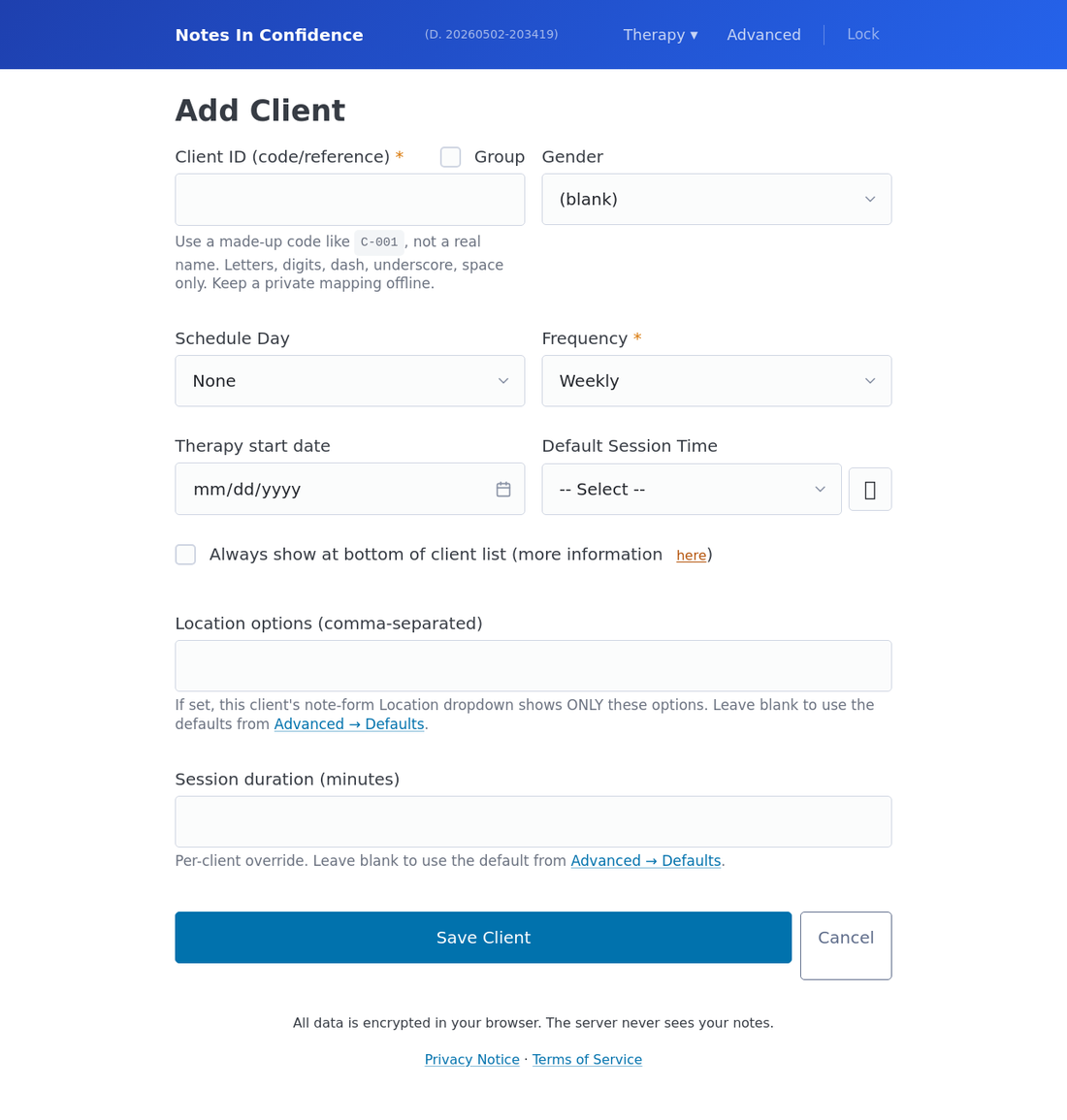
Fill in only as much as you actually need. The required fields are Client ID and Frequency. Everything else is optional.
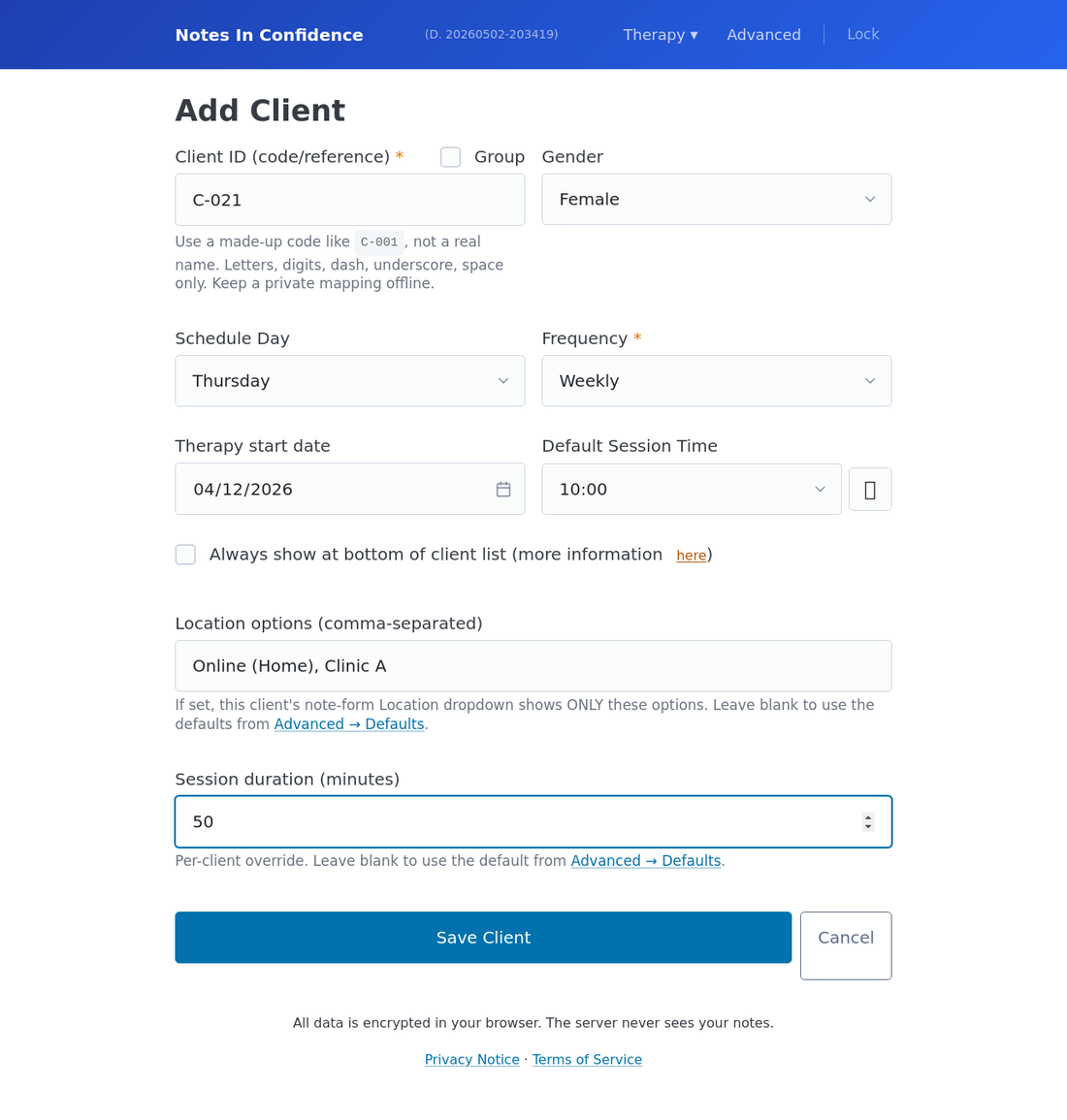
A few notes on the fields, in order:
Client ID is a code, never a name. Use something like "C-001", "Mon-1030", or any short reference that means something to you and nothing to anyone else. The form accepts letters, digits, dash, underscore, and space, up to 64 characters. Keep your private mapping (code to real name) somewhere offline, like a paper book in a locked drawer. The vault deliberately stores nothing that could identify a client.
Group turns the entry into a group rather than a single client. The Gender label is replaced by Group Description, where you can write a short note about who is in the group. Statistics treat groups separately if you want to filter them.
Schedule Day and Default Session Time describe when this client is normally seen. If a client is always at 10:00 on Tuesdays, set those, and the Notes form will pre-populate when you select that client. The clock icon next to the time selector lets you enter a non-standard time if your slot is, say, 10:45.
Frequency is required. Pick Weekly, Fortnightly, Monthly, or Ad-Hoc. This feeds the smart ordering on the Notes page (see the next section).
Therapy start date is for your records and feeds tenure-based statistics.
Always show at bottom of client list is an opt-out from the smart ordering. Tick it for archive clients you keep for retention but who no longer have active sessions. They will sit at the bottom of the dropdown regardless of when their next session is due.
Location options is a per-client override. The Notes form's Location dropdown normally shows the global defaults set in Advanced > Defaults. If you fill in a comma-separated list here for a single client (for example "Online (Home), Clinic A"), the Notes form's Location dropdown will show only those when this client is selected. Useful for clients who alternate between specific physical rooms.
Session duration is another per-client override. If your global default is 50 minutes but this client books 60, set 60 here and the Notes form will pre-fill 60 every time you pick this client. Leave it blank to use the global default.
When you click Save Client, the record is encrypted in your browser and written to your local vault. About thirty seconds later it is pushed to your hidden Google Drive app folder, still encrypted, in the background.
The Notes input page
Open Therapy > Notes. This is the page where you actually write a session note.
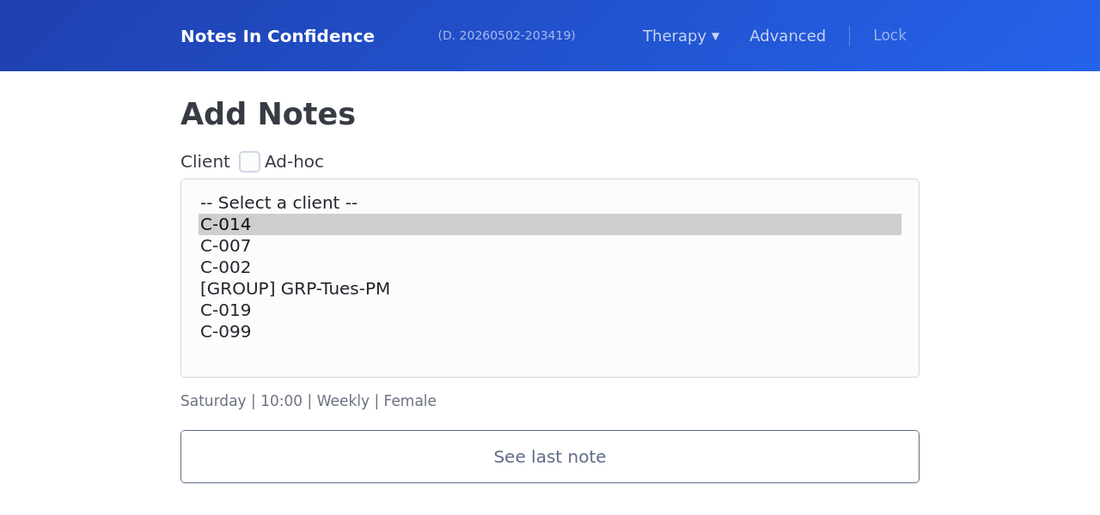
The top of the form has the dashboard heading (which changes with what you are doing — Client Quick Dashboard - New Note by default, Exploring Notes - Viewing when a saved note is loaded, Client Quick Dashboard - Ad-Hoc - New Note in ad-hoc mode), a small Switch to Ad-hoc button below it, the client dropdown, and a See last note button that becomes active once a client is selected. To write a note for someone not in your client list, click Switch to Ad-hoc (it becomes Exit Ad-hoc in that mode).
You normally just click the dropdown, pick the client, and start typing. The dropdown is where the cleverness lives.
How the client dropdown decides who goes first
Imagine you have a dozen clients. You sit down at the end of the day to write up notes. The most useful thing the app can do is show you, at the top of the list, the client most likely to need a note right now.
The list is reordered automatically every time you open the Notes page.
The order takes account of four things: the client's frequency, the schedule day, how long it has been since the last note for that client, and any session that is due today.
In plain language:
A client whose session is today, with no note yet saved, rises to the top. That is almost certainly who you are about to write up.
A client whose last note is older than expected for their frequency rises higher still. A weekly client you haven't written about in nine days is probably overdue.
Upcoming sessions sort by proximity. Tomorrow's clients sit above next-week's clients.
Ad-hoc and infrequent clients sit below the scheduled ones, since they are by definition less time-bound.
The Always show at bottom override pins a client below everything else regardless of when they are due. Use it for clients you no longer actively work with but still need on file.
A small line under the dropdown shows the schedule for the currently selected client, so you can sanity-check at a glance: "Friday | 10:00 | Weekly | Female". That confirms which client you are about to write up before you start typing.
Selecting a client and writing a note
Once you select a client, the form populates with whatever defaults apply for them. Date and time pre-fill. Duration pre-fills (the per-client override if there is one, otherwise the global default). Location pre-fills. The Risk, Interventions, and Actions sections pre-fill from your default templates.
If you click See last note, the form loads the most recent note for this client into view-mode, so you can remind yourself what you wrote last time before starting today's note. The heading flips to Exploring Notes - Viewing, the form fields are read-only, the small button next to the heading becomes a prominent blue Back to Dashboard button, and a one-line navigation row appears under the client's schedule: Previous note · See other notes · Next note. Previous and Next step through this client's notes in date order; See other notes jumps you to Manage Notes filtered to the same client. Clicking a row in Recent Notes below the form lands you in the same mode with a brief Viewing note from
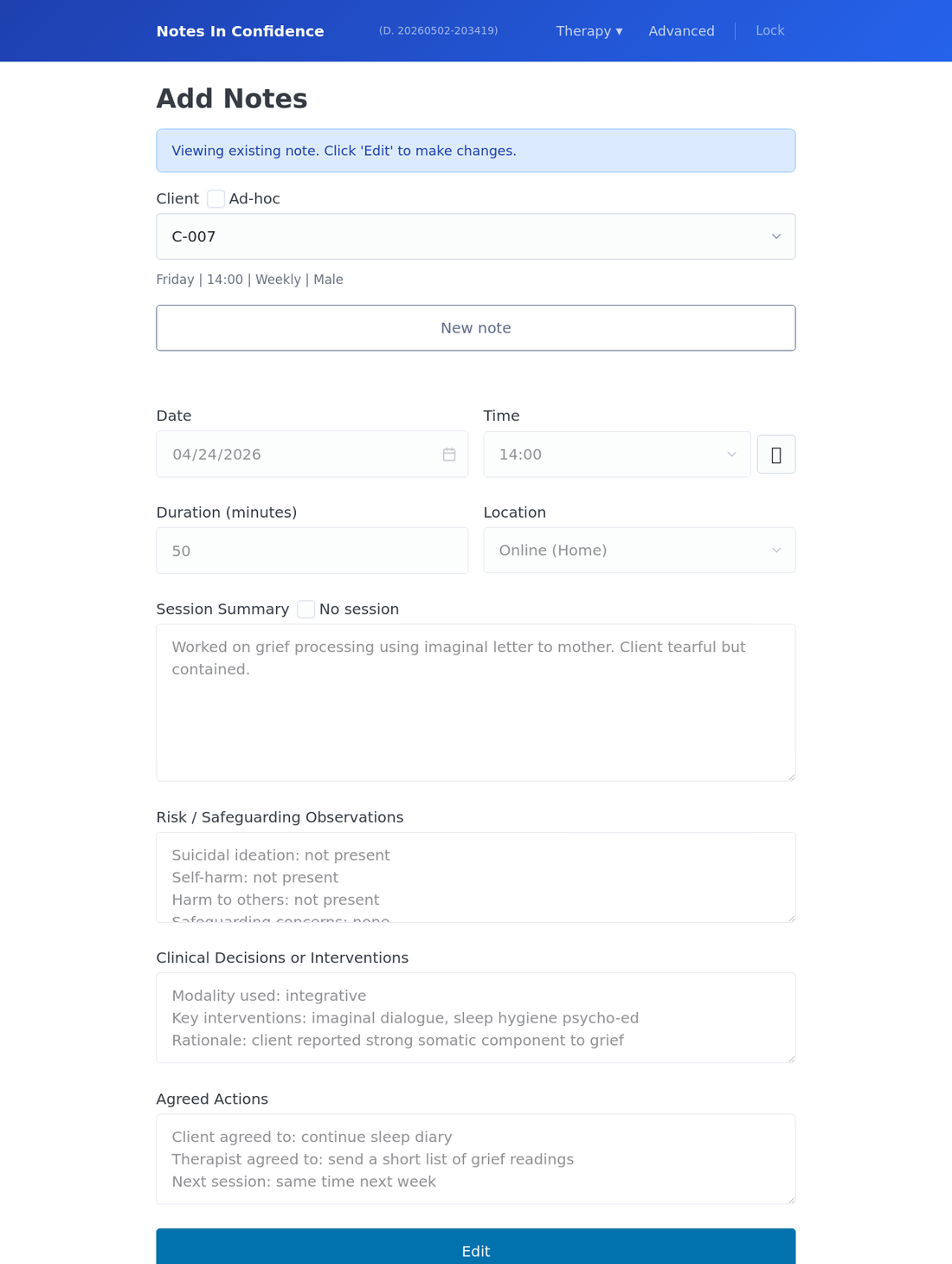
The form here shows a client's last session, with the four-section structure visible: Session Summary, Risk and Safeguarding Observations, Clinical Decisions or Interventions, and Agreed Actions. From here, click New note to start a fresh note for today's session (the form falls back to today's date and the current time if the client's next scheduled slot already has a note saved against it, so an unscheduled / emergency session does not need date and time cleared by hand), Edit to amend the existing note, or Cancel to undo the gesture you just made. Cancel reloads the saved version when you are editing a note, returns to a viewed note when you have just clicked New note, and re-populates the schedule defaults on a fresh form.
When you click Save note, the note is encrypted in your browser, written to the local vault, and pushed to your hidden Google Drive app folder within thirty seconds, still encrypted. The Recent Notes section below the form refreshes to show the latest few notes for this client.
A few small things that pay off
Set sensible defaults before you start. Open Advanced > Defaults once before adding clients. Set the default duration, the default location list, and the default templates for Risk, Interventions, and Actions. Most therapists find that a short prompt list ("Suicidal ideation: not present / present, see below") in the default template is more useful than a blank field, because it nudges you to comment on each item rather than skipping past it.
Use Ad-hoc for one-off contacts. If you write a note for someone you have not formally added as a client (a one-off contact, a brief consultation), tick Ad-hoc above the client dropdown and type a short identifier in its place. Ad-hoc notes are kept separately and can be filtered in or out on the Manage Notes and Statistics screens.
Use the No session tickbox if a session did not happen. Above the Session Summary, tick No session and pick a reason: missed, cancelled, away, illness, or holiday. The session row is still recorded, so your statistics reflect it, but the body fields are skipped and you do not have to write anything.
Use Manage Notes to find old notes. Therapy > Manage lists every note with date, time, and client. Filter by client, by ad-hoc, or by deactivated, and use the next/previous page buttons at the bottom to scroll through.