You unlock your vault on your laptop. Instead of going straight to the dashboard, a dialog opens:
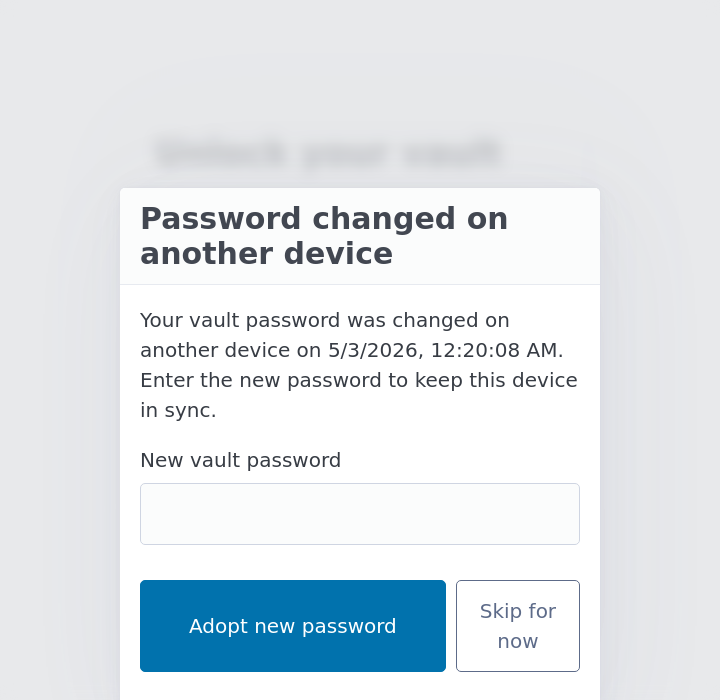
That is the cross-device rotation prompt. It appears the first time a device sees that the vault in your hidden Drive folder is encrypted under a different key than the one this device knows about. This article walks through what is going on, what each button does, and what state your vault is in afterwards.
What the prompt actually means
When you change your vault password on any device, two things happen at once. Every record on that device is re-encrypted with the new key. The whole encrypted vault is then pushed to your hidden Drive folder, marked with a higher key generation number than before.
The next time another device tries to pull from Drive, it notices the key generation has gone up since it last looked. It cannot decrypt the new file with the old key it has, so it stops, surfaces this prompt, and asks you to type the new password. Once you do, it re-encrypts every local row to match the new key and resumes.
The prompt is not an error. It is the design.
What to type
Type the password you set on the other device. The most recent one you chose. Not the password this device is on right now, which is the old one.
If you correctly enter the new password, the dialog closes, every local row is migrated to the new key, the vault unlocks, and a small notice on the dashboard confirms the change was adopted.
What happens if you get it wrong
The dialog backs you off after a wrong attempt, exactly like the regular unlock screen. After each wrong attempt the Adopt new password button is replaced by a countdown timer that doubles each time: Wait 1s, then 2s, 4s, 8s, 16s, and capping at 30s from the sixth wrong attempt onward. This is to make brute-force attacks against the rotated envelope impractical.
If you genuinely cannot remember the new password, see the I forgot my password article for the recovery story. The short version: there is no reset, and the only fall-back is a Local Backup file made under a password you do remember.
What "Skip for now" does
The dialog also has a Skip for now button. It does not block you from using this device, but the consequences are worth understanding.
If you skip, your vault on this device stays unlocked under the old password. You can read and search every note that was already there. Editing is paused (the read-only banner appears, because the engine cannot push to Drive any more — it would push under the wrong key). Sync is paused.
In short: skipping is the I do not have the new password to hand right now, but I want to keep using this device read-only option. It is a parking option. It is not a permanent state.
To resume read-write later, you have two choices. Either come back to this prompt by signing out and unlocking again (which re-shows the dialog), or restore from a Local Backup file taken under whichever password you do remember.
What the dashboard looks like immediately after
If the adoption succeeded, you land on the dashboard with a small toast message at the top:
Adopted new vault password from another device.
This is a one-shot notice and disappears on the next page navigation. Behind the scenes, every record in this browser's IndexedDB has been re-encrypted with the new key, the next push to Drive will use the new key, and any pending edits are flushed.
If the adoption succeeded but the post-adoption push failed for some reason (network blip in the seconds after typing the new password), the read-only banner appears instead. The local migration worked; only the confirmation push to Drive did not. Click Reconnect on the banner to retry.
What this means for your existing backups
A backup is locked with the password active when it was downloaded. After a password change, your old backups (the ones you took before the change) still need the old password. Backups taken from this point forward will need the new password.
This is why every password-change page in the app strongly recommends taking a fresh Local Backup right after the change. Otherwise the most recent state of your notes is recoverable only with a password that may, given enough months, drift out of memory.
If you have a stack of old backups, label them. A short text file in the same folder noting "backups before 1 May 2026: password A; backups after: password B" pays off the day you actually need to use one.
When this prompt fires unexpectedly
If you get the rotation prompt and you are sure you did not change your password, two scenarios are worth checking.
You forgot a brief experiment. People sometimes change their password on a device, decide they prefer the old one, and forget. Your password manager (Chrome's Password Manager, Safari Keychain, 1Password) almost certainly has the most recent one stored even if you do not remember choosing it. Check there first.
Someone else has access to a device that holds your vault. This is the worry case. If you genuinely did not change your password and you cannot find a record of having done so, the most likely cause is that someone with access to one of your devices changed it without telling you. Treat this seriously: lock the device you are on, sign out of Google on every device you do not actively control, and consider whether to migrate the vault to a fresh Google account that nobody else can sign in to.
The I forgot my password article covers what your fall-back options are if you cannot get into the new state.
The "rotation in progress" warning
There is a related but rarer warning that can appear on the unlock screen:
Warning: your last password change was interrupted. Some items may fail to decrypt regardless of which password you use.
This appears if the previous password rotation on this device was killed mid-flight (browser closed, tab refreshed, computer crashed). It means some rows in this browser's IndexedDB may have been re-encrypted with the new key while others are still under the old key — neither password will open both halves cleanly.
The recovery path is straightforward and the app prepared it for you in advance. Before any password change, the app automatically downloads a pre-rotation backup file. This file is in your Downloads folder, named like tn-backup-pre-password-change-2026-05-04T13-22-09-000Z.html, and it is locked with the old password. Restore from it via the Restore page, type the old password, and the vault returns to a clean state under the old key. From there, you can attempt the password change again. The article Changing your vault password covers the rotation flow in detail.
If you cannot find the pre-rotation backup, fall back to your most recent regular Local Backup taken before the rotation attempt. Same recovery path.