Notes In Confidence supports three theme modes — Light, Dark, and System. The setting lives near the top of Advanced > Defaults, in the Appearance section above the Note defaults. Your choice is stored in your encrypted vault and syncs to your other devices on the next Drive sync, so picking Dark on your laptop means your phone uses Dark too.
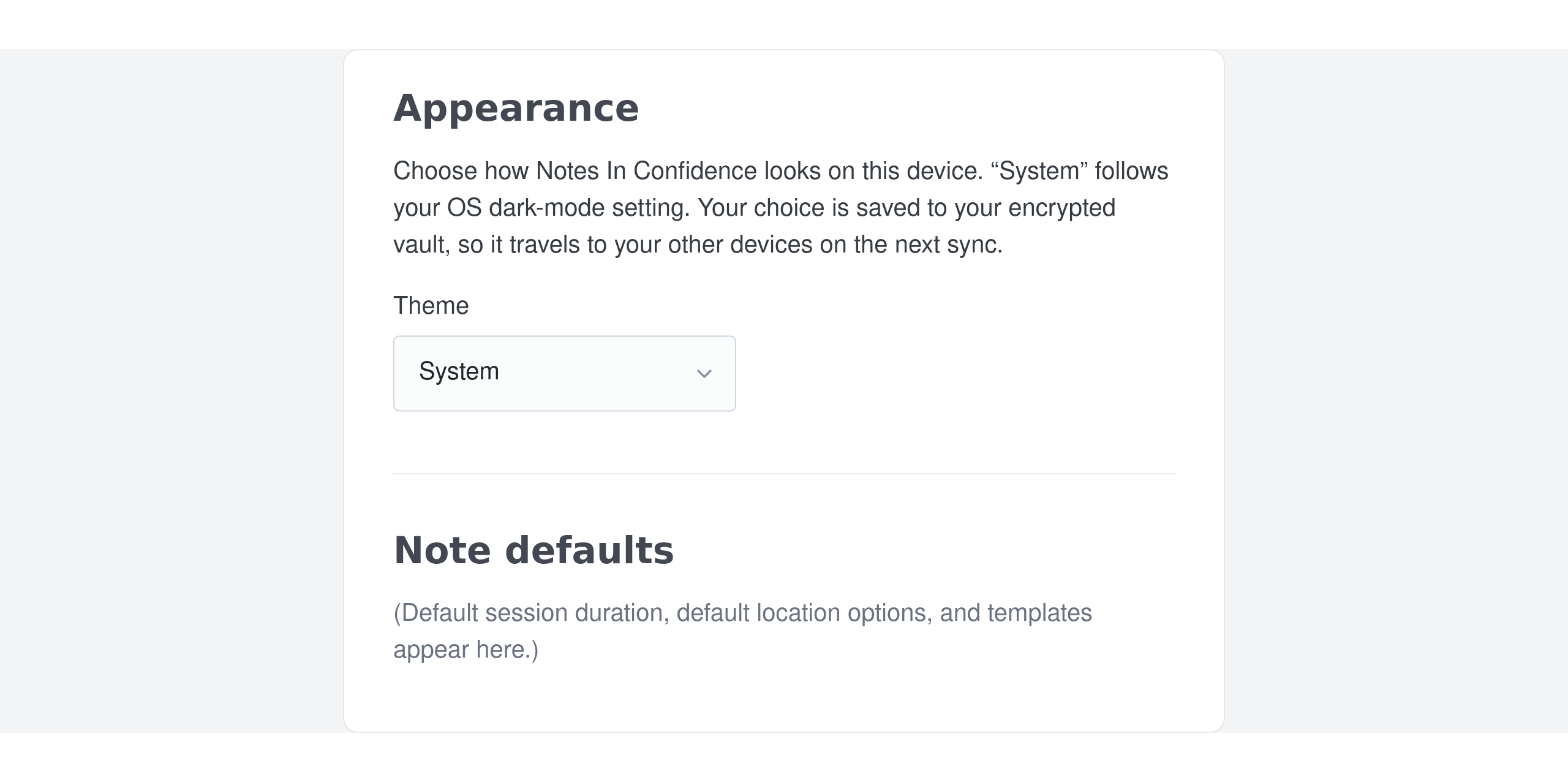
The three options
System (default). The app follows your operating system's dark-mode setting. macOS General → Appearance, Windows 11 Personalisation → Colours → Choose your mode, iOS Settings → Display & Brightness, and Android Settings → Display → Dark theme are all honoured. If you have your OS set to switch between light and dark on a schedule, Notes In Confidence switches at the same moments — the app listens for the system signal and updates immediately, no reload needed.
Light. A fixed light theme regardless of what the OS says. Useful if you prefer light themes in software and your OS goes dark in the evening.
Dark. A fixed dark theme. Useful in the opposite situation, or in any clinic with low ambient light, or if dark themes are easier on your eyes generally.
How the choice is stored
Two storage layers, so the right theme can apply on first paint:
- Per-device cache. A small flag in this browser's local storage records your preference. This is read before the vault is unlocked, so the unlock screen, the setup pages, and the landing page all render in the right theme on the very first frame.
- Cross-device sync. The same preference is also saved inside your encrypted vault on Drive Sync, so a second device of yours picks it up automatically on next unlock. If the two ever disagree (you changed the setting on device A while device B was offline) the vault is the authoritative copy and device B reconciles to match the next time it syncs.
Nothing about the theme picker is sent anywhere outside your own browser and your own Drive. The setting itself is metadata (the literal word system, light, or dark) and contains no clinical data.
How to change it
- Open Advanced > Defaults.
- The first card on the page is Appearance.
- Pick System, Light, or Dark from the dropdown.
- The change applies immediately — there is no Save button on this card; the new theme paints the page as you select it.
A few small details
Help articles. This help site has its own copy of the theme picker behaviour — it follows your operating system's dark mode setting. If you would prefer the help site to always be in light mode, your OS dark-mode toggle is the place to do that; the help site has no local override.
The installed PWA. If you have installed Notes In Confidence as a local app (see Installing Notes In Confidence on your device), the installed copy honours the same theme preference. System mode follows the OS just as it does in a browser tab.
Print and export. Plain-text exports and Drive-Backup HTML files do not have a "theme" — they are plain text inside a ZIP, or self-decrypting HTML with its own light styling. The theme picker only affects the live app's pages.
What to do next
If you want to install the app locally so the dark theme also applies in a dedicated window without the browser bar, Installing Notes In Confidence on your device covers the install paths. If you want to know what other things you can adjust on this page, Finding your way around: tabs, clients, and the smart Notes input describes the rest of Advanced > Defaults.