You open the app in a second tab, expecting to pick up where you left off, and instead you see this:
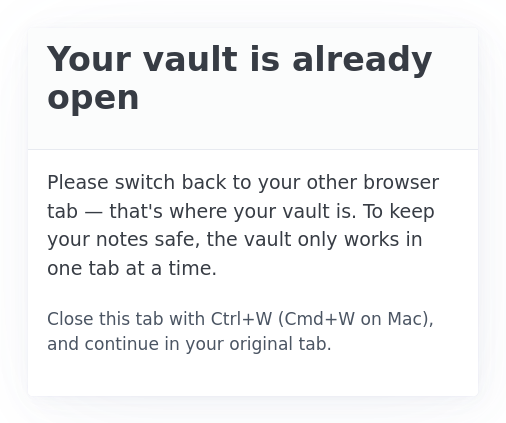
That is not an error. It is the deliberate single-tab rule: only one browser tab at a time may have the vault unlocked, on this browser, on this device. This article explains why, what triggers the page, what releases the lock, and how to recover if the page seems stuck.
Why the rule exists
The vault key is held only in the unlocked tab's memory, and a handful of operations rewrite many rows at once — most importantly a password change, which re-encrypts every record under the new key. If a second tab were unlocked at the same time, it could be holding the old key, reading a just-rotated row, failing to decrypt, then writing a partially-blank record back, silently losing every field the user happened not to be editing in that tab. Rather than try to detect and merge those races afterwards, the app refuses to let the second tab open. The same belt-and-braces logic powers the read-only sync lockdown: pause writes rather than risk silent loss.
The lock is implemented with the browser's Web Locks API under the name tn_vault_owner. The first authed page-load wins; later tabs see the lock fail and redirect to /app/already-open/.
When you will see this page
Three real scenarios produce it.
You opened the app in a second tab. The most common cause. You forgot you already had a tab on the dashboard, or you middle-clicked a bookmark, or you opened a /app/... link from another app. The first tab still has the lock; the second tab cannot get it.
You duplicated a tab. Right-click the tab and Duplicate. The original tab keeps the lock; the duplicate goes to the already open page. Same logic as above.
You opened the unlock or restore screen in a second tab. Even the unlock screen and the setup screen acquire the lock — that way two tabs cannot race to start unlocking the same vault. So a tab sitting on /app/unlock/ from earlier in the day will block a fresh unlock attempt in another tab.
What releases the lock
Anything that destroys the JavaScript context of the tab that holds the lock will free it for the next tab to claim:
- Closing the tab.
- Clicking Lock in the navigation bar.
- The 15-minute idle auto-lock firing.
- The vault being force-locked by a password rotation.
- The Delete local vault and start over path.
- Navigating the active tab to a non-app URL.
After release, the next tab you open the app in becomes the active one. There is no waiting, no manual handoff.
What does not release the lock
- Reloading the active tab. The same tab keeps ownership across a reload.
- Switching browser windows. Window focus does not change which tab holds the lock.
- Closing a different tab that does not have the vault unlocked.
- Putting the laptop to sleep. The lock survives sleep / hibernation; it releases when the page context is destroyed.
A small Firefox wrinkle
Firefox has a Restore previous session feature that, if enabled, brings back your tabs after a full browser restart. To make sure tab ownership starts fresh after a restart, the server sends Cache-Control: no-store on every /app/ page. That header opts every modern browser (Chrome, Firefox, Safari, Edge) out of the back-forward cache, so a restored tab actually rebuilds its page from scratch and re-acquires the lock cleanly.
In practice this means a restored Firefox session may take half a second longer to show your dashboard than a Chrome restart would. If you ever notice the already open page appearing right after a restart, refresh once and the lock claim resolves.
Recovering when the page seems stuck
If the already open message keeps appearing and you genuinely cannot find the other tab:
1. Look across all browser windows. The other tab might be in a window you minimised days ago. On Windows, Alt+Tab. On macOS, *Cmd+* cycles between windows of the same app. Look for any tab onnotes.notesinconfidence.uk`.
2. Use the tab search feature in your browser. Chrome and Edge have a tab search button at the top right (small downward arrow). Firefox has Ctrl+Shift+A. Search for Notes In Confidence.
3. If the other tab is on a window you do not control (a guest profile, a different OS user account, a remote desktop session), close that session entirely. The lock is per-browser per-OS-user, so closing the other session releases the lock.
4. As a last resort, close the browser entirely. Closing every window of your browser destroys all JS contexts and releases all locks; the next browser launch starts fresh. Be aware: there is no autosave. Anything you typed into the form in the unlocked tab but had not clicked Save note on is lost when that tab closes. If you want to be safe, copy unsaved text out into a plain text file before closing the browser.
Why the navigation feels different in the second tab
The already open page does not extend the normal authed shell. There is no Lock button, no Therapy menu, no settings link. That is intentional: the second tab does not have an unlocked vault, so the navigation that depends on an unlocked vault is hidden. The page is just a single message and a hint to use Ctrl+W to close it.
What to do next
The lock-and-idle article covers the partner topic of when a tab releases the lock automatically — the 14-minute idle warning, the 15-minute force-lock, the manual Lock button. If you have lost access entirely and cannot find any tab, I forgot my password is the article that walks through the recovery options.